


 Free 3D
 3D Print Models
 3D Scans
 Animation & MoCap
 Textures
 Materials
 Skin Reference
 2D Game Assets
 Sound Effects
 Brushes & Tools
 Reference Photos
 Stock Images
 HDR Images
 3ds Max
 Maya
 Blender
 Unreal Engine
 Unity
 ZBrush
 Cinema 4D
 LightWave
 Marmoset
 SketchUp
 FBX
 DAE
 DXF
 GLB
Batch Simulate - Queue dForce Scenes for DAZ 4+6

Not Rated Yet


! REPORT
NOTE: DIGITAL DOWNLOAD, NOT A PHYSICAL ITEM

Add to Collection

0 Likes
Share This Daz Content


Offered By


License
Extended Use License
This item comes with our Extended Use Licensing. This means that you may use the model for both non-commercial and commercial purposes, in a variety of mediums and applications.
For full license terms, see our 3D Content Licensing Agreement
Item Details
| Vendor: | AffectionX |
| Published: | Nov 22, 2026 |
| Download Size: | 8 KB |
| Software: | Daz Studio |
| dForce: | – |
Included Formats

Statistics
| Favorites: | 0 |
| Likes: | 0 |
| Views: | 14 |
Item Ratings
Not Rated Yet
Batch Simulate - Queue dForce Scenes for DAZ 4+6
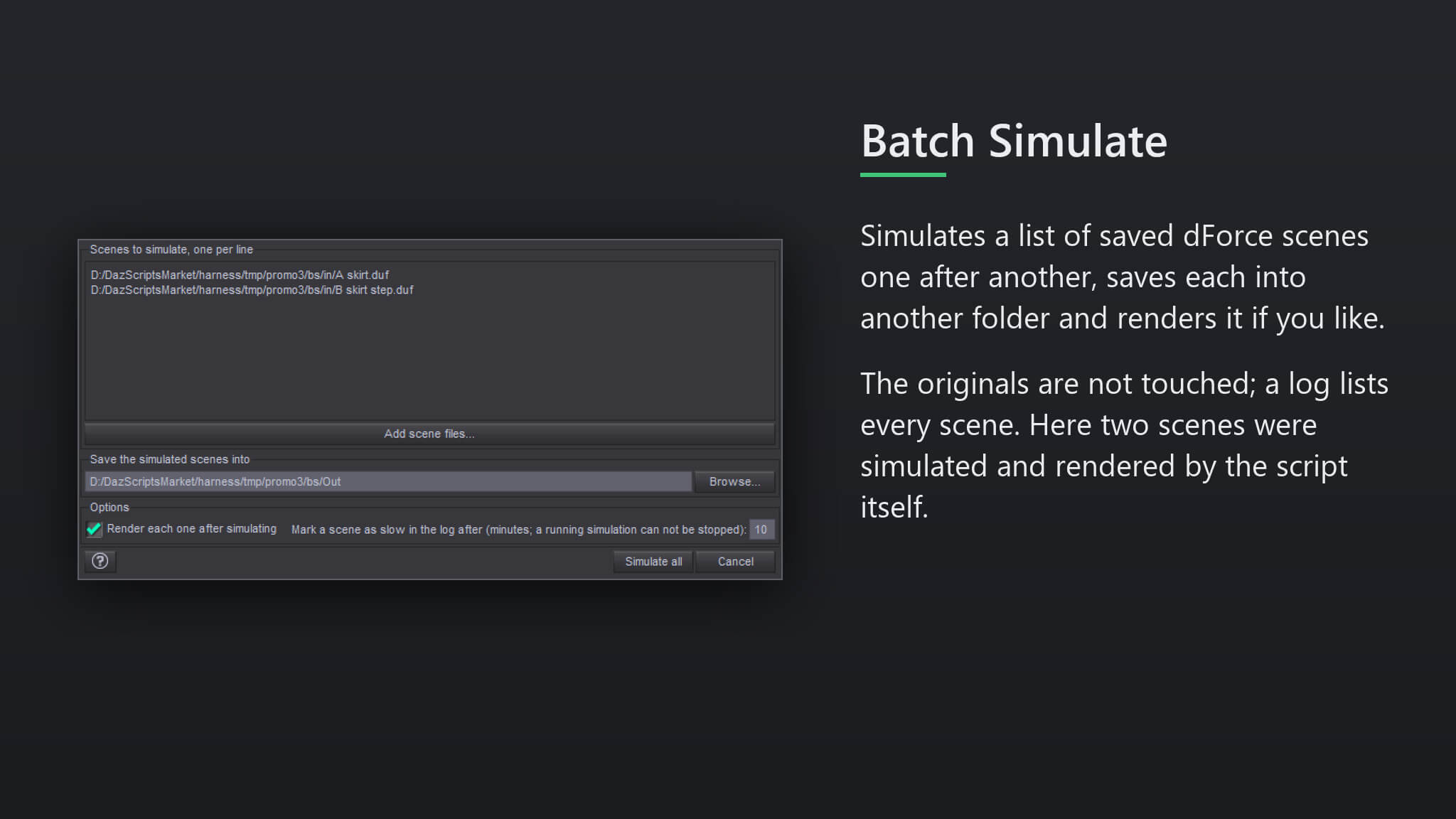
dForce simulations take time, and running several scenes means waiting to start each one. Batch Simulate runs the simulations of several saved scenes one after another, for example overnight.
Features
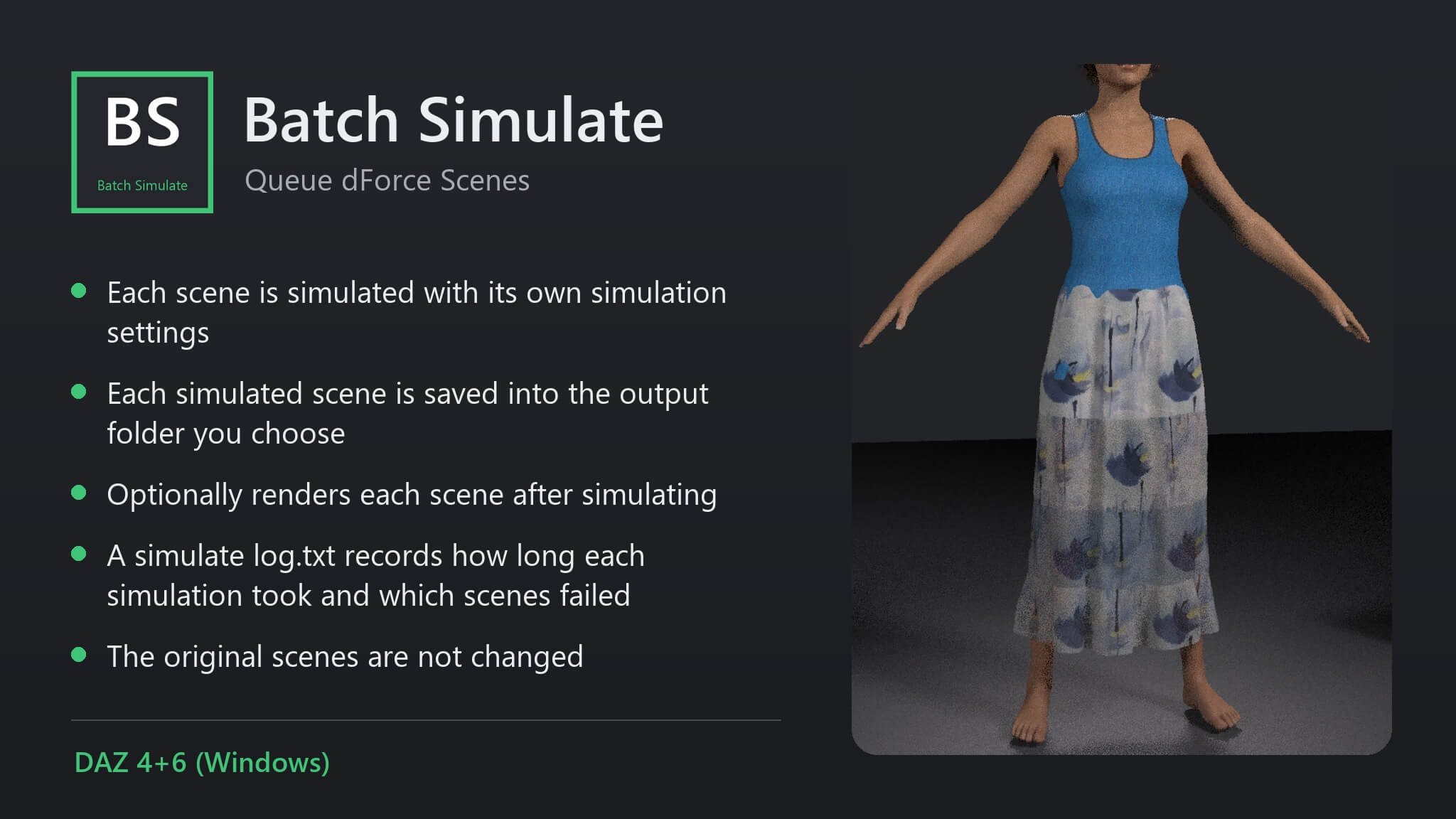
• Each scene is simulated with its own simulation settings
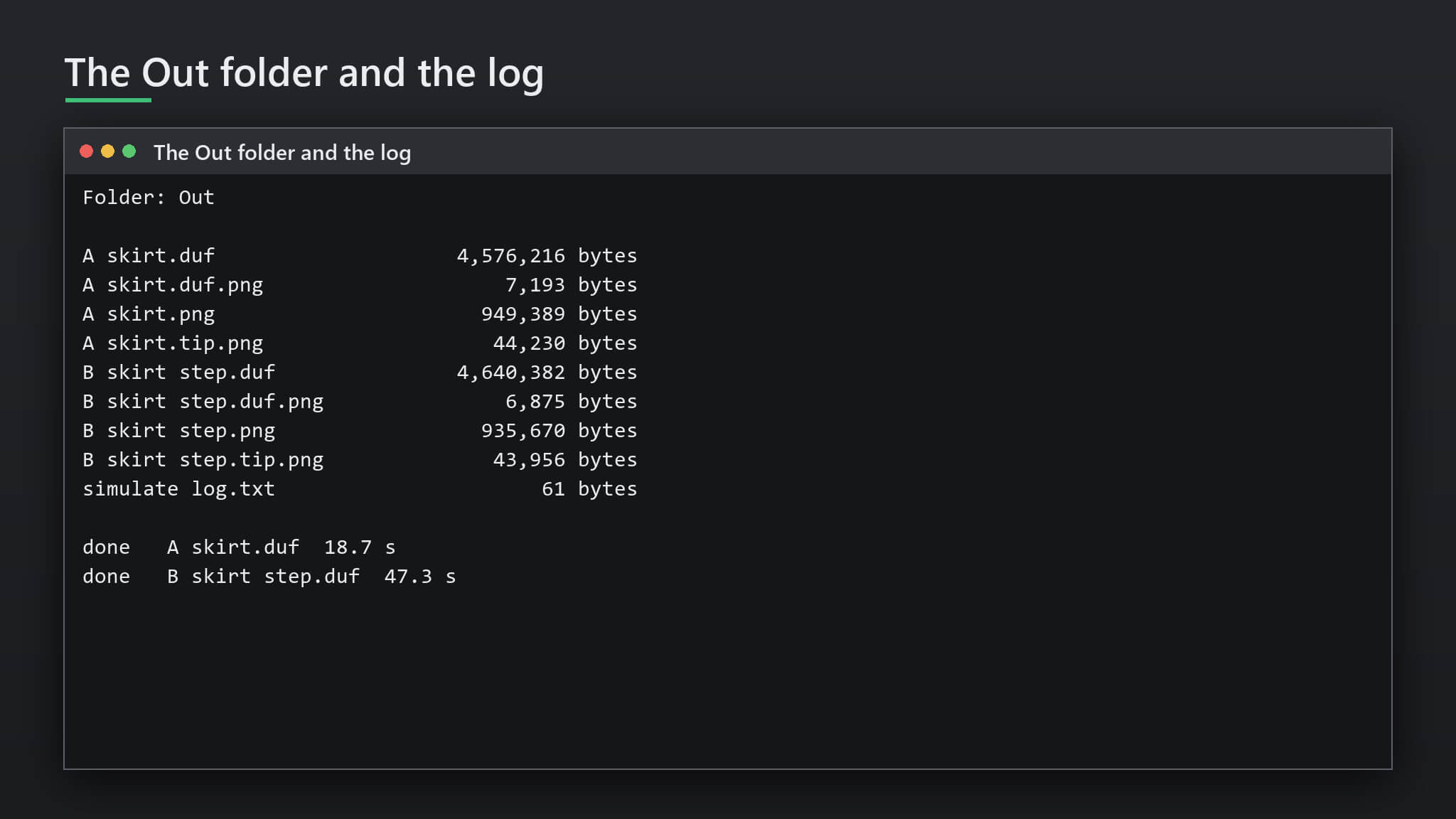
• Each simulated scene is saved into the output folder you choose
• Optionally renders each scene after simulating
• A simulate log.txt records how long each simulation took and which scenes failed
• The original scenes are not changed
How to use
1. Save your current scene, then run the script.
2. Add the scene files and choose the output folder and options.
3. Press 'Simulate all'.
Compatibility
• DAZ 4+6 (Windows).
• Tested with Genesis 8 Female in dForce clothing.
• The first dForce run in a session may ask to compile kernels: answer Yes.
Included
• One script (.dsa) and a ReadMe; installs to Content Library > Scripts > AffectionX.
Update 1.1: two scenes with the same file name from different folders no longer end in one output file: the second is saved as 'scene (2).duf'. A render error is written to the log, and the script asks about unsaved changes before it starts.
Update 1.2: scene names in other alphabets (for example Cyrillic) are now written readably in simulate log.txt (before, they became question marks). After 'Render each one' the render settings are put back (before, Render Target stayed 'Direct to File' with the last scene's picture name, so your next render overwrote it).
Categories
