


 Free 3D
 3D Print Models
 3D Scans
 Animation & MoCap
 Textures
 Materials
 Skin Reference
 2D Game Assets
 Sound Effects
 Brushes & Tools
 Reference Photos
 Stock Images
 HDR Images
 3ds Max
 Maya
 Blender
 Unreal Engine
 Unity
 ZBrush
 Cinema 4D
 LightWave
 Marmoset
 SketchUp
 FBX
 DAE
 DXF
 GLB
Camera Batch Render for DAZ 4+6

Not Rated Yet


! REPORT
NOTE: DIGITAL DOWNLOAD, NOT A PHYSICAL ITEM

Add to Collection

0 Likes
Share This Daz Content


Offered By


License
Extended Use License
This item comes with our Extended Use Licensing. This means that you may use the model for both non-commercial and commercial purposes, in a variety of mediums and applications.
For full license terms, see our 3D Content Licensing Agreement
Item Details
| Vendor: | AffectionX |
| Published: | Nov 22, 2026 |
| Download Size: | 7.8 KB |
| Software: | Daz Studio |
| dForce: | – |
Included Formats

Statistics
| Favorites: | 0 |
| Likes: | 0 |
| Views: | 12 |
Item Ratings
Not Rated Yet
Camera Batch Render for DAZ 4+6
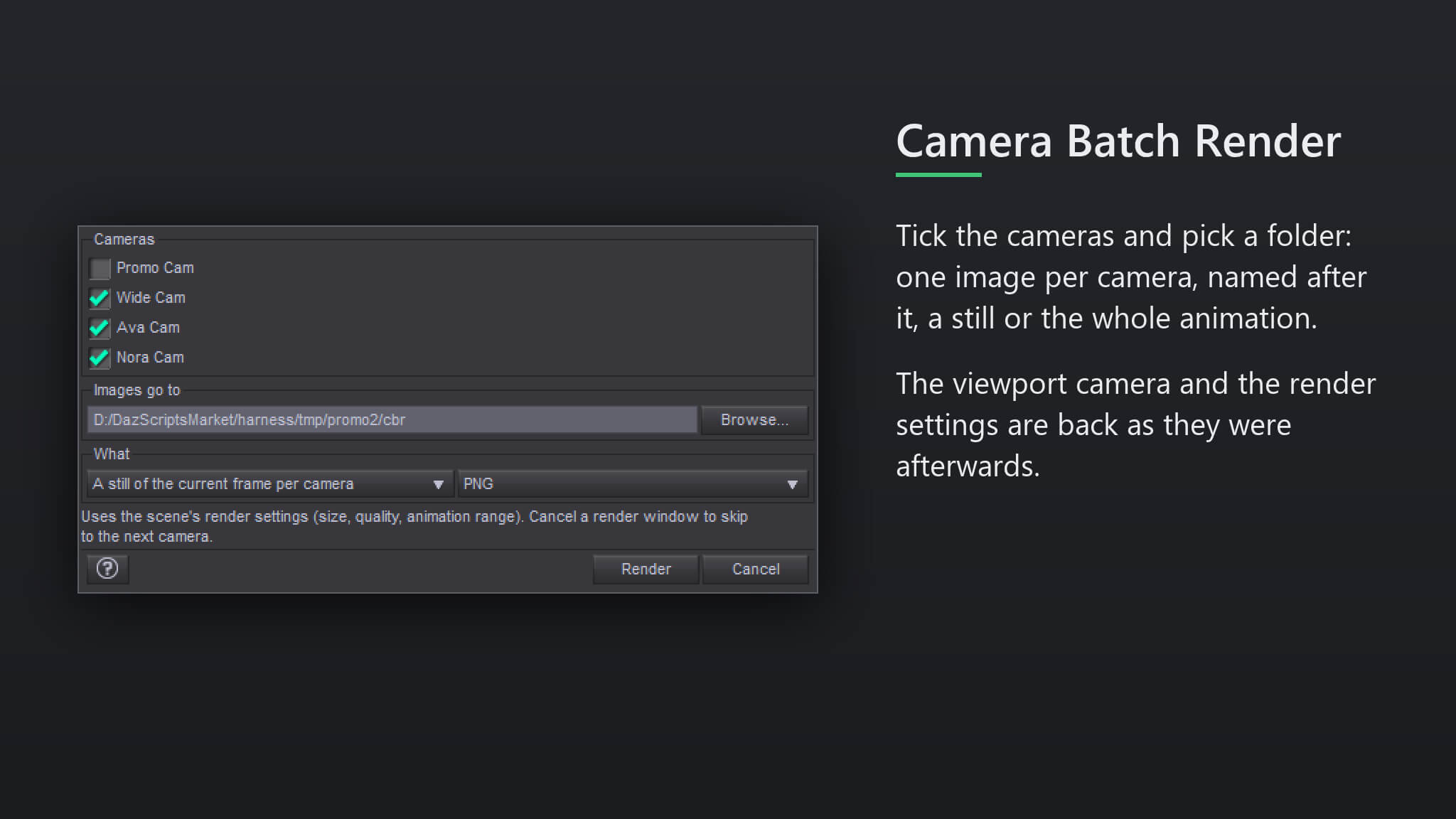
Render the same scene from several cameras without switching and saving by hand. Tick the cameras, and Camera Batch Render renders a still or the whole animation from each one, with the camera's name in the file names.
Features
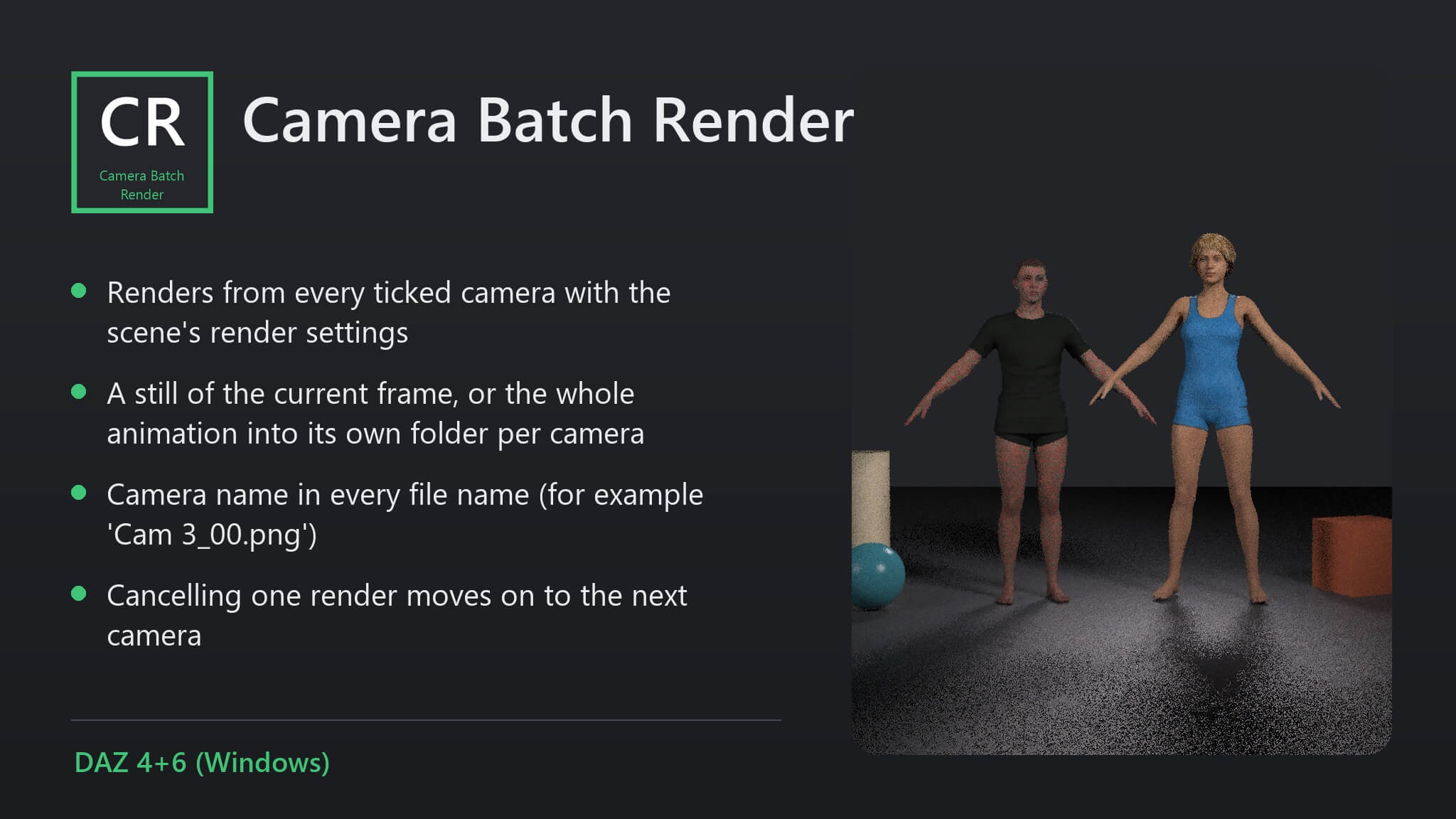
• Renders from every ticked camera with the scene's render settings
• A still of the current frame, or the whole animation into its own folder per camera
• Camera name in every file name (for example 'Cam 3_00.png')
• Cancelling one render moves on to the next camera
• The viewport camera is put back; the scene is not changed
How to use
1. Run the script and tick the cameras.
2. Choose the folder, still or animation, and the format.
3. Press 'Render'.
Compatibility
• DAZ 4+6 (Windows).
Included
• One script (.dsa) and a ReadMe; installs to Content Library > Scripts > AffectionX.
Update 1.1: your Render Settings are put back after each render (before, Render Target stayed at Direct To File).
Categories
