


 Free 3D
 3D Print Models
 3D Scans
 Animation & MoCap
 Textures
 Materials
 Skin Reference
 2D Game Assets
 Sound Effects
 Brushes & Tools
 Reference Photos
 Stock Images
 HDR Images
 3ds Max
 Maya
 Blender
 Unreal Engine
 Unity
 ZBrush
 Cinema 4D
 LightWave
 Marmoset
 SketchUp
 FBX
 DAE
 DXF
 GLB
Joint Check - Find Over-Bent Joints for DAZ 4+6

Not Rated Yet


! REPORT
NOTE: DIGITAL DOWNLOAD, NOT A PHYSICAL ITEM

Add to Collection

0 Likes
Share This Daz Content


Offered By


License
Extended Use License
This item comes with our Extended Use Licensing. This means that you may use the model for both non-commercial and commercial purposes, in a variety of mediums and applications.
For full license terms, see our 3D Content Licensing Agreement
Item Details
| Vendor: | AffectionX |
| Published: | Nov 22, 2026 |
| Download Size: | 7.2 KB |
| Software: | Daz Studio |
| dForce: | – |
Included Formats

Statistics
| Favorites: | 0 |
| Likes: | 0 |
| Views: | 24 |
Item Ratings
Not Rated Yet
Joint Check - Find Over-Bent Joints for DAZ 4+6
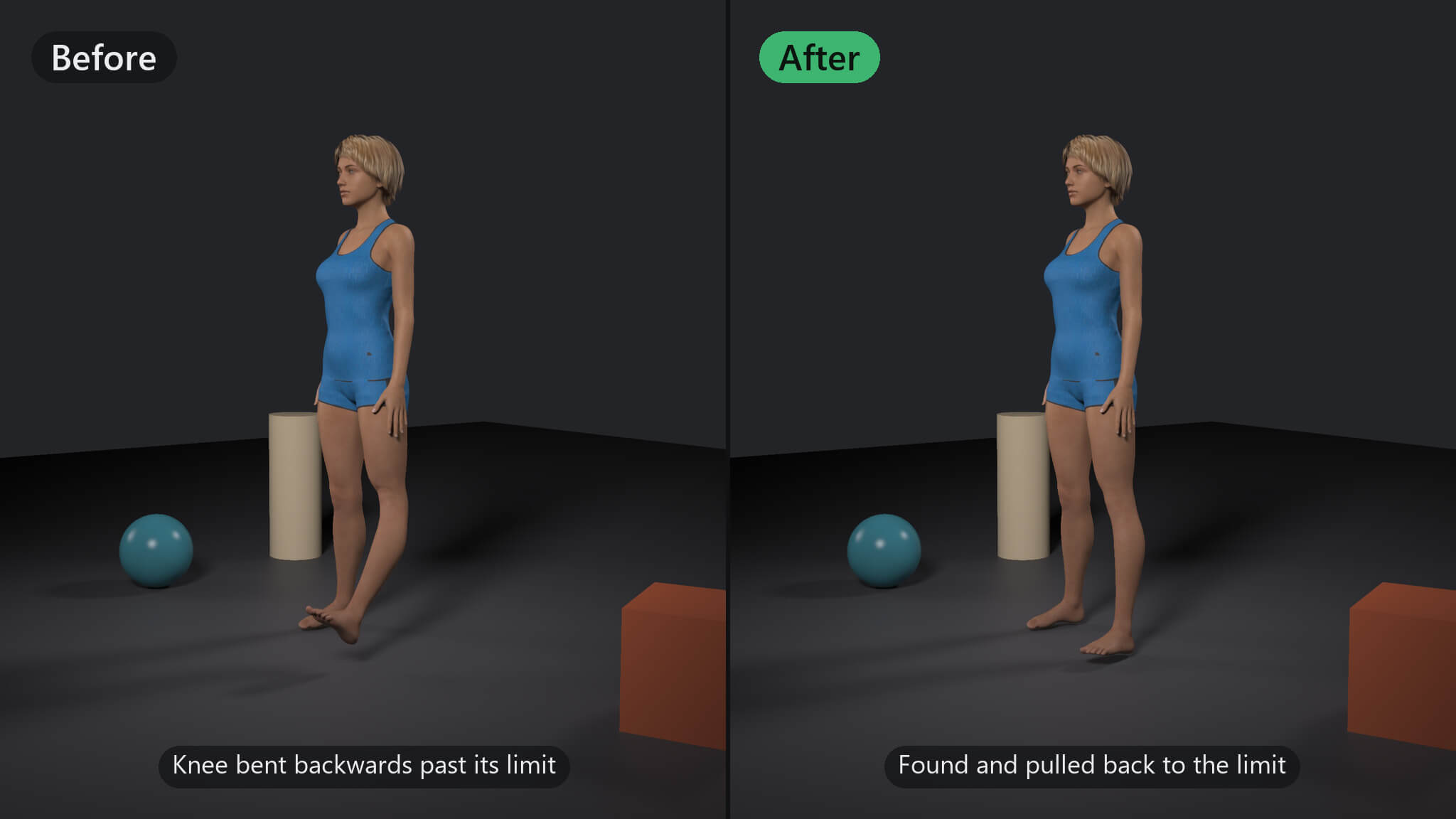
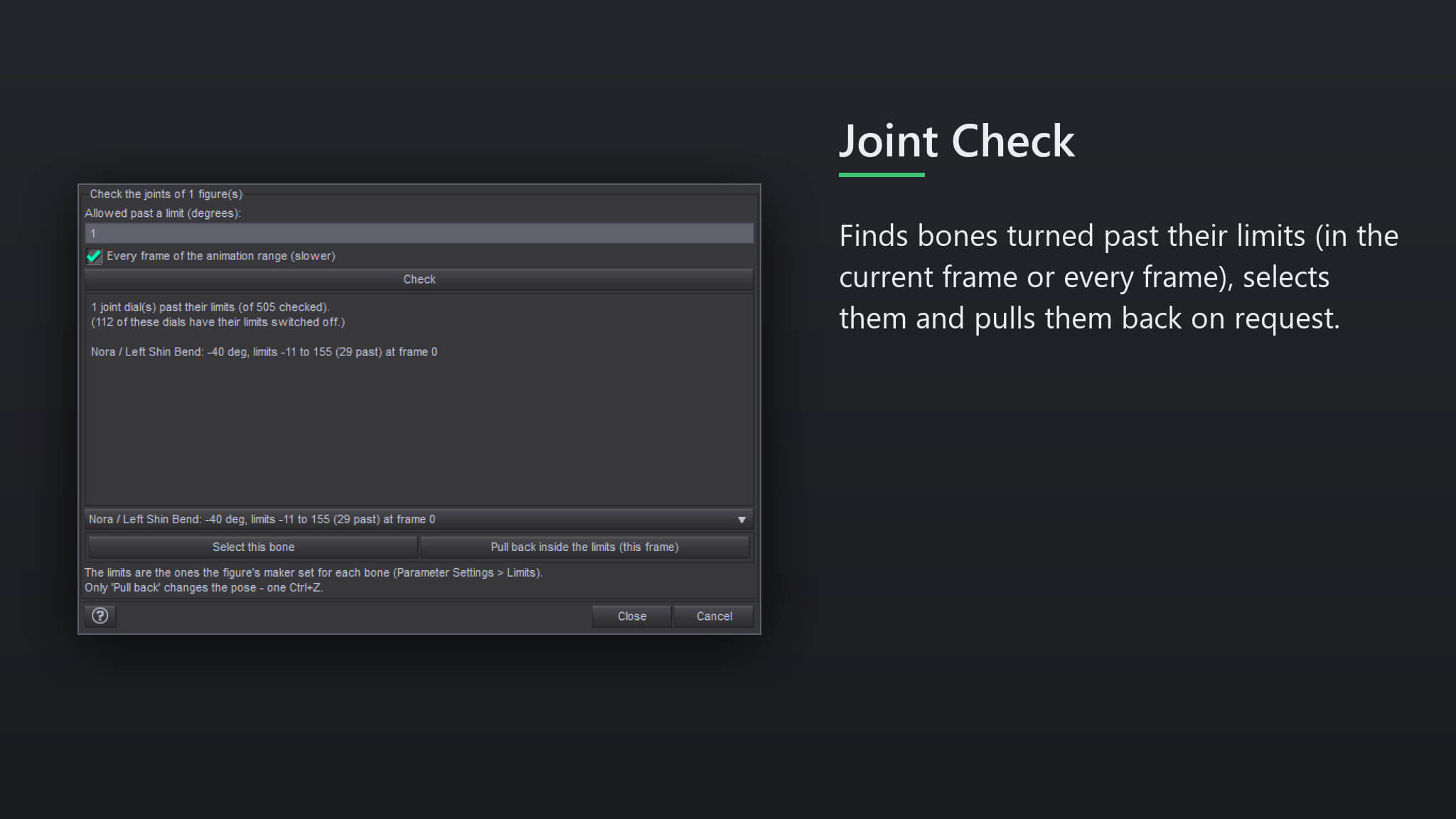
A knee bent backwards or a wrist twisted too far can hide in a pose until the final render, especially after posing with limits off or using motion capture. Joint Check compares every bone's bend, twist and side-side value with the limits the figure's maker set and lists the joints past them.
Features
• Checks the current frame or every frame of the animation range
• Uses each bone's own limits, even when the limits are switched off
• Sorted list with the value, the limits and how far past they are
• Select a listed bone with one click
• 'Pull back inside the limits' fixes the current frame
How to use
1. Select the figures and run the script.
2. Press 'Check' (tick 'Every frame' for animation).
3. Select a bone from the list or press 'Pull back inside the limits'.
Compatibility
• DAZ 4+6 (Windows).
• Designed for Genesis 8 and Genesis 9 figures.
• Checking changes nothing; 'Pull back' is one Undo step.
Included
• One script (.dsa) and a ReadMe; installs to Content Library > Scripts > AffectionX.
Update 1.1: checks the figure's joints when you click its clothing or hair (before, the bones of that item were checked, so all joints seemed within limits).
Categories
