


 Free 3D
 3D Print Models
 3D Scans
 Animation & MoCap
 Textures
 Materials
 Skin Reference
 2D Game Assets
 Sound Effects
 Brushes & Tools
 Reference Photos
 Stock Images
 HDR Images
 3ds Max
 Maya
 Blender
 Unreal Engine
 Unity
 ZBrush
 Cinema 4D
 LightWave
 Marmoset
 SketchUp
 FBX
 DAE
 DXF
 GLB
Material A-B - Before and After for DAZ 4+6

Not Rated Yet


! REPORT
NOTE: DIGITAL DOWNLOAD, NOT A PHYSICAL ITEM

Add to Collection

0 Likes
Share This Daz Content


Offered By


License
Extended Use License
This item comes with our Extended Use Licensing. This means that you may use the model for both non-commercial and commercial purposes, in a variety of mediums and applications.
For full license terms, see our 3D Content Licensing Agreement
Item Details
| Vendor: | AffectionX |
| Published: | Nov 22, 2026 |
| Download Size: | 8 KB |
| Software: | Daz Studio |
| dForce: | – |
Included Formats

Statistics
| Favorites: | 0 |
| Likes: | 0 |
| Views: | 10 |
Item Ratings
Not Rated Yet
Material A-B - Before and After for DAZ 4+6
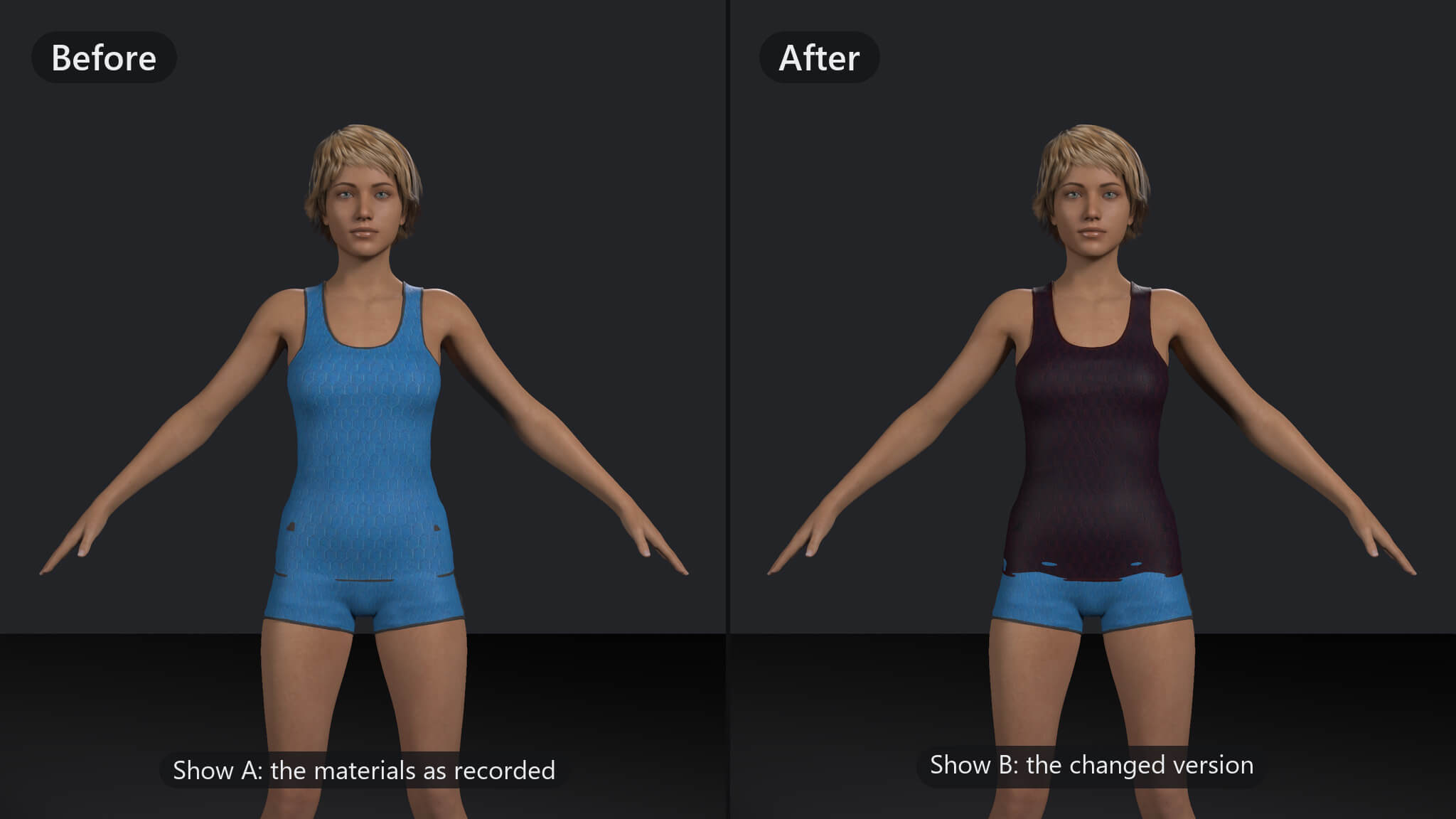
Compare materials before and after without saving presets. Remember the materials of the selected items as A, change whatever you like, then flip between A and your new version with one click in the viewport or a render.
Features
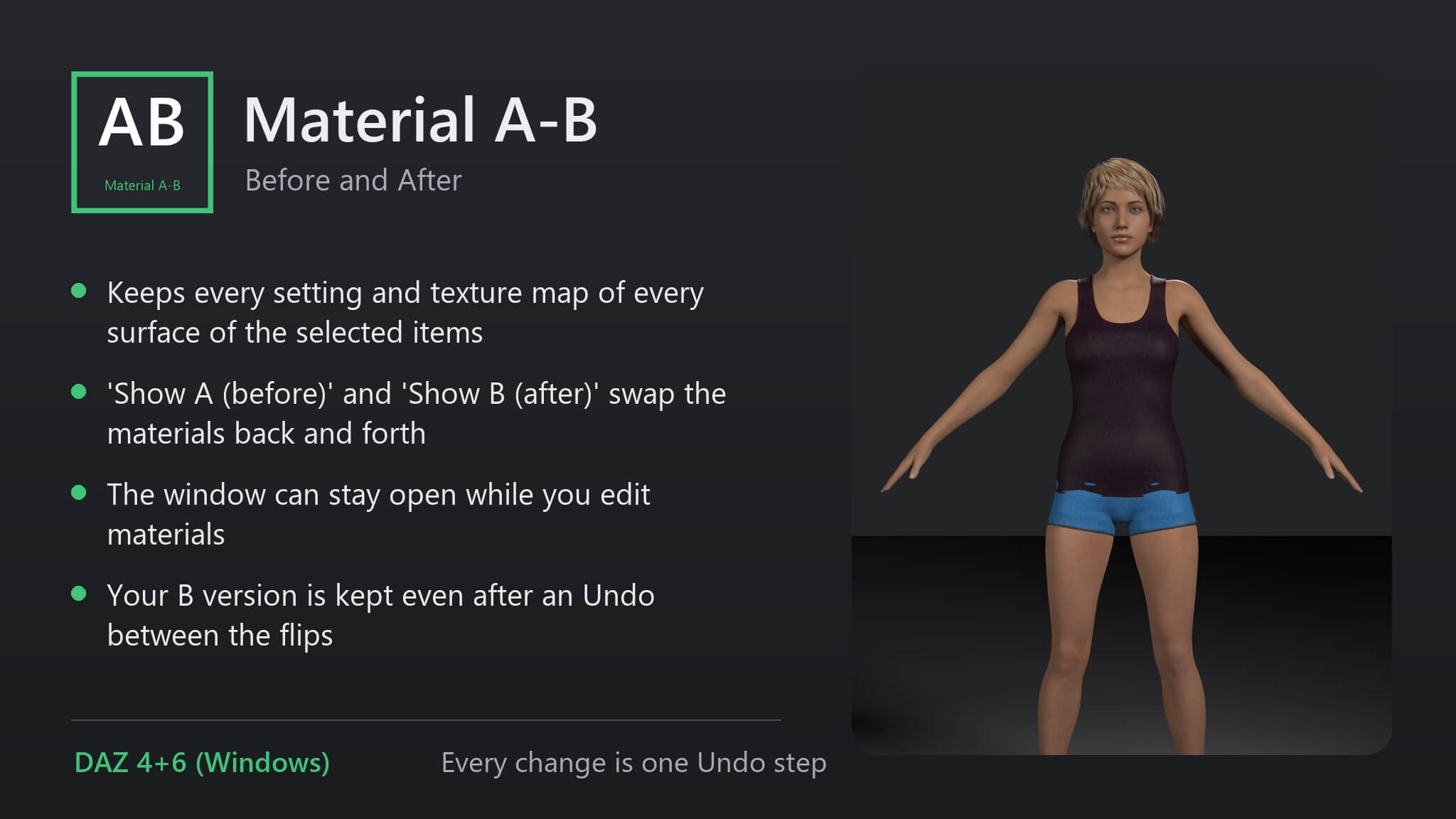
• Keeps every setting and texture map of every surface of the selected items
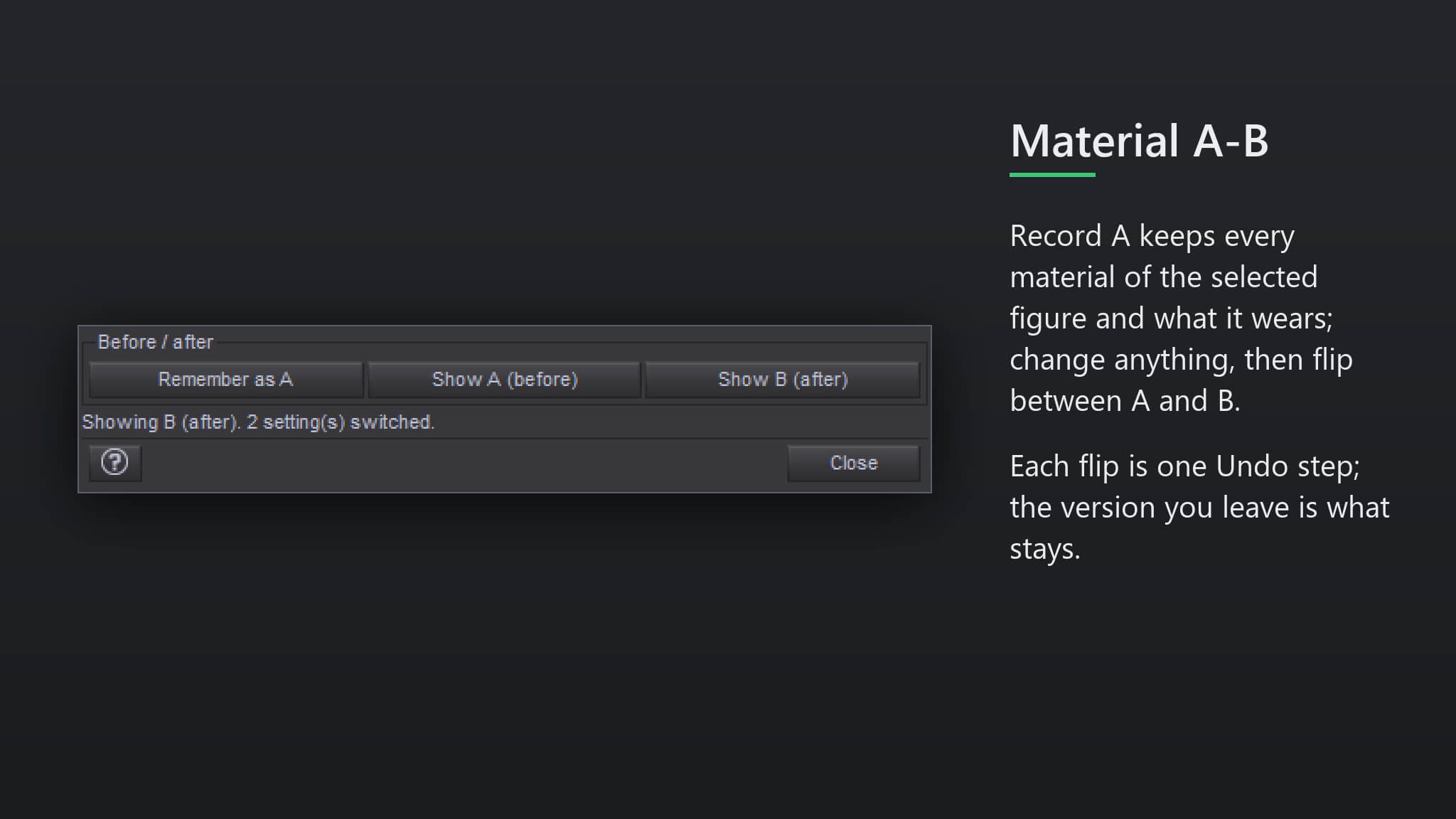
• 'Show A (before)' and 'Show B (after)' swap the materials back and forth
• The window can stay open while you edit materials
• Your B version is kept even after an Undo between the flips
How to use
1. Select the items, run the script and press 'Remember as A'.
2. Change their materials.
3. Press 'Show A (before)' and 'Show B (after)' to compare.
Compatibility
• DAZ 4+6 (Windows).
• Every flip is one Undo step.
Included
• One script (.dsa) and a ReadMe; installs to Content Library > Scripts > AffectionX.
Update 1.1: a material A remembered in another scene is no longer applied to the current scene; the script says so instead (before, it recoloured items in the new scene).
Update 1.2: the window and this ReadMe now say to close the window to change the materials and to run the script again to flip (A stays remembered); Daz Studio keeps the scene locked while a script window is open, so the window cannot stay open while you edit.
Categories
