


 Free 3D
 3D Print Models
 3D Scans
 Animation & MoCap
 Textures
 Materials
 Skin Reference
 2D Game Assets
 Sound Effects
 Brushes & Tools
 Reference Photos
 Stock Images
 HDR Images
 3ds Max
 Maya
 Blender
 Unreal Engine
 Unity
 ZBrush
 Cinema 4D
 LightWave
 Marmoset
 SketchUp
 FBX
 DAE
 DXF
 GLB
Origin Setter - Move a Prop Pivot Point for DAZ 4+6

Not Rated Yet


! REPORT
NOTE: DIGITAL DOWNLOAD, NOT A PHYSICAL ITEM

Add to Collection

0 Likes
Share This Daz Content


Offered By


License
Extended Use License
This item comes with our Extended Use Licensing. This means that you may use the model for both non-commercial and commercial purposes, in a variety of mediums and applications.
For full license terms, see our 3D Content Licensing Agreement
Item Details
| Vendor: | AffectionX |
| Published: | Nov 22, 2026 |
| Download Size: | 9.1 KB |
| Software: | Daz Studio |
| dForce: | – |
Included Formats

Statistics
| Favorites: | 0 |
| Likes: | 0 |
| Views: | 19 |
Item Ratings
Not Rated Yet
Origin Setter - Move a Prop Pivot Point for DAZ 4+6
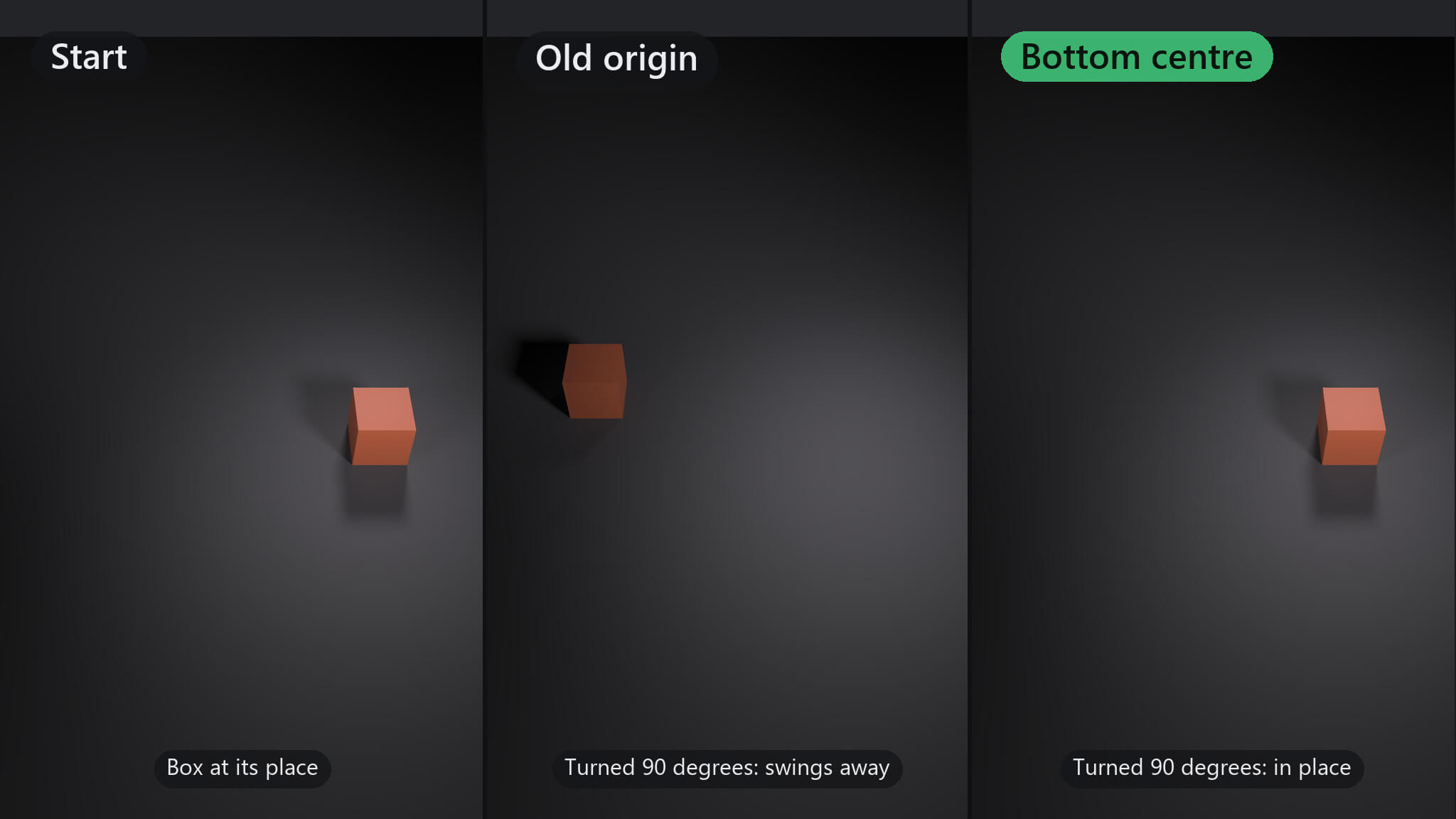
Some props turn around a point far outside them, or scale from the middle instead of from the floor. Origin Setter moves a prop's origin, the point it turns and scales around, without moving the prop itself.
Features
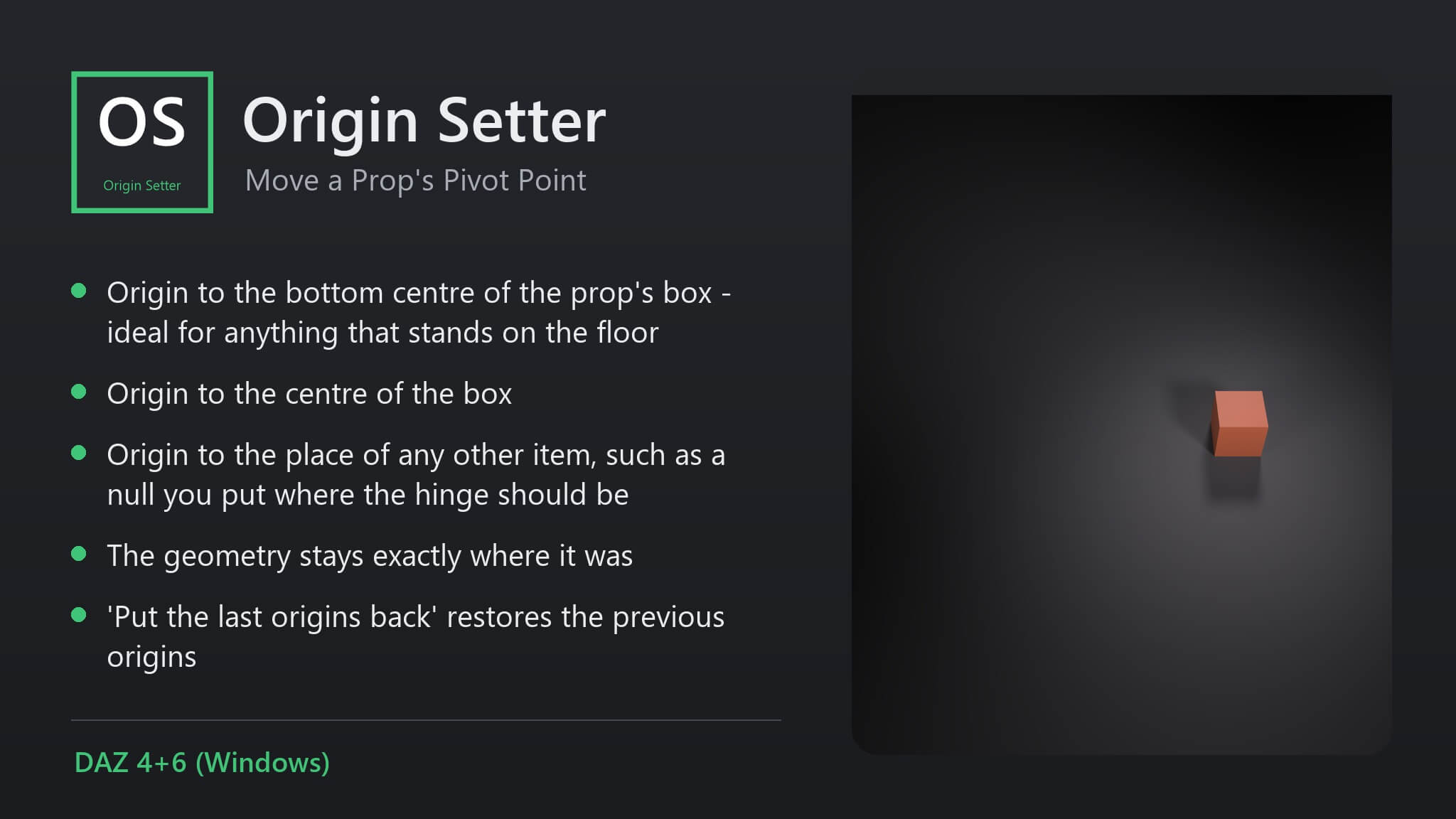
• Origin to the bottom centre of the prop's box - ideal for anything that stands on the floor
• Origin to the centre of the box
• Origin to the place of any other item, such as a null you put where the hinge should be
• The geometry stays exactly where it was
• 'Put the last origins back' restores the previous origins
How to use
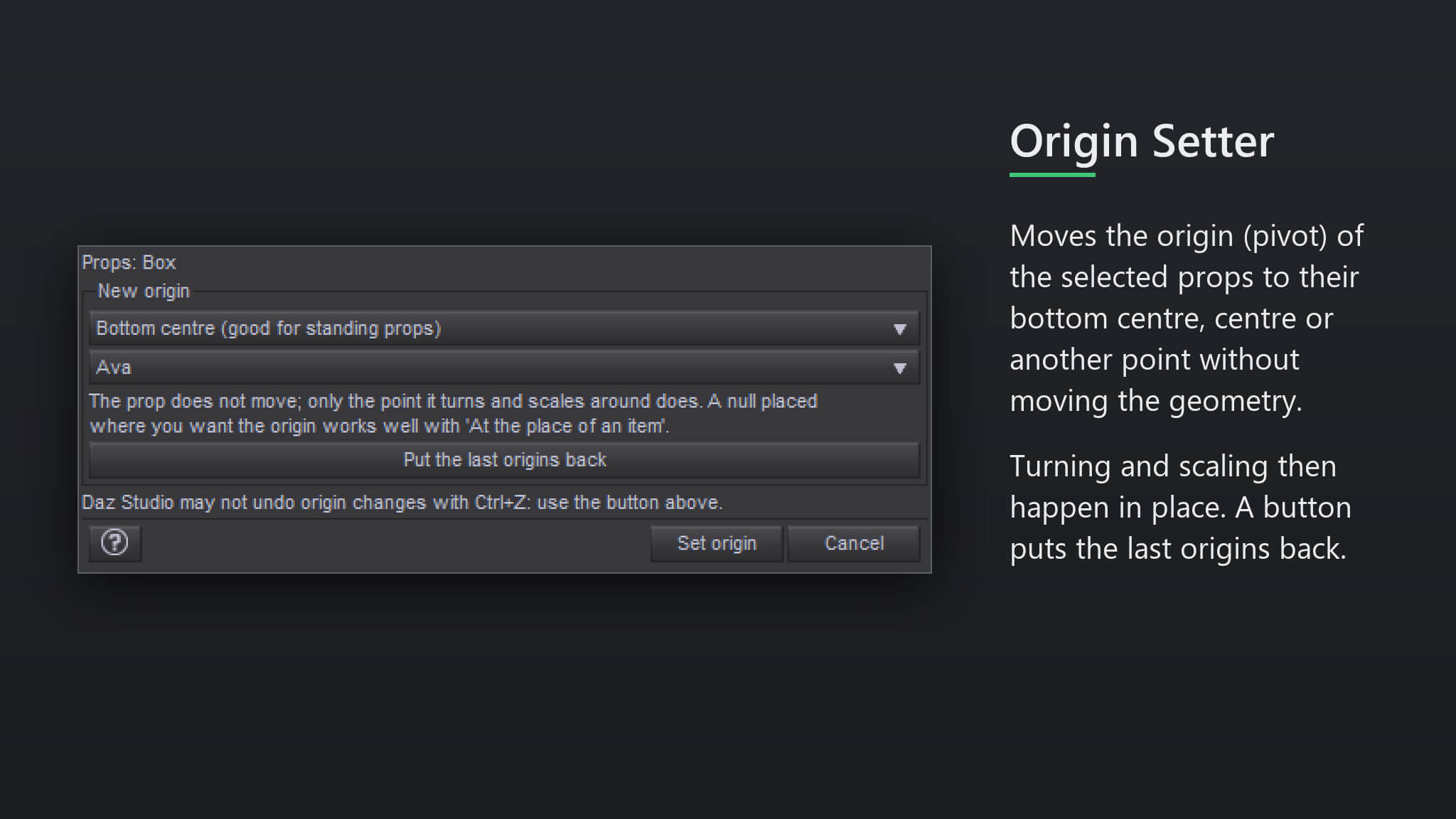
1. Select the props and run the script.
2. Choose bottom centre, centre or the place of an item.
3. Press 'Set origin'.
Compatibility
• DAZ 4+6 (Windows).
• Works on props that are not parented and not animated; others are listed as skipped.
• Undo origin changes with the 'Put the last origins back' button.
Included
• One script (.dsa) and a ReadMe; installs to Content Library > Scripts > AffectionX.
Update 1.1: 'Put the last origins back' also works after saving and reopening the scene: the original point is kept on the item itself (before, nothing was put back).
Categories
