


 Free 3D
 3D Print Models
 3D Scans
 Animation & MoCap
 Textures
 Materials
 Skin Reference
 2D Game Assets
 Sound Effects
 Brushes & Tools
 Reference Photos
 Stock Images
 HDR Images
 3ds Max
 Maya
 Blender
 Unreal Engine
 Unity
 ZBrush
 Cinema 4D
 LightWave
 Marmoset
 SketchUp
 FBX
 DAE
 DXF
 GLB
Prop to Bone - Attach Props to a Figure Bone for DAZ 4

Not Rated Yet


! REPORT
NOTE: DIGITAL DOWNLOAD, NOT A PHYSICAL ITEM

Add to Collection

0 Likes
Share This Daz Content


Offered By


License
Extended Use License
This item comes with our Extended Use Licensing. This means that you may use the model for both non-commercial and commercial purposes, in a variety of mediums and applications.
For full license terms, see our 3D Content Licensing Agreement
Item Details
| Vendor: | AffectionX |
| Published: | Nov 22, 2026 |
| Download Size: | 6.4 KB |
| Software: | Daz Studio |
| dForce: | – |
Included Formats

Statistics
| Favorites: | 0 |
| Likes: | 0 |
| Views: | 3 |
Item Ratings
Not Rated Yet
Prop to Bone - Attach Props to a Figure Bone for DAZ 4
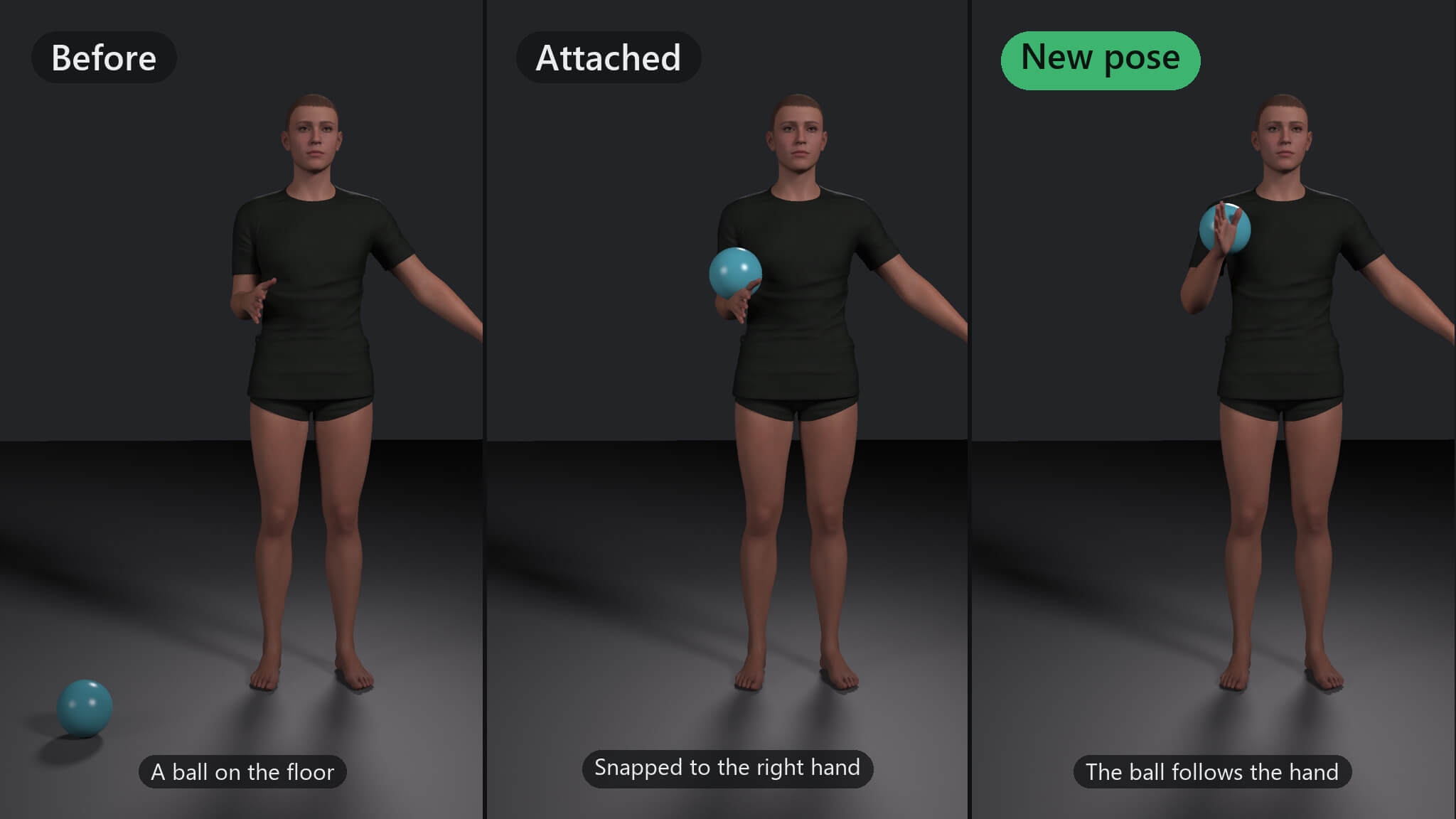
Prop to Bone attaches the selected props to a bone of a figure, such as a hand, the head or the hip, chosen from a searchable list. Put a cup in a hand or a hat on a head, and the prop follows that bone in every pose, without dragging it onto the right node in the Scene pane.
Features
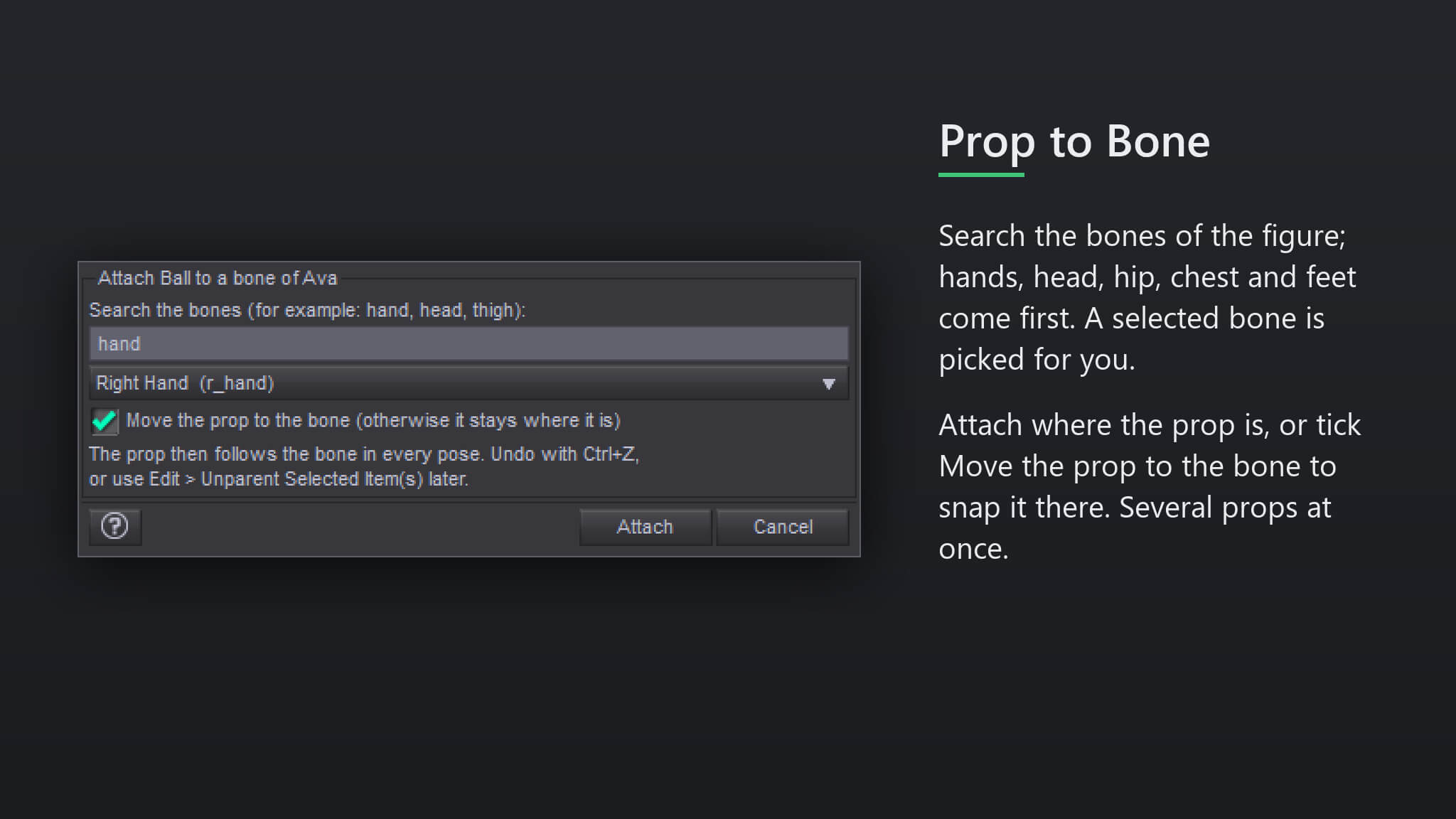
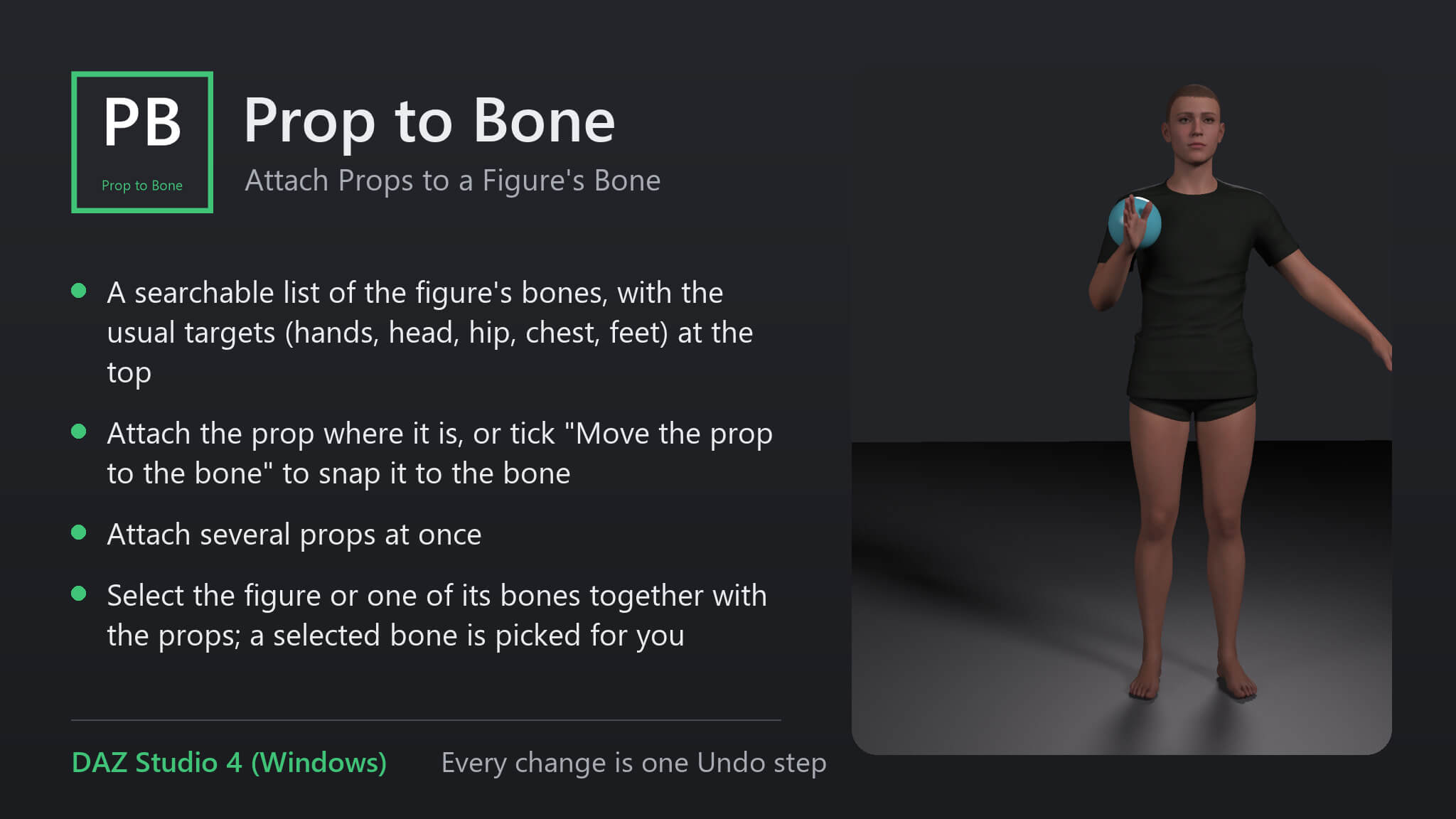
• A searchable list of the figure's bones, with the usual targets (hands, head, hip, chest, feet) at the top.
• Attach the prop where it is, or tick "Move the prop to the bone" to snap it to the bone.
• Attach several props at once.
• Select the figure or one of its bones together with the props; a selected bone is picked for you.
How to use
1. Select the prop(s) and the figure (or one of its bones).
2. Run the script, search and pick the bone, optionally tick "Move the prop to the bone".
3. Press "Attach".
Compatibility
• DAZ Studio 4 (Windows).
• Tested with Genesis 9: a vase was attached to the right hand and moved into it, and it followed the hand when the forearm was bent.
• Every change is one Undo step.
Included
• One script (.dsa) and a ReadMe. Installs to Content Library > Scripts > AffectionX.
Features
• A searchable list of the figure's bones, with the usual targets (hands, head, hip, chest, feet) at the top.
• Attach the prop where it is, or tick "Move the prop to the bone" to snap it to the bone.
• Attach several props at once.
• Select the figure or one of its bones together with the props; a selected bone is picked for you.
How to use
1. Select the prop(s) and the figure (or one of its bones).
2. Run the script, search and pick the bone, optionally tick "Move the prop to the bone".
3. Press "Attach".
Compatibility
• DAZ Studio 4 (Windows).
• Tested with Genesis 9: a vase was attached to the right hand and moved into it, and it followed the hand when the forearm was bent.
• Every change is one Undo step.
Included
• One script (.dsa) and a ReadMe. Installs to Content Library > Scripts > AffectionX.
Categories
