


 Free 3D
 3D Print Models
 3D Scans
 Animation & MoCap
 Textures
 Materials
 Skin Reference
 2D Game Assets
 Sound Effects
 Brushes & Tools
 Reference Photos
 Stock Images
 HDR Images
 3ds Max
 Maya
 Blender
 Unreal Engine
 Unity
 ZBrush
 Cinema 4D
 LightWave
 Marmoset
 SketchUp
 FBX
 DAE
 DXF
 GLB
SubD Batch - Set SubD Levels in One Step for DAZ 4+6

Not Rated Yet


! REPORT
NOTE: DIGITAL DOWNLOAD, NOT A PHYSICAL ITEM

Add to Collection

0 Likes
Share This Daz Content


Offered By


License
Extended Use License
This item comes with our Extended Use Licensing. This means that you may use the model for both non-commercial and commercial purposes, in a variety of mediums and applications.
For full license terms, see our 3D Content Licensing Agreement
Item Details
| Vendor: | AffectionX |
| Published: | Nov 22, 2026 |
| Download Size: | 6.9 KB |
| Software: | Daz Studio |
| dForce: | – |
Included Formats

Statistics
| Favorites: | 0 |
| Likes: | 0 |
| Views: | 13 |
Item Ratings
Not Rated Yet
SubD Batch - Set SubD Levels in One Step for DAZ 4+6
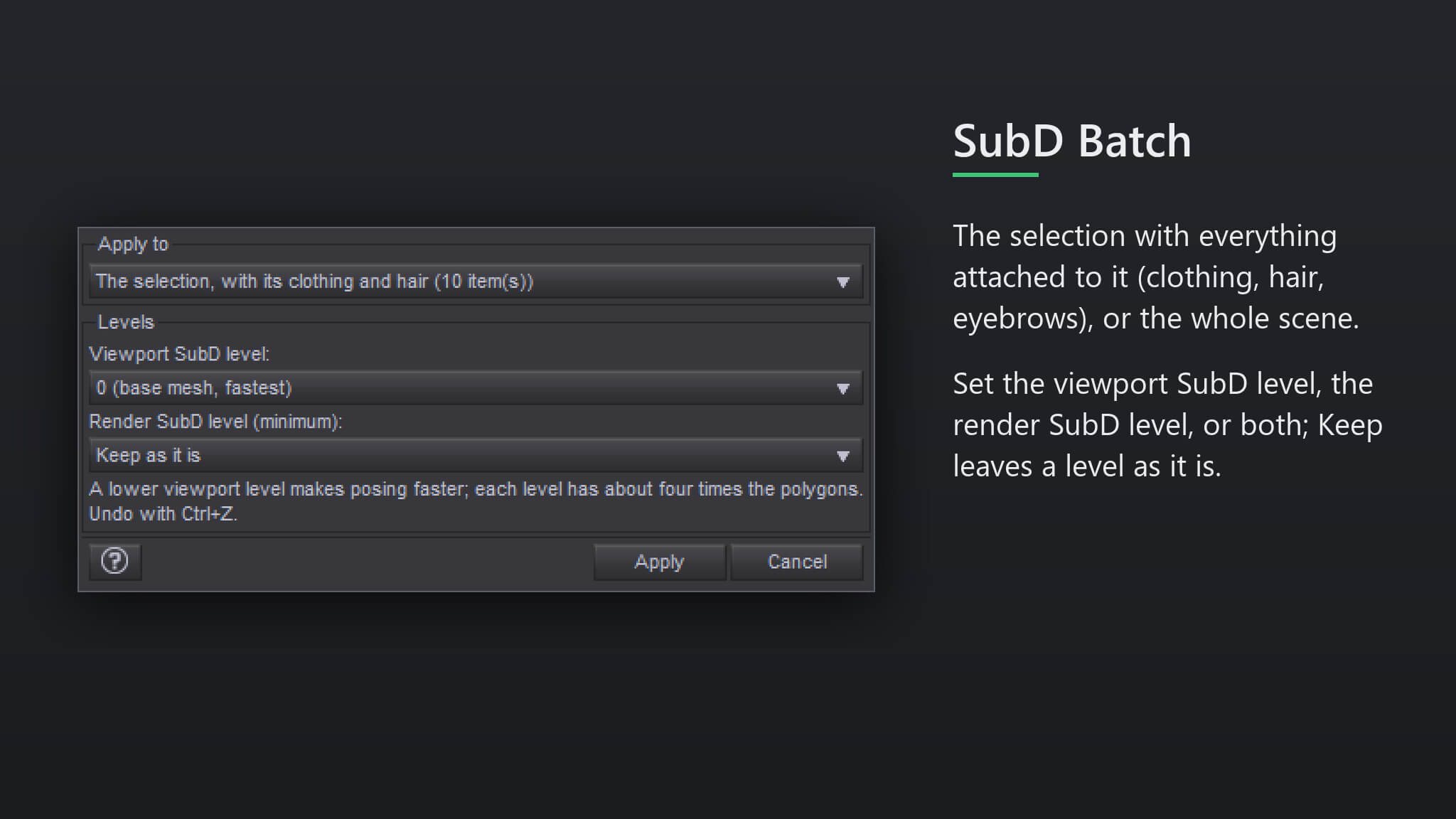
SubD Batch sets the viewport and render SubD levels of many figures and clothing items at once. Lower the viewport SubD of everything to keep a heavy scene responsive while you pose, then raise it again before rendering, without clicking through each item in the Parameters pane.
Features
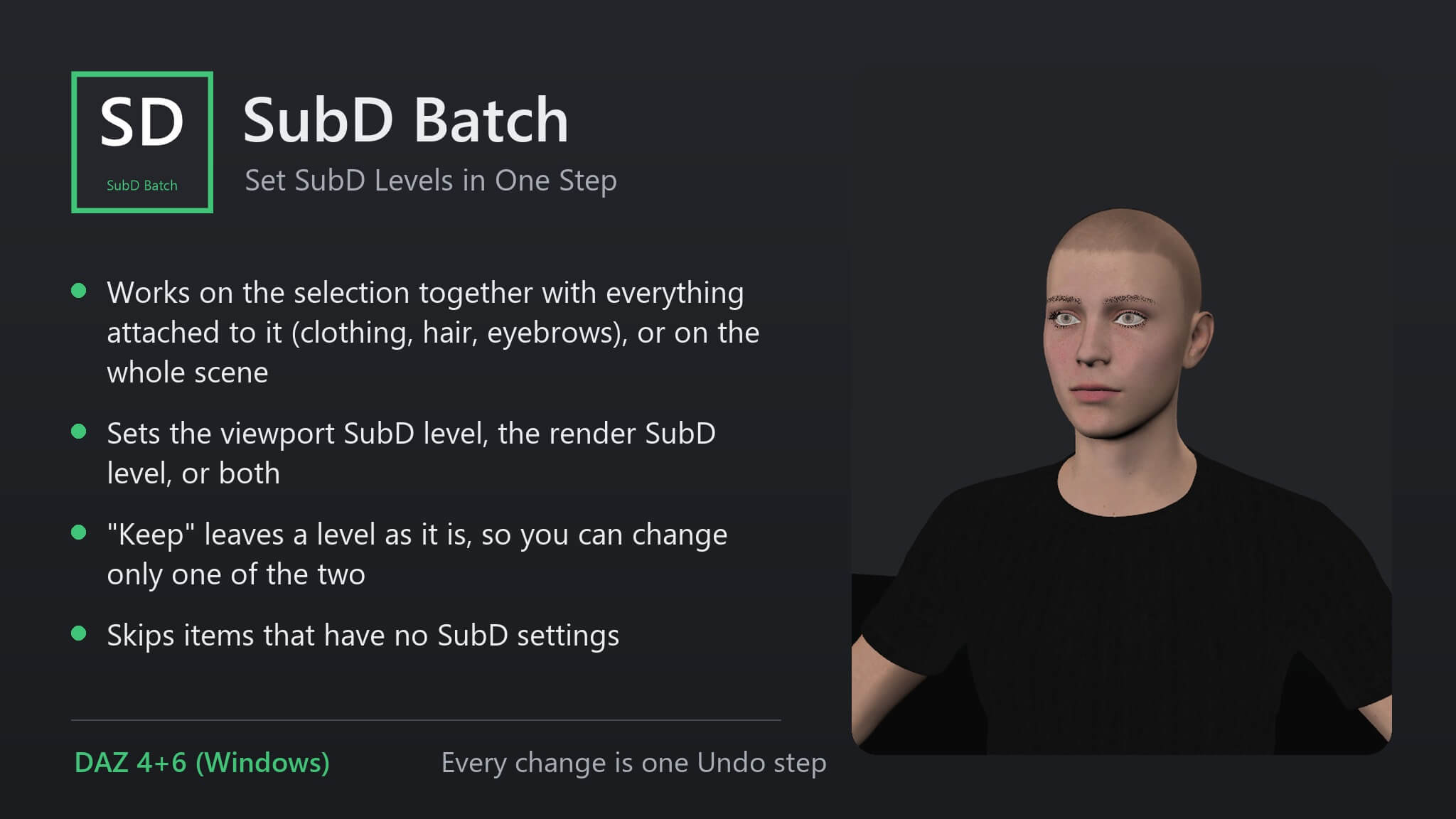
• Works on the selection together with everything attached to it (clothing, hair, eyebrows), or on the whole scene.
• Sets the viewport SubD level, the render SubD level, or both.
• "Keep" leaves a level as it is, so you can change only one of the two.
• Skips items that have no SubD settings.
How to use
1. Run the script and choose the selection or the whole scene.
2. Pick the viewport and render levels (or keep).
3. Press "Apply".
Compatibility
• DAZ 4+6 (Windows).
• Tested on a scene with Genesis 9 and Genesis 8 Female figures: with "selected only" and level 0, the Genesis 9 figure and all its items went to 0 while the Genesis 8 Female figure stayed at 1; "whole scene" applied level 1 to everything.
• Every change is one Undo step.
Included
• One script (.dsa) and a ReadMe. Installs to Content Library > Scripts > AffectionX.
Update 1.1: the render SubD level now ends up exactly at the level you pick, and 'Keep as it is' keeps it (before, Daz Studio added the viewport level on top, so 1 became 2, and a new viewport level moved the render level too).
Categories
