


 Free 3D
 3D Print Models
 3D Scans
 Animation & MoCap
 Textures
 Materials
 Skin Reference
 2D Game Assets
 Sound Effects
 Brushes & Tools
 Reference Photos
 Stock Images
 HDR Images
 3ds Max
 Maya
 Blender
 Unreal Engine
 Unity
 ZBrush
 Cinema 4D
 LightWave
 Marmoset
 SketchUp
 FBX
 DAE
 DXF
 GLB
Visibility and Material Animator for DAZ 4+6

Not Rated Yet


! REPORT
NOTE: DIGITAL DOWNLOAD, NOT A PHYSICAL ITEM

Add to Collection

0 Likes
Share This Daz Content


Offered By


License
Extended Use License
This item comes with our Extended Use Licensing. This means that you may use the model for both non-commercial and commercial purposes, in a variety of mediums and applications.
For full license terms, see our 3D Content Licensing Agreement
Item Details
| Vendor: | AffectionX |
| Published: | Nov 22, 2026 |
| Download Size: | 9.8 KB |
| Software: | Daz Studio |
| dForce: | – |
Included Formats

Statistics
| Favorites: | 0 |
| Likes: | 0 |
| Views: | 13 |
Item Ratings
Not Rated Yet
Visibility and Material Animator for DAZ 4+6
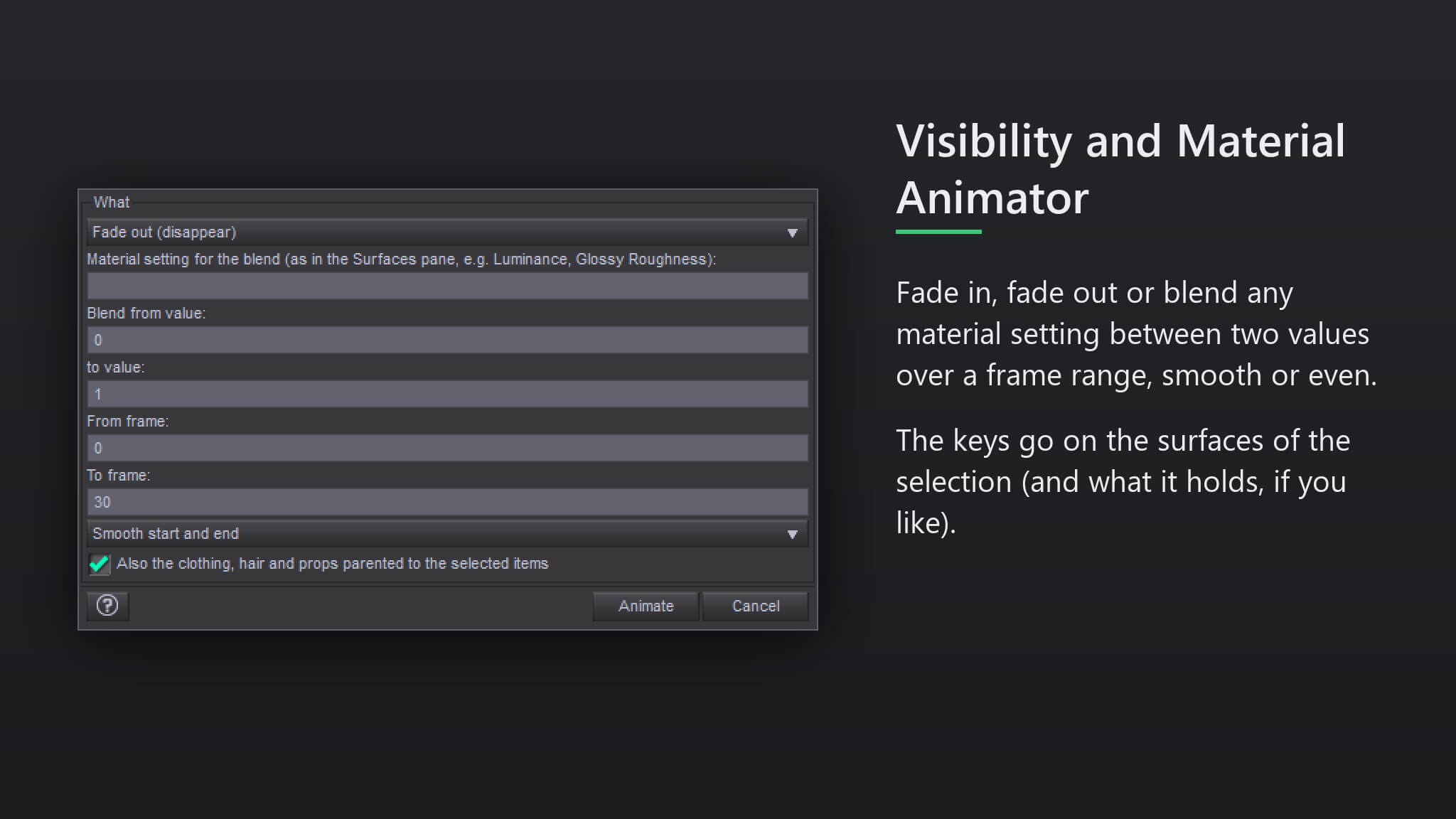
Fading an item out, or slowly changing a material setting, means making surface settings animatable and keying every surface by hand. This script does it for all surfaces of the selected items at once.
Features
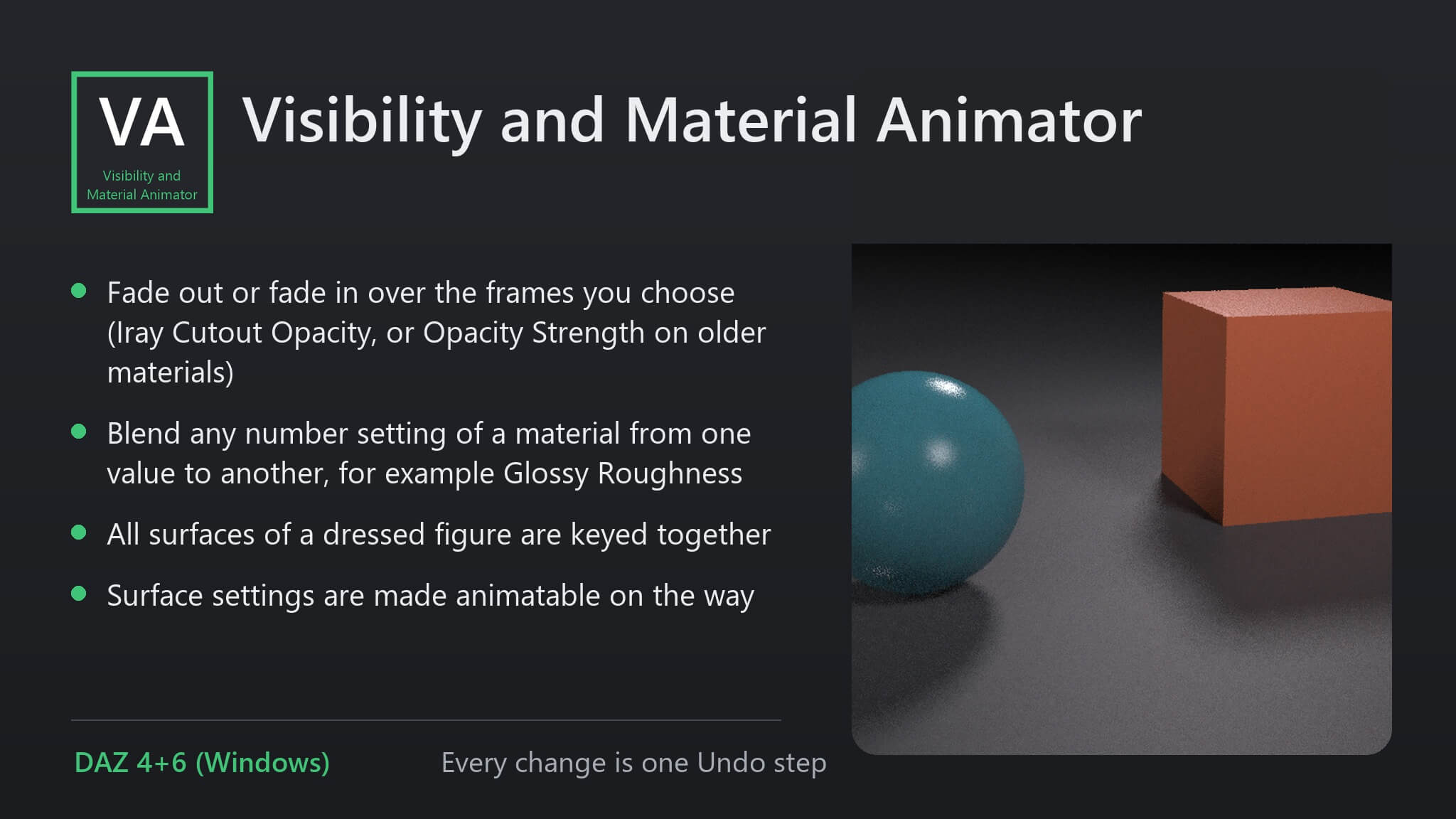
• Fade out or fade in over the frames you choose (Iray Cutout Opacity, or Opacity Strength on older materials)
• Blend any number setting of a material from one value to another, for example Glossy Roughness
• All surfaces of a dressed figure are keyed together
• Surface settings are made animatable on the way
• Settings that cannot be keyed are named in the message
How to use
1. Select the items and run the script.
2. Choose fade out, fade in or a blend (with the setting name and values) and the frames.
3. Press 'Animate', then render.
Compatibility
• DAZ 4+6 (Windows).
• Tested with props and a dressed Genesis 8 Female figure.
• Every change is one Undo step.
• DAZ Studio does not save surface keys in the scene file: render the animation in the same session.
Included
• One script (.dsa) and a ReadMe; installs to Content Library > Scripts > AffectionX.
Update 1.1: Fade in no longer makes intentionally transparent surfaces opaque: a surface at 0 without keys stays as it is, and after Fade out a surface returns to its previous value.
Update 1.2: in DAZ Studio 6 the timeline's Play Range now grows with the animation too (before, Play showed only the old range).
Categories
