


 Free 3D
 3D Print Models
 3D Scans
 Animation & MoCap
 Textures
 Materials
 Skin Reference
 2D Game Assets
 Sound Effects
 Brushes & Tools
 Reference Photos
 Stock Images
 HDR Images
 3ds Max
 Maya
 Blender
 Unreal Engine
 Unity
 ZBrush
 Cinema 4D
 LightWave
 Marmoset
 SketchUp
 FBX
 DAE
 DXF
 GLB
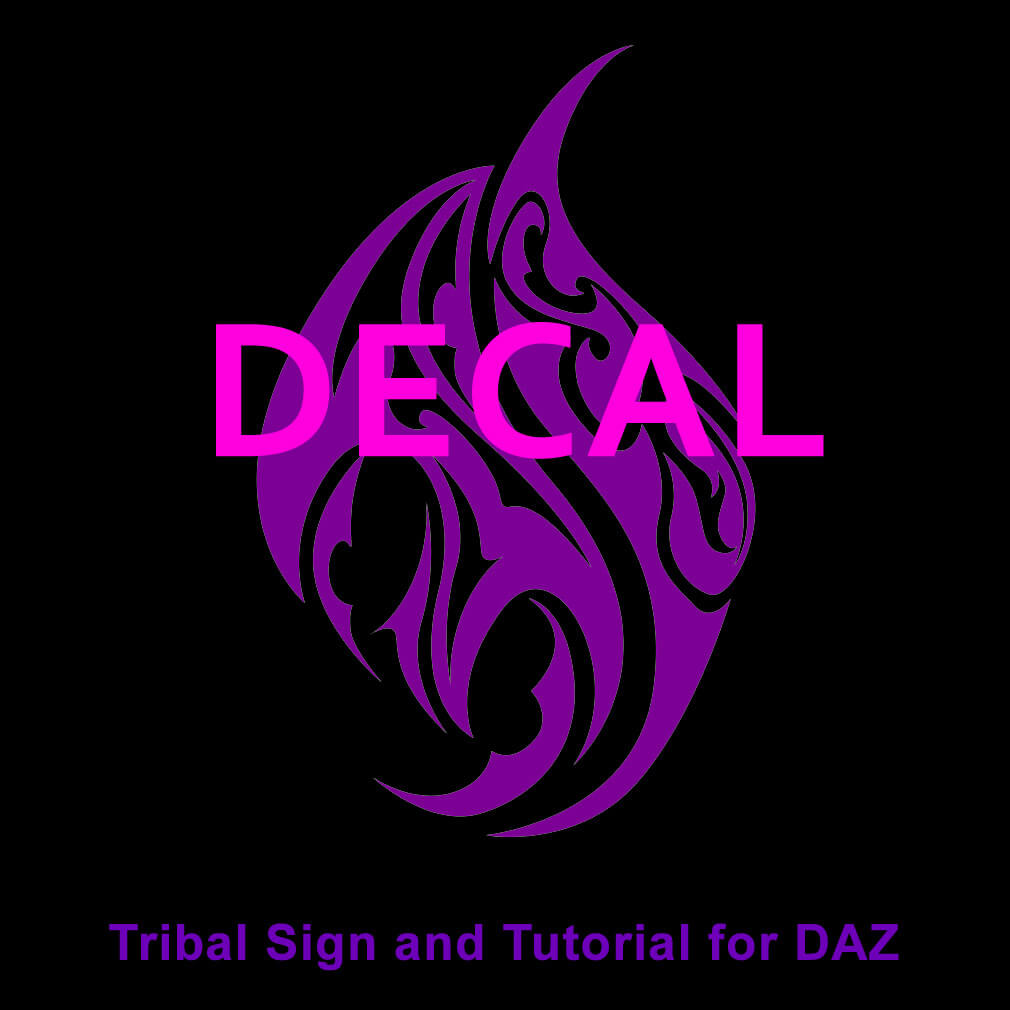
Decal Tribal Sign and Tutorial

5.0 Stars |4 Ratings


! REPORT
FREE
NOTE: DIGITAL DOWNLOAD, NOT A PHYSICAL ITEM

Add to Collection

9 Likes
Share This Daz Content


Offered By

Blender / DAZ since 2019. First product released in 2021. Product themes: mainly NSFW and hardcore, as well as erotic clothing and clothing-like dForce products. No special sales planned.

License
Extended Use License
This item comes with our Extended Use Licensing. This means that you may use the model for both non-commercial and commercial purposes, in a variety of mediums and applications.
For full license terms, see our 3D Content Licensing Agreement
Item Details
| Vendor: | Camouflage |
| Published: | Nov 11, 2026 |
| Download Size: | 2.2 MB |
| Software: | Daz Studio |
| dForce: | – |
Included Formats

Statistics
| Favorites: | 3 |
| Likes: | 9 |
| Views: | 335 |
Item Ratings
4 Ratings5 Stars|Nov 20, 2026
Thank you!
5 Stars|Nov 19, 2026
Great Thanks
5 Stars|Nov 15, 2026
The combination of text, poses, and materials makes this a very helpful tutorial. Thank you!
5 Stars|Nov 11, 2026
thank you
Decal Tribal Sign and Tutorial
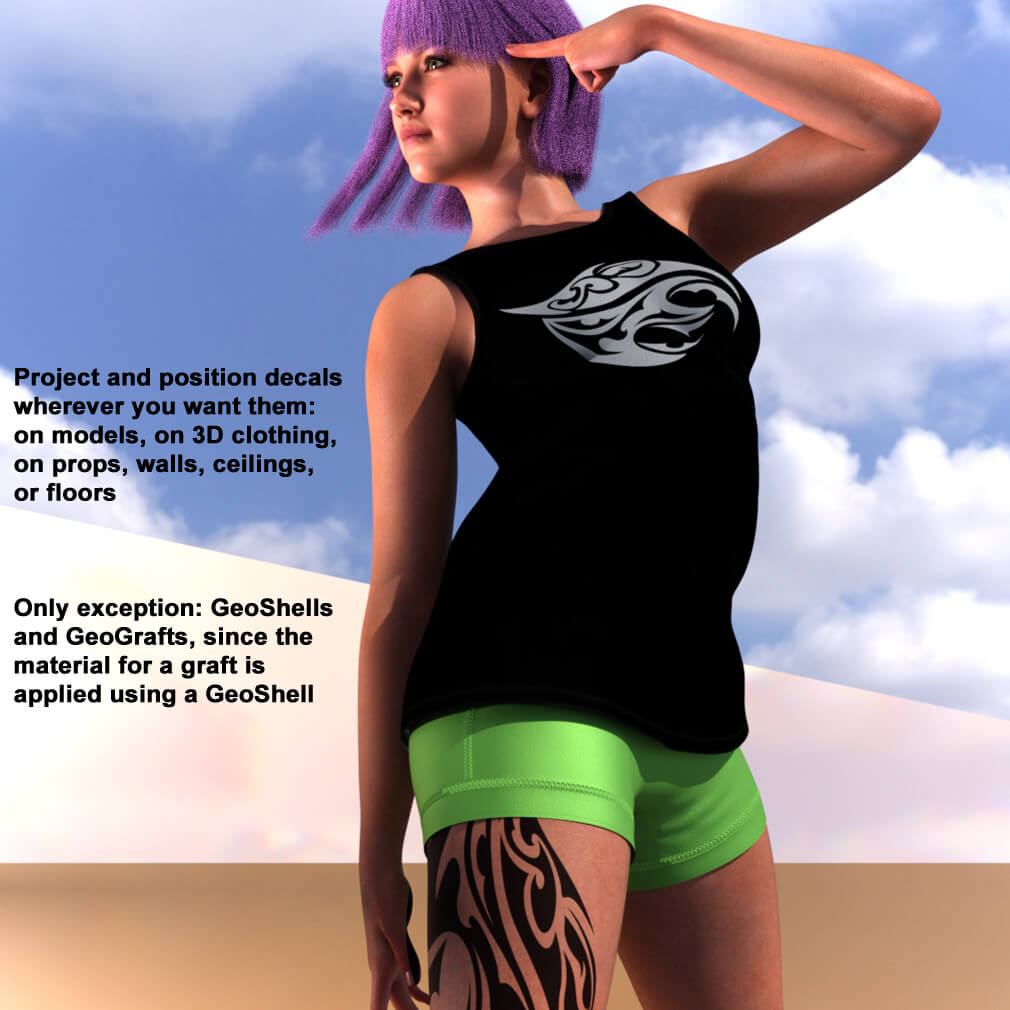
Decals — or rather, Iray Decal Nodes — are a bit more difficult to work with and differ significantly in their use from all other objects in DAZ. In return, however, you gain a level of flexibility and versatility that no other approach in DAZ can match. From independence from the Genesis version to the ability to position decals freely across UV (surface) boundaries, all the way to their use on nearly all 3D objects such as models, clothing, props, and so on—decals are highly flexible and allow users who enjoy experimenting to explore new avenues for creating interesting renderings.
In this tutorial, I'd like to show you how to use decals on models. In addition to the tutorial .pdf, the product also includes poses and a simple tribal sign. And if you follow these two basic rules, you'll avoid most of the mistakes that can quickly lead to frustration when working with decals:
1) First, set up the scene — including the pose, camera angle, and so on — exactly as you want it to appear in the final render. Only after that you should add a decal.
2) The blue arrow on the decal (Z-axis indicator) should always point toward the viewer or the camera.
What's included:
* a .pdf Tutorial
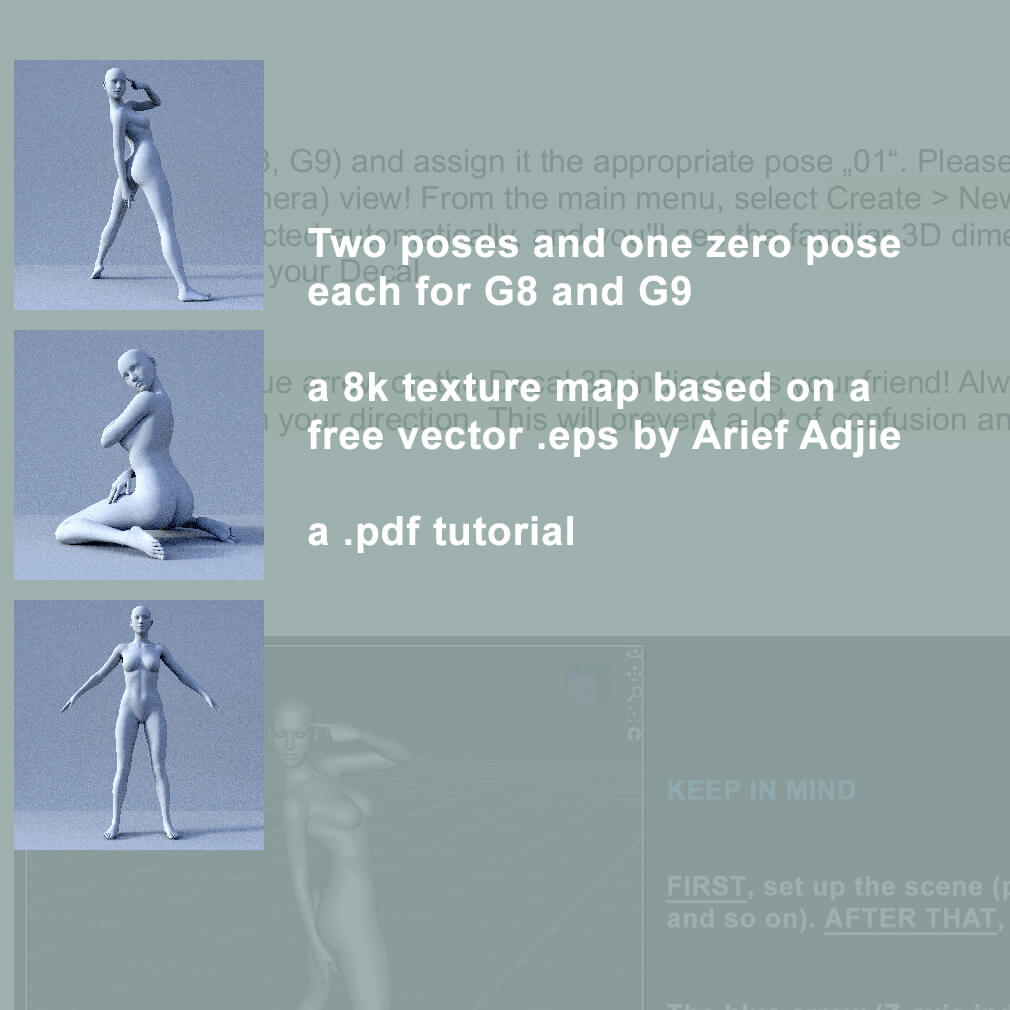
* 2 poses, including a zero pose, for both G8 and G9
* a 8k tribal sign as cutout map (see below)
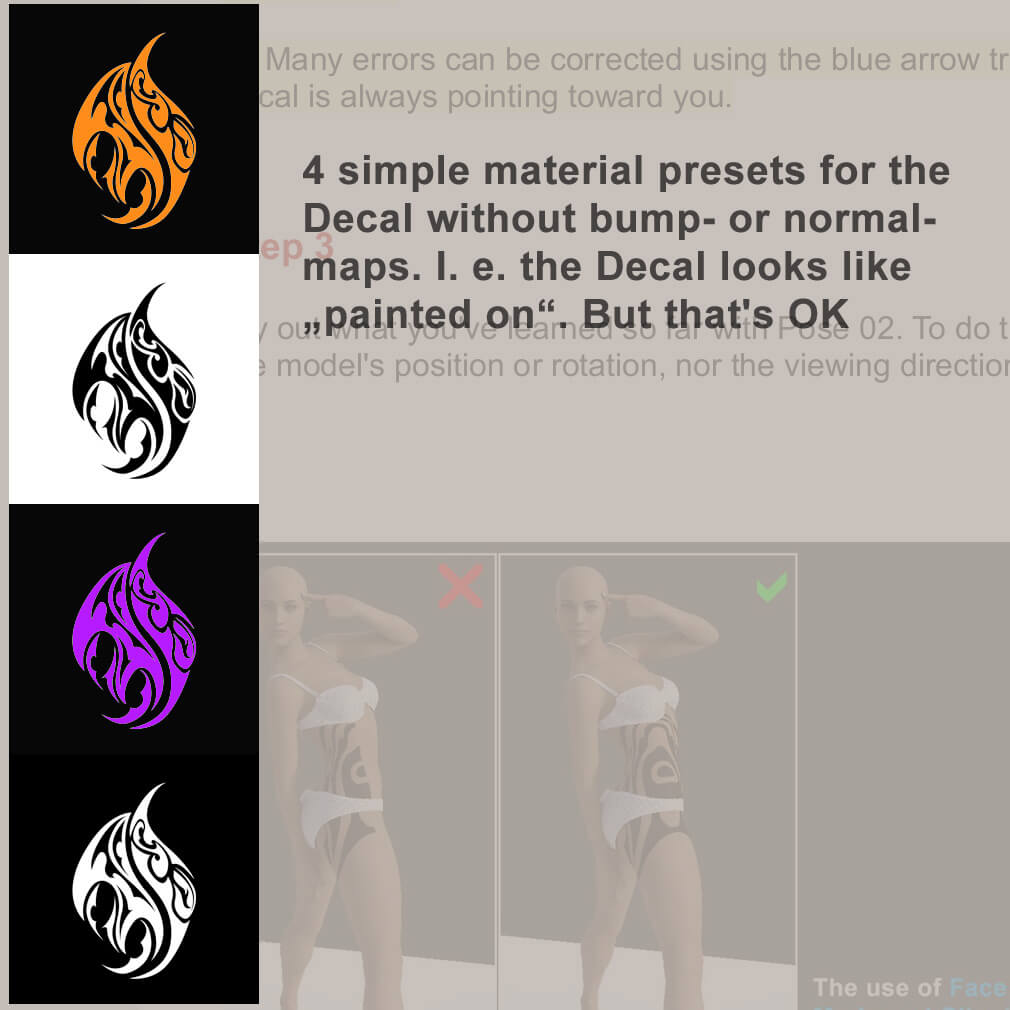
* 4 simple material presets for the tribals sign
Attribution
----------------
The tribal sign .jpg used in this product is based on the free vector graphic (.eps) * Black Tribal Tattoo Vector * by Arief Sapta Adjie (vecteezy)
Requirements
* DAZ Version 4.15+
* Iray compilant graphics card (Decals can only be used with Iray!)
Manual installation to the following folder:
Props - Camouflage - Decal Tutorial
In this tutorial, I'd like to show you how to use decals on models. In addition to the tutorial .pdf, the product also includes poses and a simple tribal sign. And if you follow these two basic rules, you'll avoid most of the mistakes that can quickly lead to frustration when working with decals:
1) First, set up the scene — including the pose, camera angle, and so on — exactly as you want it to appear in the final render. Only after that you should add a decal.
2) The blue arrow on the decal (Z-axis indicator) should always point toward the viewer or the camera.
What's included:
* a .pdf Tutorial
* 2 poses, including a zero pose, for both G8 and G9
* a 8k tribal sign as cutout map (see below)
* 4 simple material presets for the tribals sign
Attribution
----------------
The tribal sign .jpg used in this product is based on the free vector graphic (.eps) * Black Tribal Tattoo Vector * by Arief Sapta Adjie (vecteezy)
Requirements
* DAZ Version 4.15+
* Iray compilant graphics card (Decals can only be used with Iray!)
Manual installation to the following folder:
Props - Camouflage - Decal Tutorial
Categories
