


 Free 3D
 3D Print Models
 3D Scans
 Animation & MoCap
 Textures
 Materials
 Skin Reference
 2D Game Assets
 Sound Effects
 Brushes & Tools
 Reference Photos
 Stock Images
 HDR Images
 3ds Max
 Maya
Maya Blender
 Unreal Engine
 Unity
Unity ZBrush
 Cinema 4D
 LightWave
 Marmoset
 SketchUp
 FBX
FBX DAE
DAE DXF
DXF GLB
GLBLuxe's DAZ Content Manager
 296
296Thread Activity
Luxe MuseFri, Oct 16
Luxe MuseWed, Oct 14
Luxe MuseWed, Oct 14
Luxe MuseMon, Oct 12
Luxe MuseSat, Sep 19
deathdSat, Sep 19

I wanted this to be a showcase and a step-by-step guide for my DAZ Content Manager app. I'm a little OCD, so I have all my DAZ content organized to oblivion.
Even so, it is tedious to drill down through folders by hand, and I still have to open the images I downloaded for each product just to see the promos and features.
Then, once I find something I want for a shot, I have to unzip it and copy the contents into place. On top of that, the archive structure sometimes does not match the rest of my library or DAZ's preferred folder naming conventions.
So if you are like me and you want to keep things organized, fix those archives for good, and install or uninstall content with ease, this tool is for you.
DAZ Content Manager records every file it installs and notes what was already there beforehand, so uninstalling never touches pre-existing files if something conflicts. And it does all of that while you browse those beautiful product shots vendors make for your favorite products.
Let's start with the tutorial.
First, it is important to note that you can start your library or catalogue from scratch. You do need to add a root folder to the app, so it knows where to store the archives and images you import, and the categories you make. But for simplicity, this tutorial assumes you were like me and already had a folder with archives and images organized.
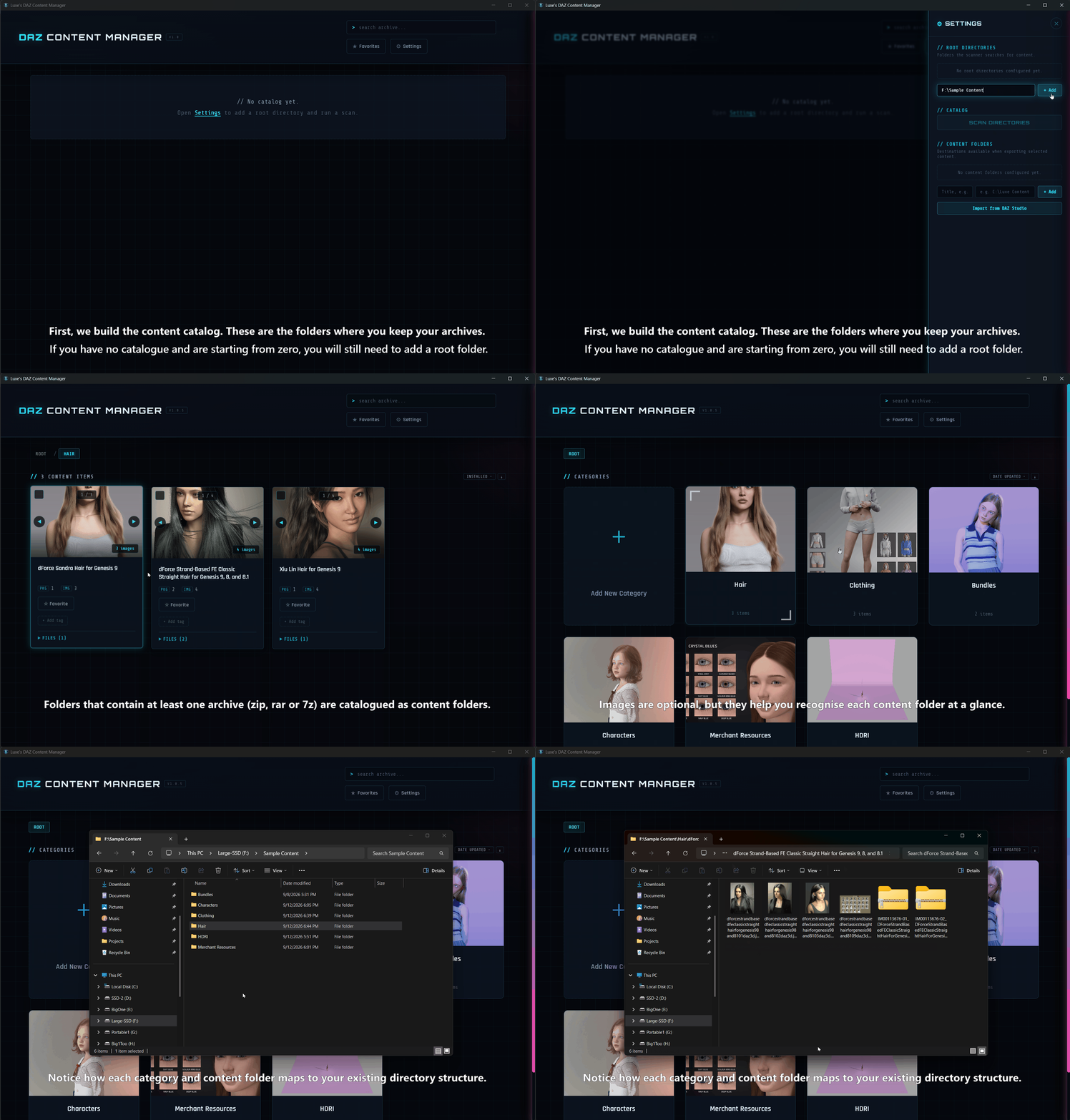
You can run a scan at any time if, for some reason, you manually modified categories through the file system, added new folders, archives or images, or made any other changes. In addition, if you add more root folders later with content, you'll need to run a scan to add all those items to your catalogue.
Running a scan is harmless to your catalogue.
But seeing your catalogue is useless unless you can do more with it. I personally don't like to have a bloated DAZ library. It makes things slow, especially when posing, and not just because of character morphs and JCMs.
Tons of great artists add morphs for Genesis to simulate micro pressure and the like, and those also slow down your ability to pose quickly or load a Genesis figure.
So I only permanently install what I know has no Genesis morphs. Then, when I want a shot, I install the characters I need for it, along with the clothing or hair, unless they were already permanently installed because they have little or no influence on the Genesis figure, or they are something I use all the time.
Anyway, that is why the tool lets you manage what to install, and uninstall it just as easily.
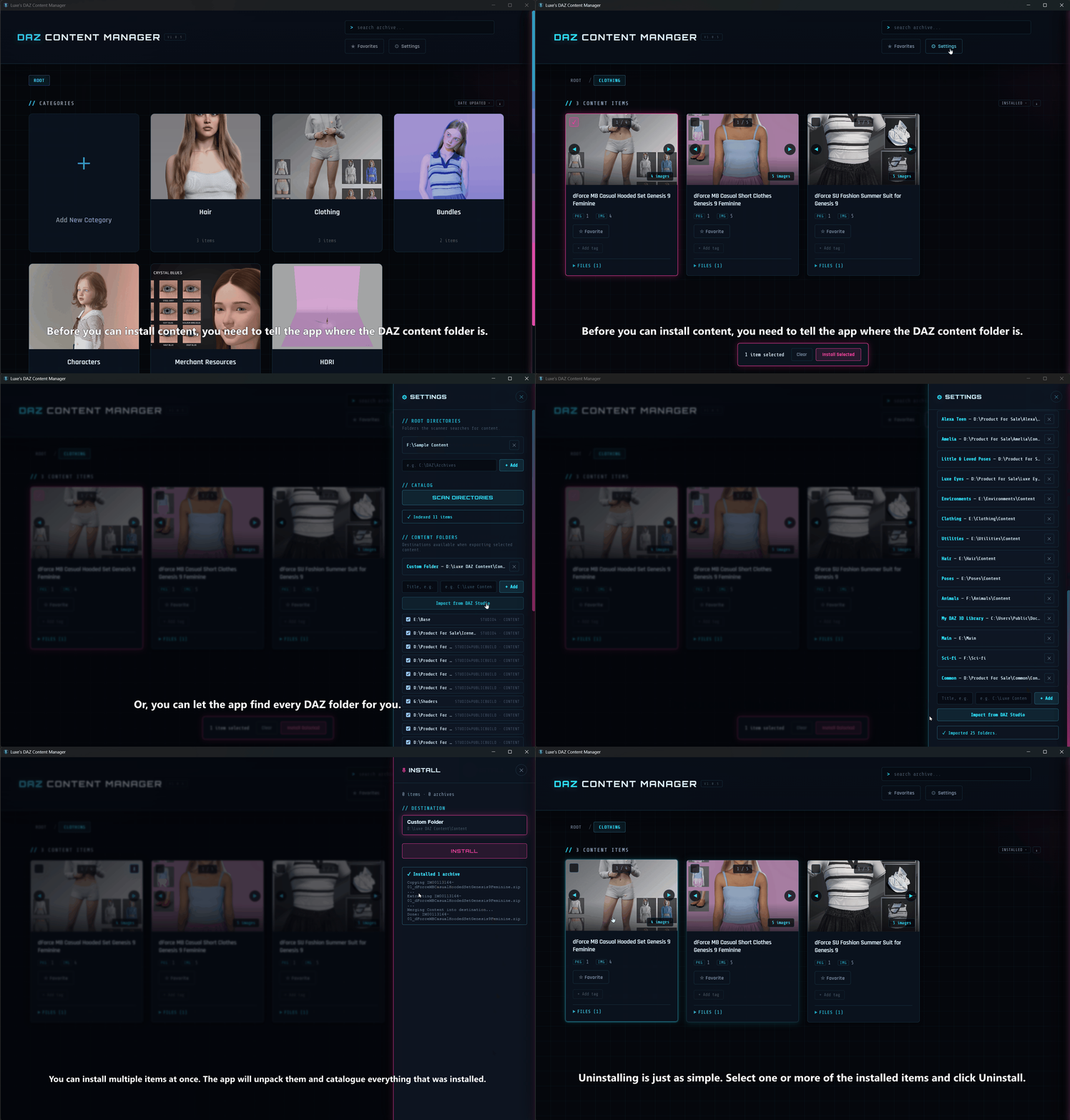
Even so, it is tedious to drill down through folders by hand, and I still have to open the images I downloaded for each product just to see the promos and features.
Then, once I find something I want for a shot, I have to unzip it and copy the contents into place. On top of that, the archive structure sometimes does not match the rest of my library or DAZ's preferred folder naming conventions.
So if you are like me and you want to keep things organized, fix those archives for good, and install or uninstall content with ease, this tool is for you.
DAZ Content Manager records every file it installs and notes what was already there beforehand, so uninstalling never touches pre-existing files if something conflicts. And it does all of that while you browse those beautiful product shots vendors make for your favorite products.
Let's start with the tutorial.
First, it is important to note that you can start your library or catalogue from scratch. You do need to add a root folder to the app, so it knows where to store the archives and images you import, and the categories you make. But for simplicity, this tutorial assumes you were like me and already had a folder with archives and images organized.
You can run a scan at any time if, for some reason, you manually modified categories through the file system, added new folders, archives or images, or made any other changes. In addition, if you add more root folders later with content, you'll need to run a scan to add all those items to your catalogue.
Running a scan is harmless to your catalogue.
But seeing your catalogue is useless unless you can do more with it. I personally don't like to have a bloated DAZ library. It makes things slow, especially when posing, and not just because of character morphs and JCMs.
Tons of great artists add morphs for Genesis to simulate micro pressure and the like, and those also slow down your ability to pose quickly or load a Genesis figure.
So I only permanently install what I know has no Genesis morphs. Then, when I want a shot, I install the characters I need for it, along with the clothing or hair, unless they were already permanently installed because they have little or no influence on the Genesis figure, or they are something I use all the time.
Anyway, that is why the tool lets you manage what to install, and uninstall it just as easily.


! REPORT
Making directories manually in the file system, and the subdirectories where you add your archives and images, is not that hard. But DAZ Content Manager makes it even easier.
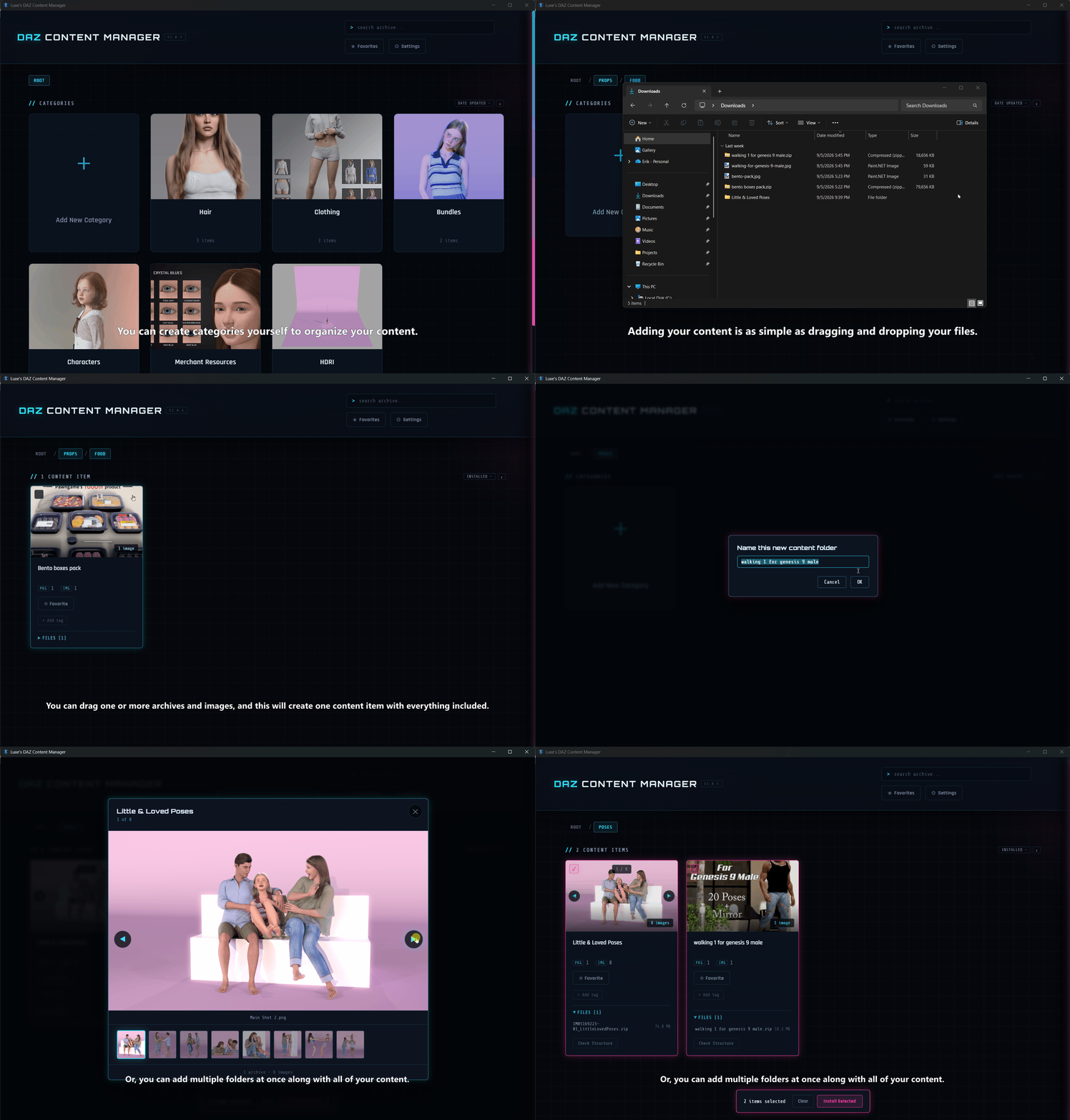
When dragging files directly, you can drag more than one, as many as you like; however, they will be considered as belonging to one Content Item. You can, however, drag already organized and named folders, and each folder dragged into the app will become a content item.
When dragging files directly, you can drag more than one, as many as you like; however, they will be considered as belonging to one Content Item. You can, however, drag already organized and named folders, and each folder dragged into the app will become a content item.
REPLY
! REPORT
In addition to adding the things you download and making your own categories, you can move things around, split a content folder into several smaller ones, rename categories or folders, and delete what you no longer want. Deleting is permanent, so you'll be asked to confirm before anything is removed.
It's important to know that if you delete a folder, or a whole category of items you've already installed, that content is not removed from your DAZ libraries.
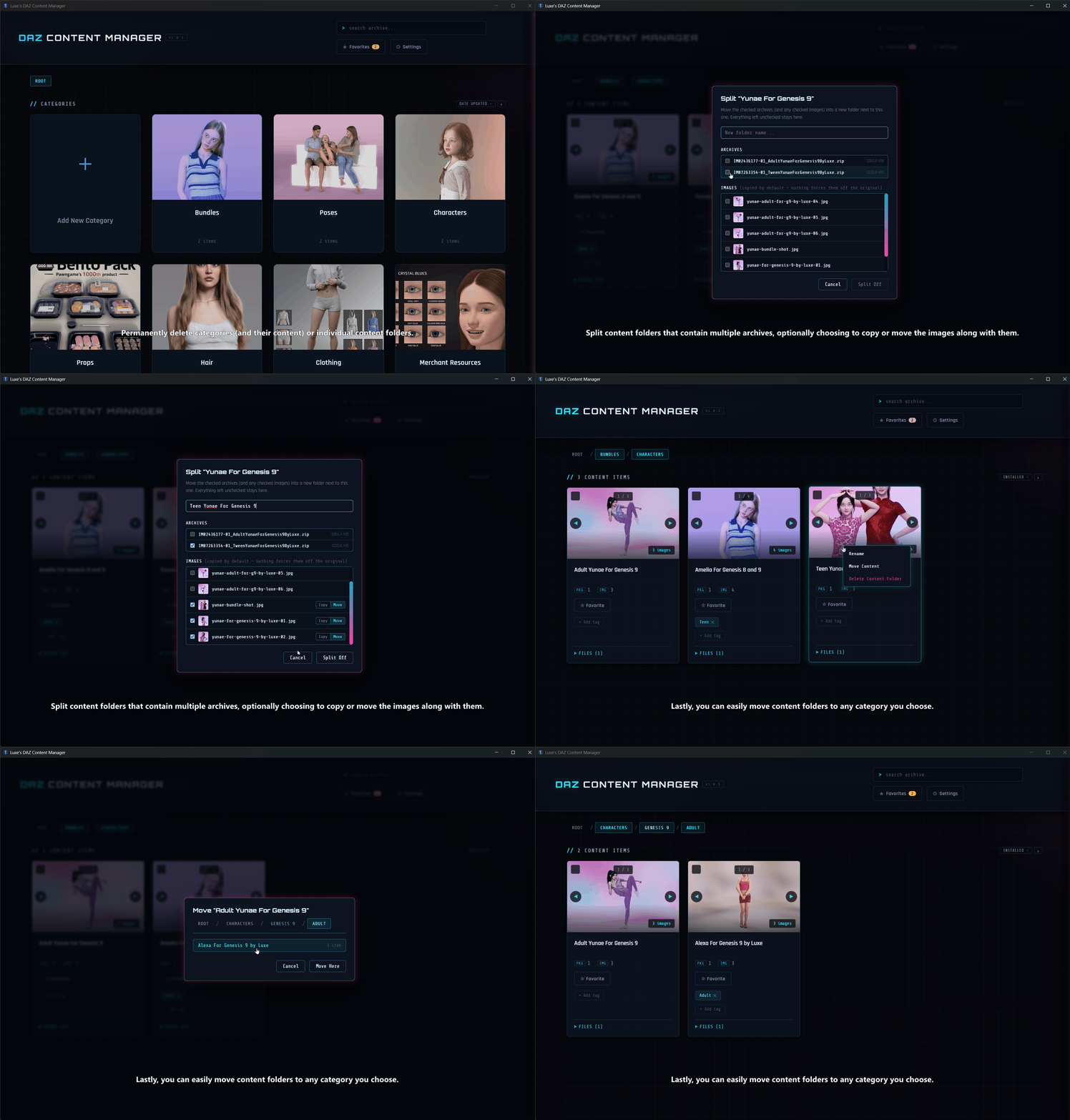
It's important to know that if you delete a folder, or a whole category of items you've already installed, that content is not removed from your DAZ libraries.
REPLY
! REPORT
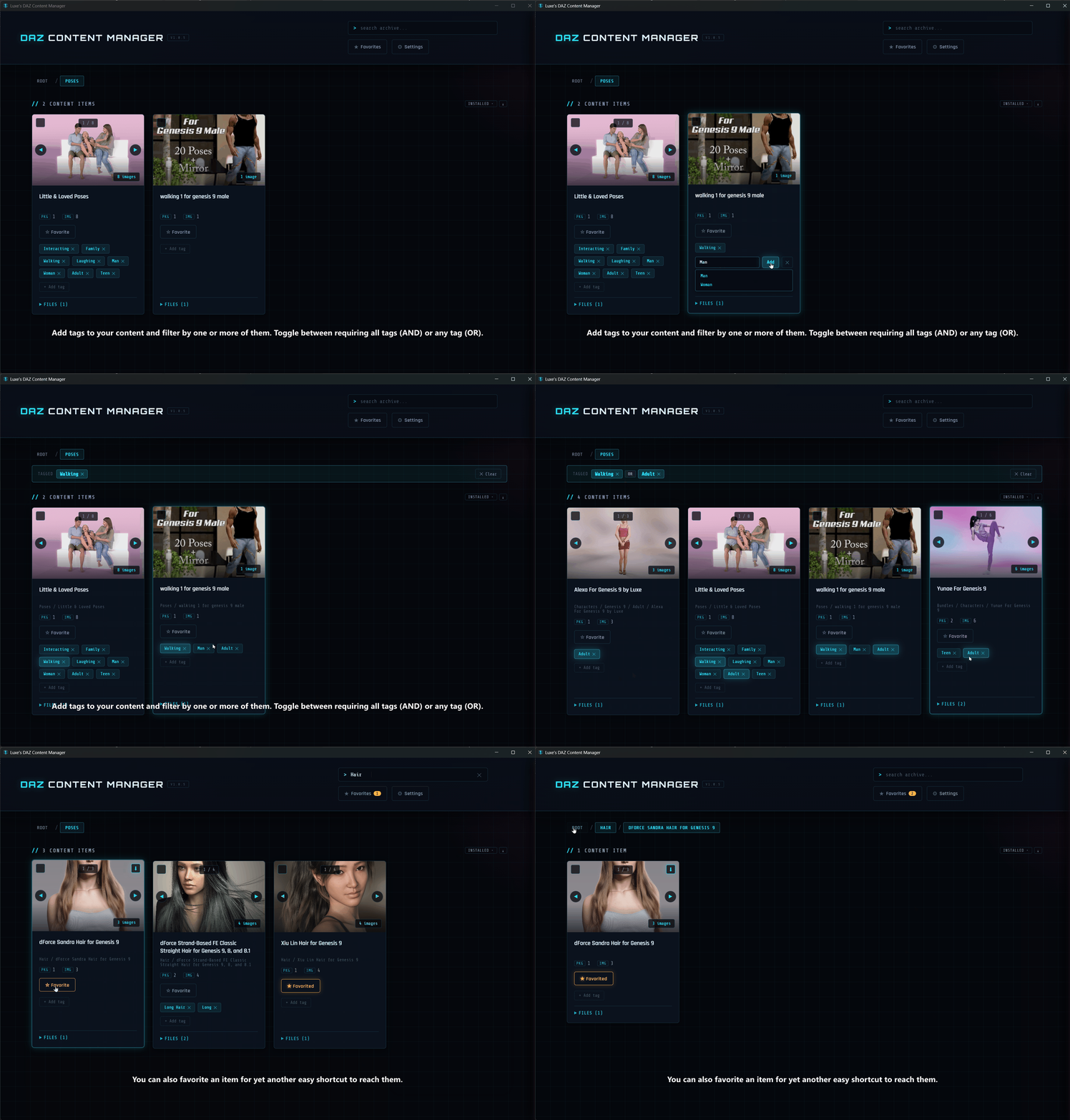
Finding content is another thing I needed to make easier. There are three ways you can find things. The most obvious one, and the one I personally use the most, is plain text search. Then there is the favorites feature, which lets you jump quickly to one item at a time. Lastly, we added a tagging system you can use to filter content by clicking one or more tags, and choosing whether the results must include every selected tag, or at least one of them.
REPLY
! REPORT
Different DAZ vendors each have their own way of doing things. There is nothing wrong with that, especially when you are installing content by hand. More often than not, though, I found myself deleting my entire DAZ content folder and trying to rebuild it by unzipping a batch of archives, only to discover that I then had to move folders around by hand because each archive had produced a completely different folder structure.
Although the content installer will try to sort this out on its own, I like to make sure my archives all follow the same structure. So we added a feature that lets you check, and then standardize, the structure of your zip, rar, or 7z archives.
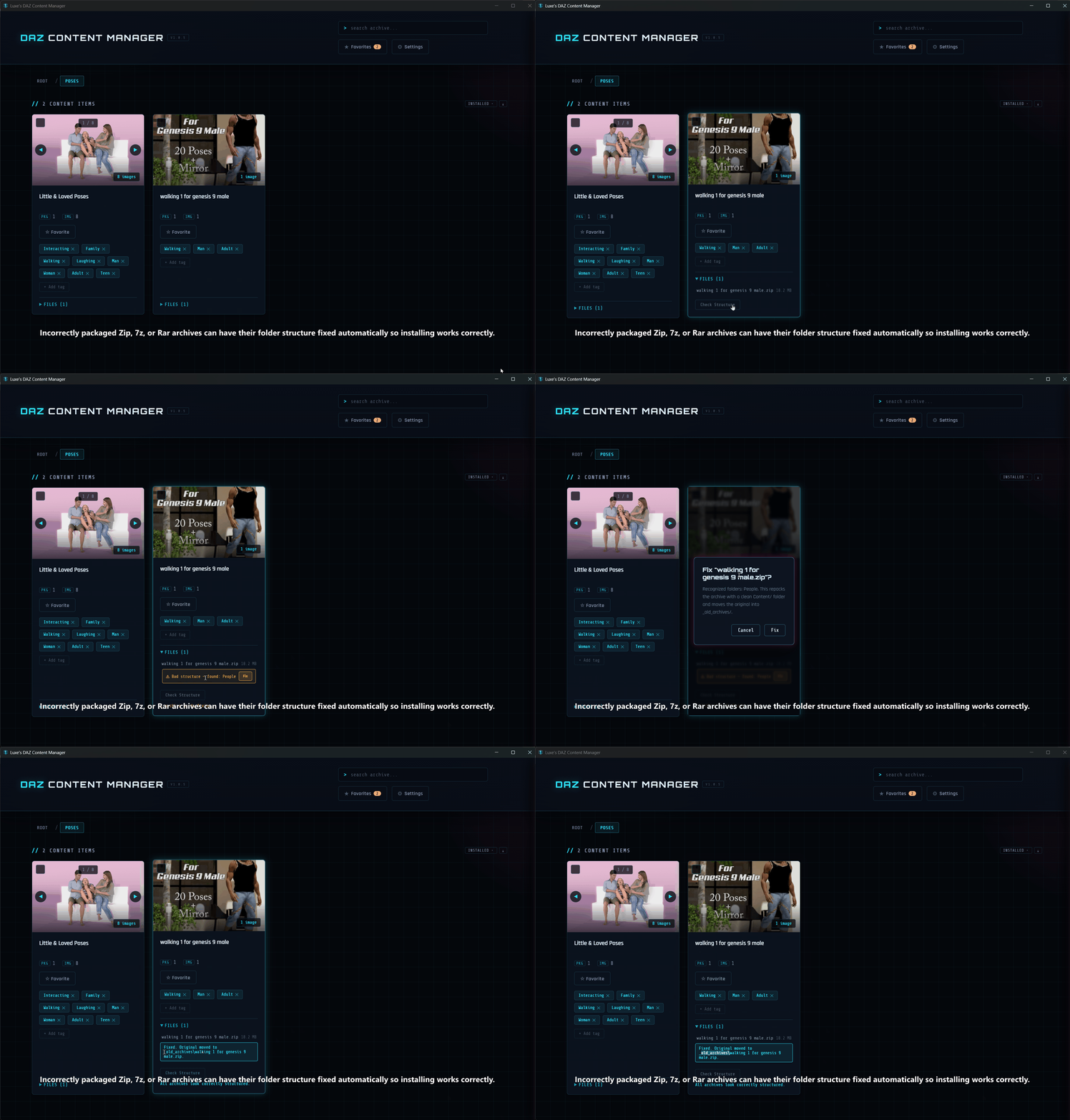
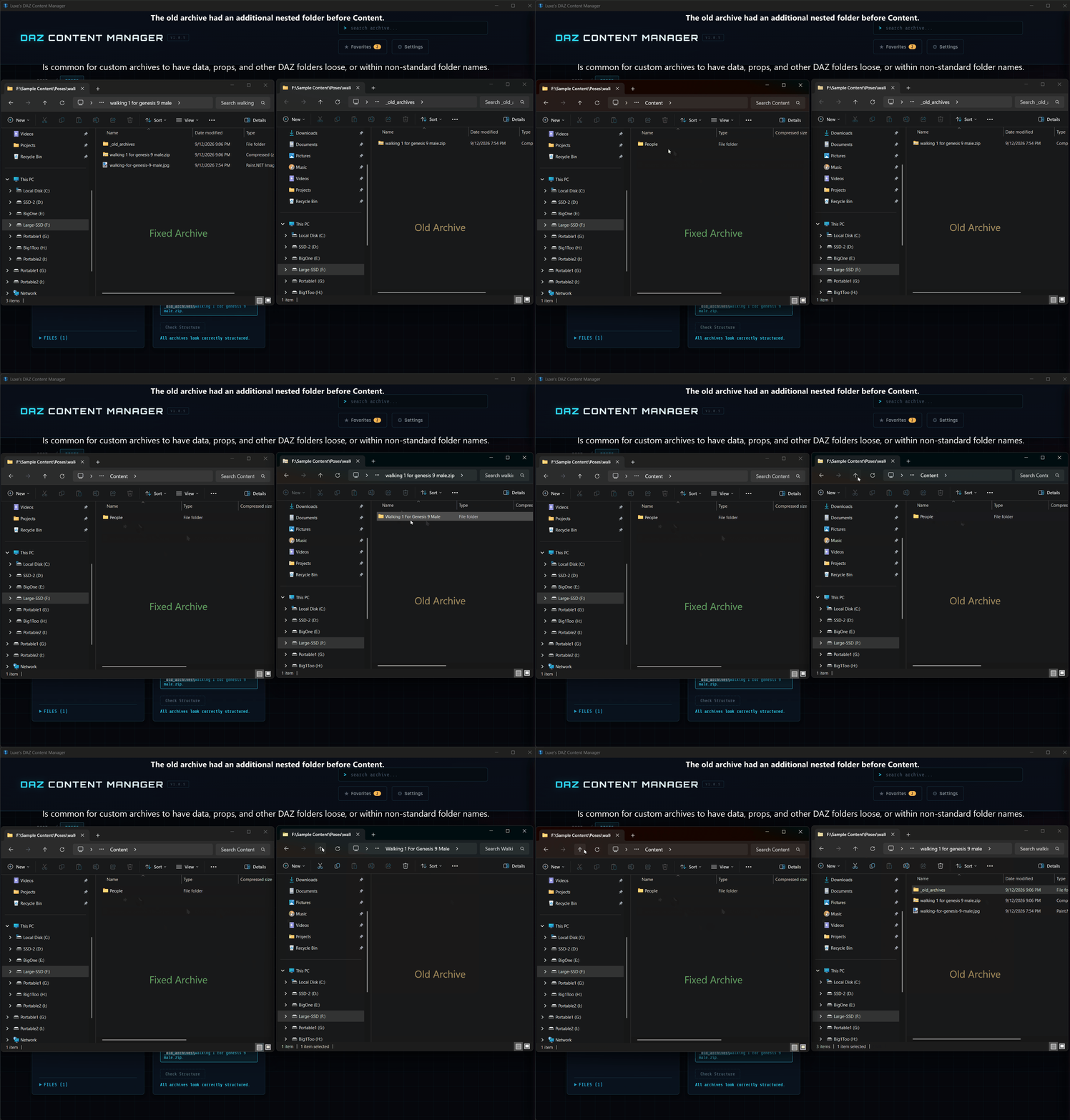
The tool makes a backup of the original in case you want to restore it, and stores that backup in a folder named "_old_archive" inside the content folder. Once you are happy that the modified archive works the way you want, you can delete that folder with the old archive.
The following shows what it did for the archive we just fix:
Although the content installer will try to sort this out on its own, I like to make sure my archives all follow the same structure. So we added a feature that lets you check, and then standardize, the structure of your zip, rar, or 7z archives.
The tool makes a backup of the original in case you want to restore it, and stores that backup in a folder named "_old_archive" inside the content folder. Once you are happy that the modified archive works the way you want, you can delete that folder with the old archive.
The following shows what it did for the archive we just fix:
REPLY
! REPORT
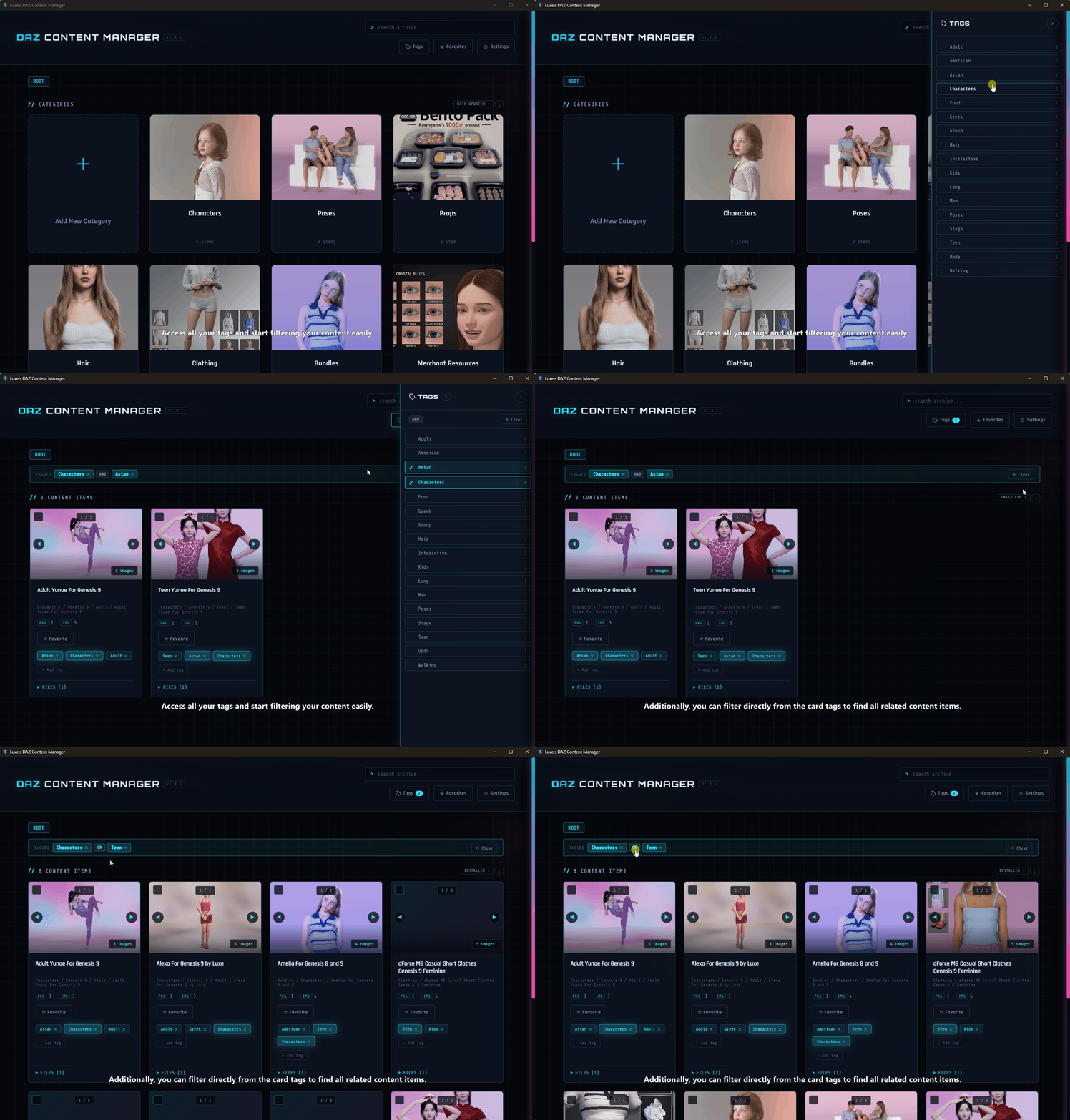
Version 1.06 introduces yet another easier mechanism to filter by tags. I hope you find it useful.
REPLY
! REPORT
We have added a few more quality of life features, such as being able to check all your root folders for bad archive file structures, or archives containing useless files (limited to desktop.ini, thumbs.db, and .DS_Store) in the settings drawer. We also added a button for you to get rid of all the backups that were generated whenever you fix files. Just make sure you like the new archive before removing the backups.
We added checkboxes for selecting all content cards in a category that aren't installed, and all that are installed. We also made the lightbox image viewer show images correctly, as some were being cropped at the upper and lower edges. The scroll bar in the lightbox went bye bye too.
We made a few more bug fixes as well. For the full list, see: https://www.renderhub.com/forum/10865/luxe-muse-support-and-updates
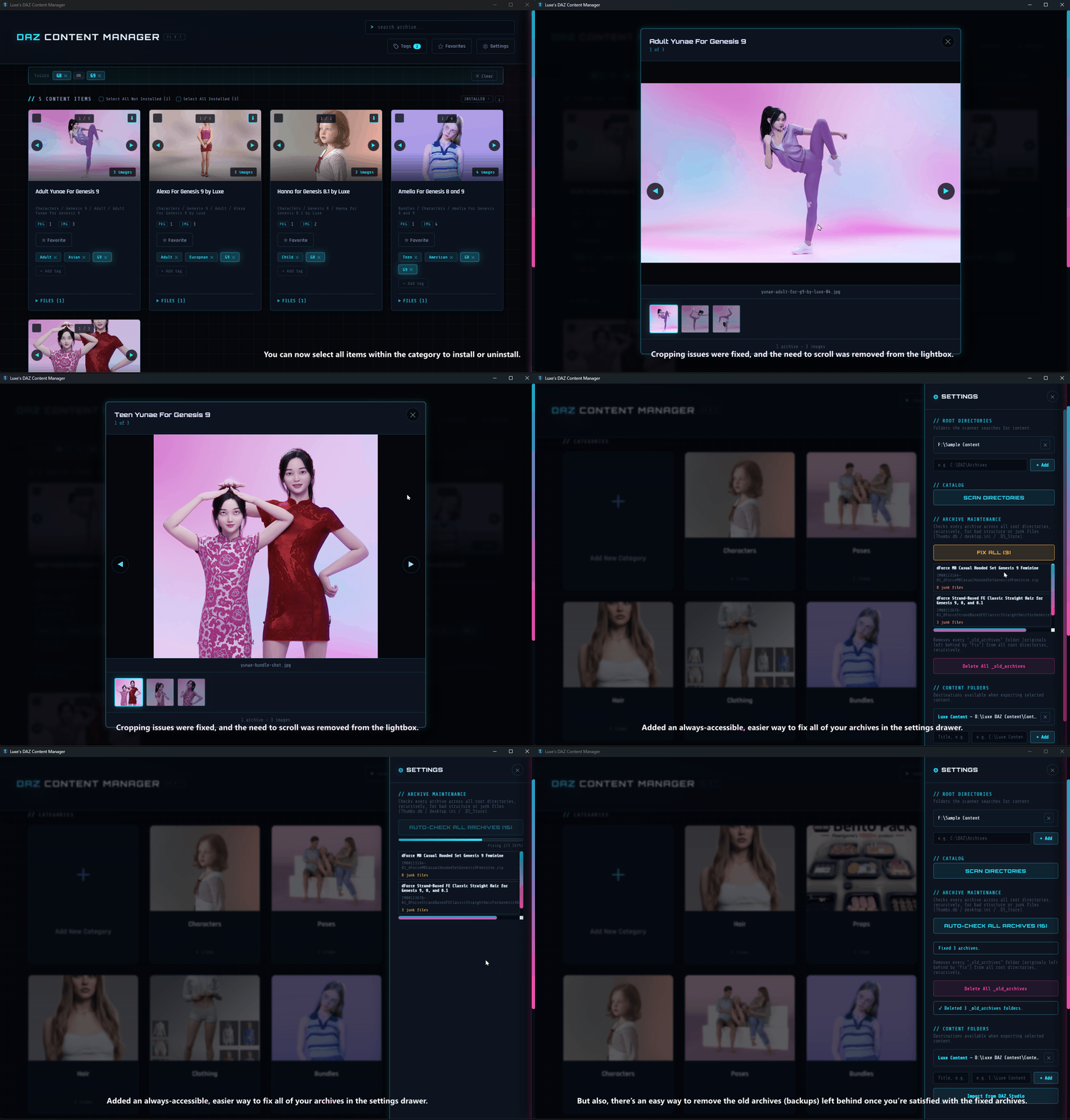
We added checkboxes for selecting all content cards in a category that aren't installed, and all that are installed. We also made the lightbox image viewer show images correctly, as some were being cropped at the upper and lower edges. The scroll bar in the lightbox went bye bye too.
We made a few more bug fixes as well. For the full list, see: https://www.renderhub.com/forum/10865/luxe-muse-support-and-updates
REPLY
! REPORT
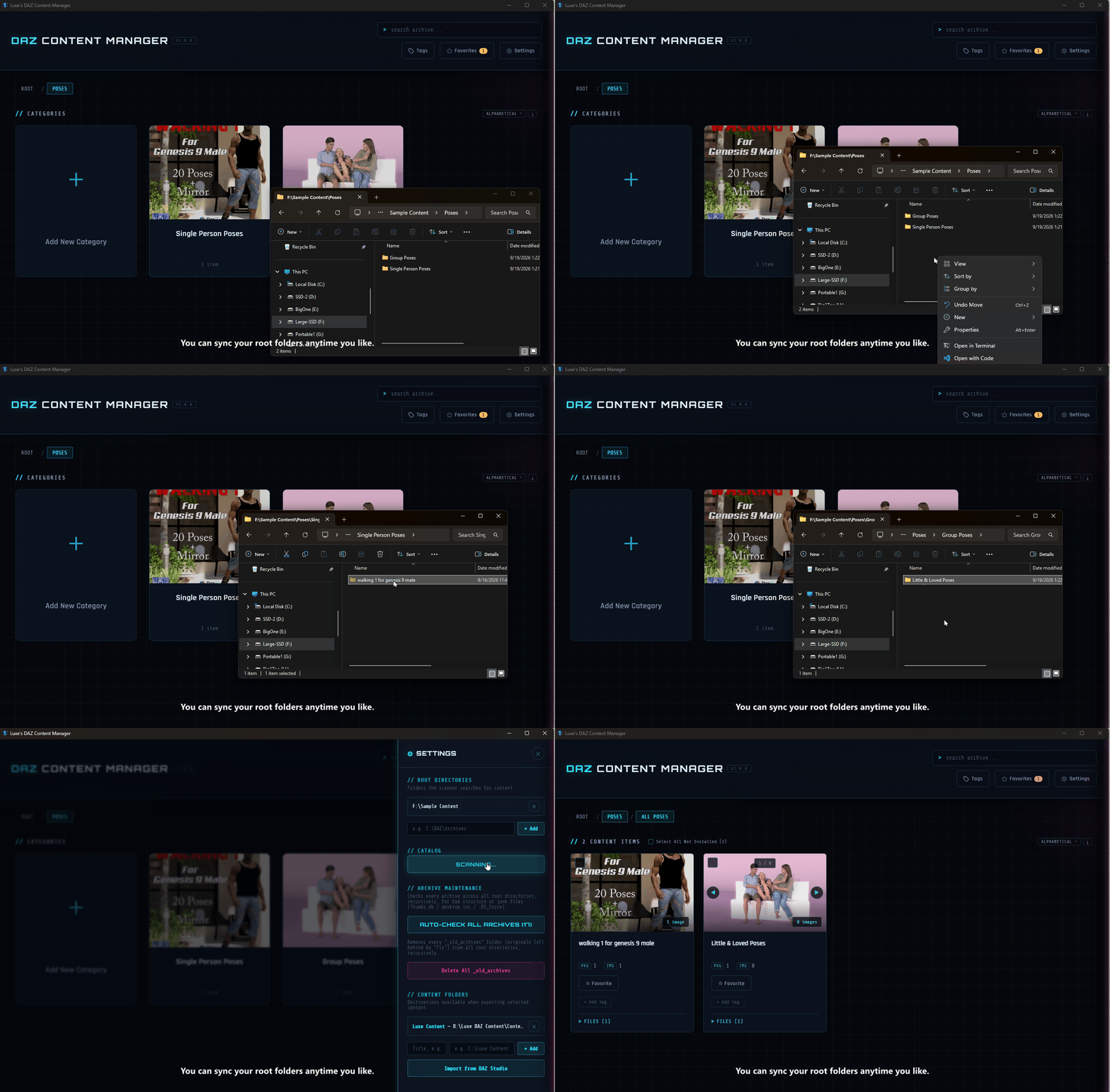
This is not a new feature, but I don't think I've ever highlighted the fact that you can sync with your root folders at any time. All the changes you manually make to file names, content you add or delete, and new categories will all be synced with the click of a button.
REPLY
! REPORT
I've just added a couple of live improvement features.
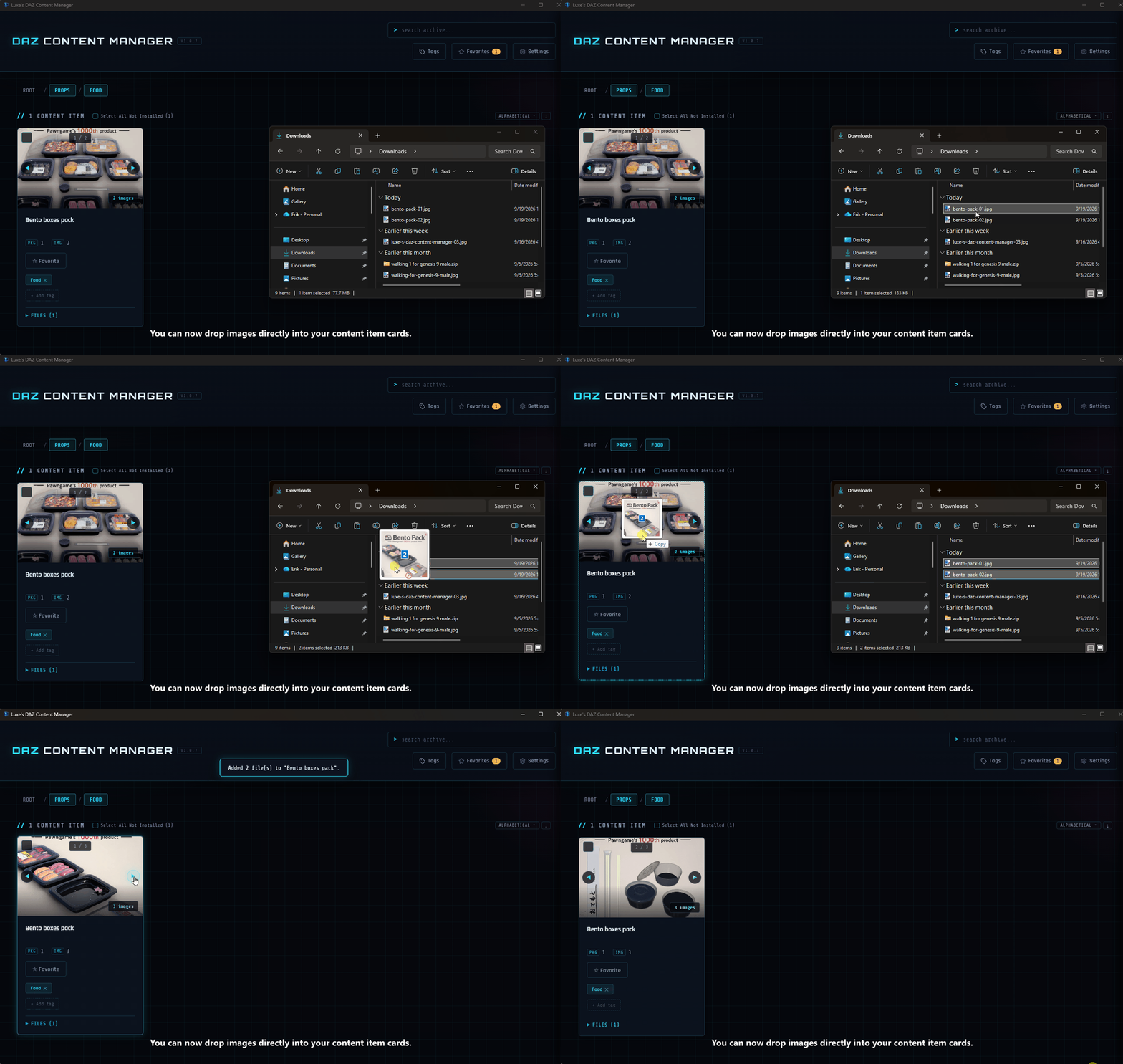
First, you can now drop just images onto a content item folder.
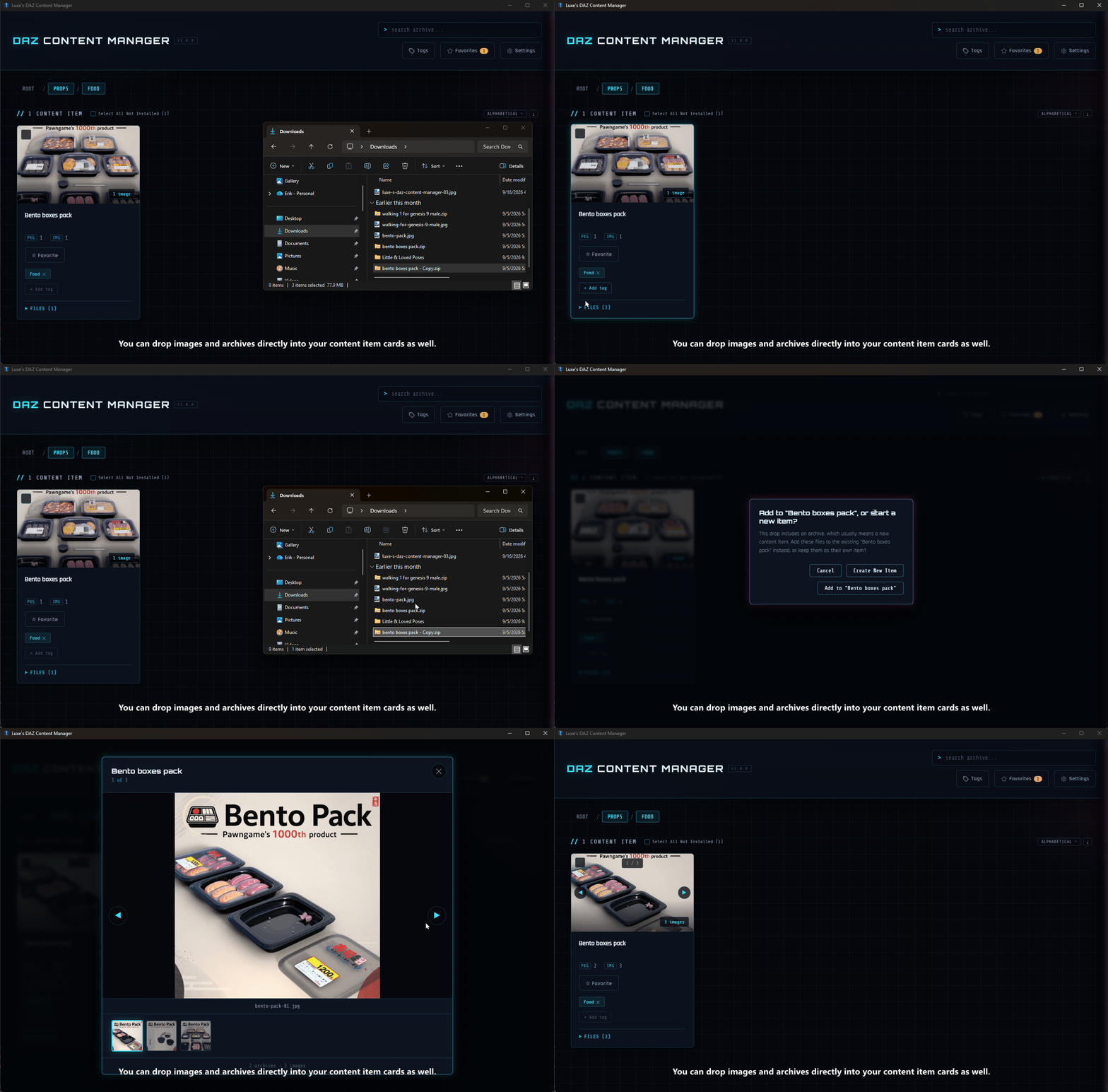
In addition, we made it so that you can drop more archives onto a content item as well.
Finally, prior to this update, when you dropped content anywhere, it would create it in the category you were browsing. Now you can drop the content onto a category card and the item will be created there.
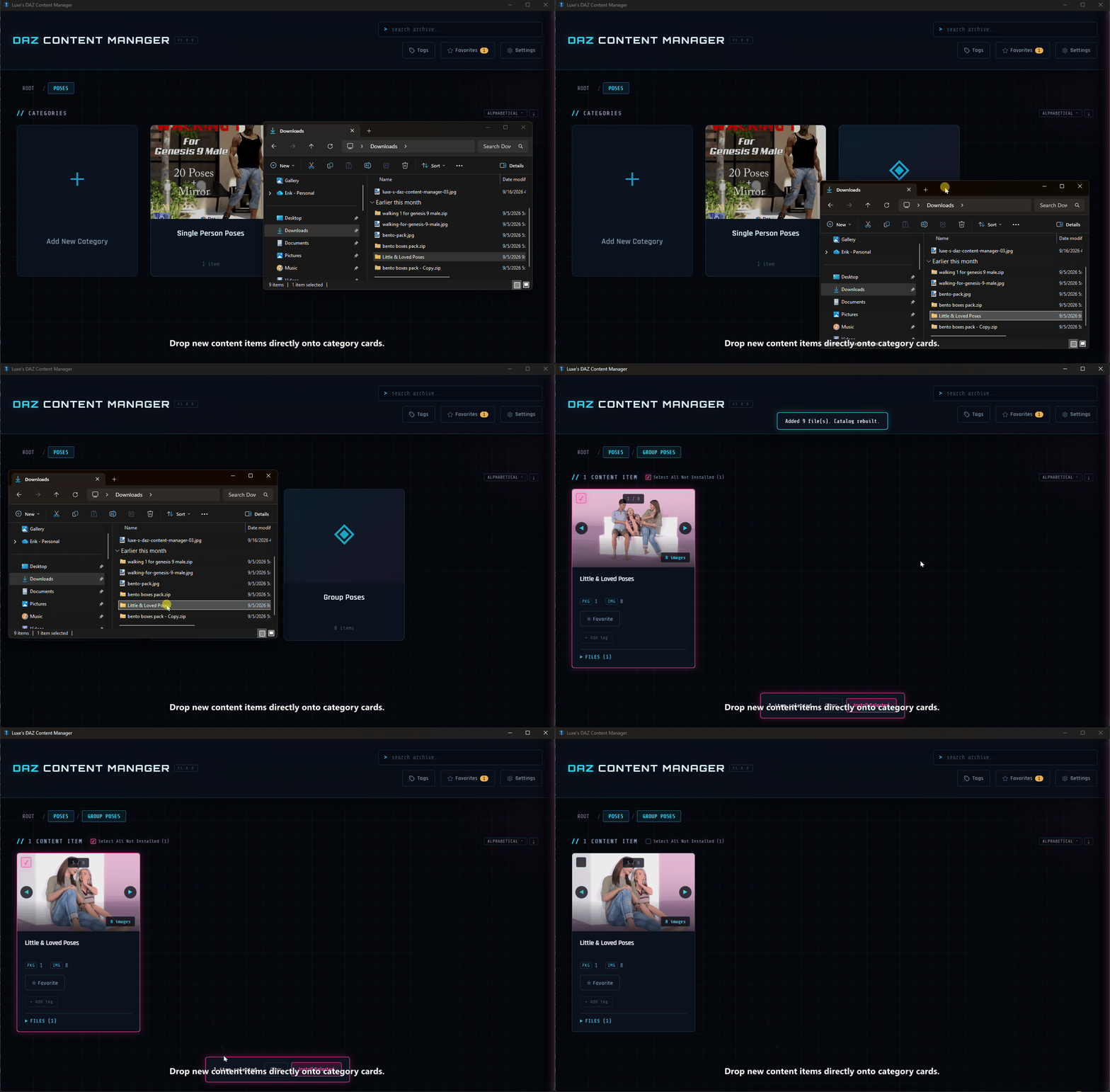
First, you can now drop just images onto a content item folder.
In addition, we made it so that you can drop more archives onto a content item as well.
Finally, prior to this update, when you dropped content anywhere, it would create it in the category you were browsing. Now you can drop the content onto a category card and the item will be created there.
REPLY
! REPORT
Luxe Muse
Karma: 9,329
Sat, Sep 19You might have noticed that I’ve been using the Bento Boxes a lot. That’s because I love that free goodie from Pawngame. You should get it for yourself and give it the best rating: https://www.renderhub.com/pawngame/bento-pack

Looks pretty cool. Sounds like I could have used this when I started lol. I have been manually editing every product I get before installing, everything into my own organization methods. Like clothes for example, I have a folder structure that sorts clothes into a few category subfolders, and also make sure all the texture addons for clothes end up in a subfolder of the clothes they are made for, none of that dumping all the texture addons into a vendor folder and having to guess what the hell it is for lol. That was the main reason I started getting all OCD on my runtime, annoyances like that. I also have seperate runtimes for each base, easier to find what I need without searching through everything at once.
REPLY
! REPORT
Luxe Muse
Karma: 9,329
Sat, Sep 19Thank you very much, deathd, and trust me, I hear you so loud.
Two or three times a year I just go and wipe out all my DAZ folders, install everything from scratch, and become more selective as I know there are things I never used "past that time all those years ago." I merge folders and move them around because "that disk is almost full now and can't take another hair product."
Two or three times a year I just go and wipe out all my DAZ folders, install everything from scratch, and become more selective as I know there are things I never used "past that time all those years ago." I merge folders and move them around because "that disk is almost full now and can't take another hair product."
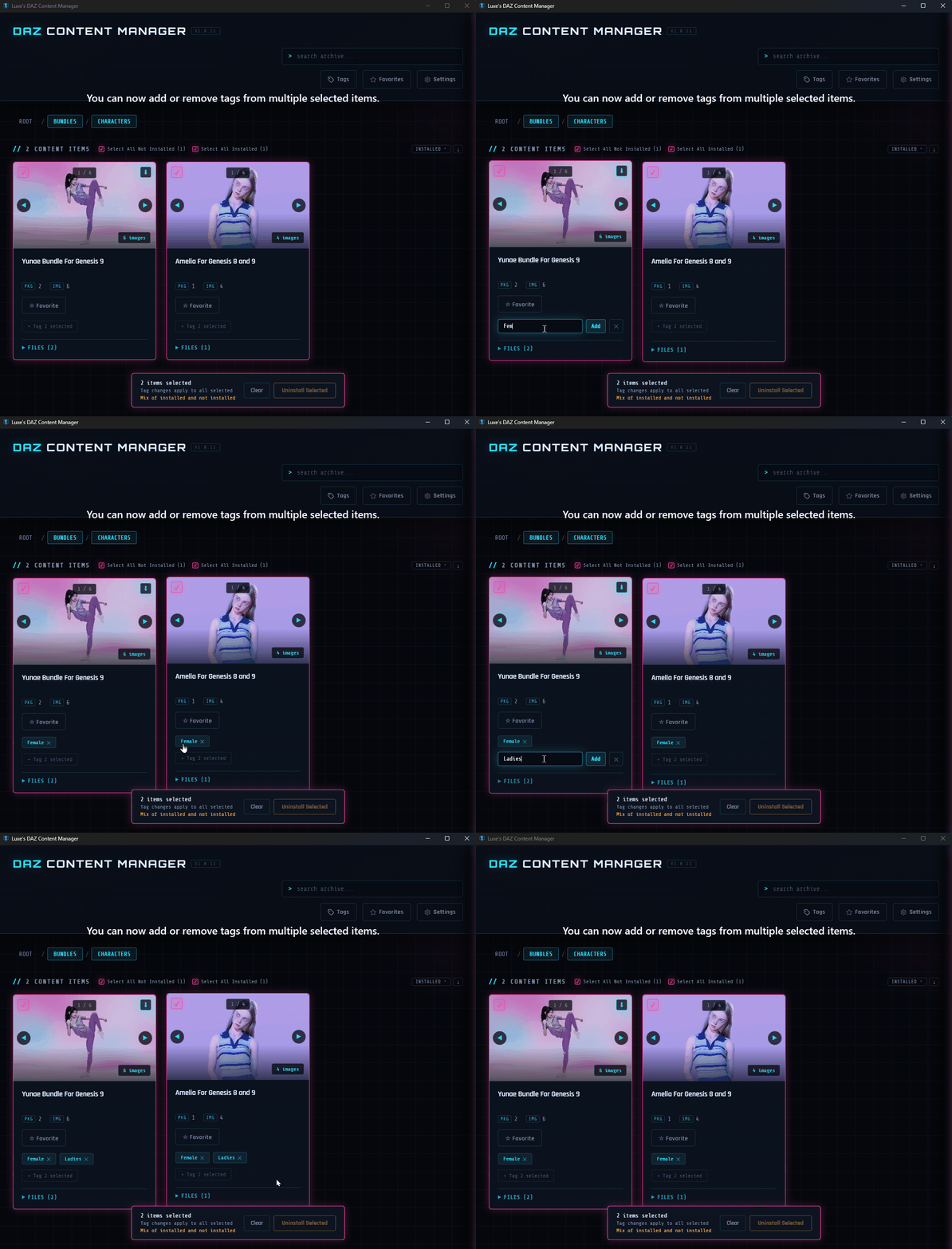
When you have multiple content items selected, adding or removing tags on one of them will update all the selected items.
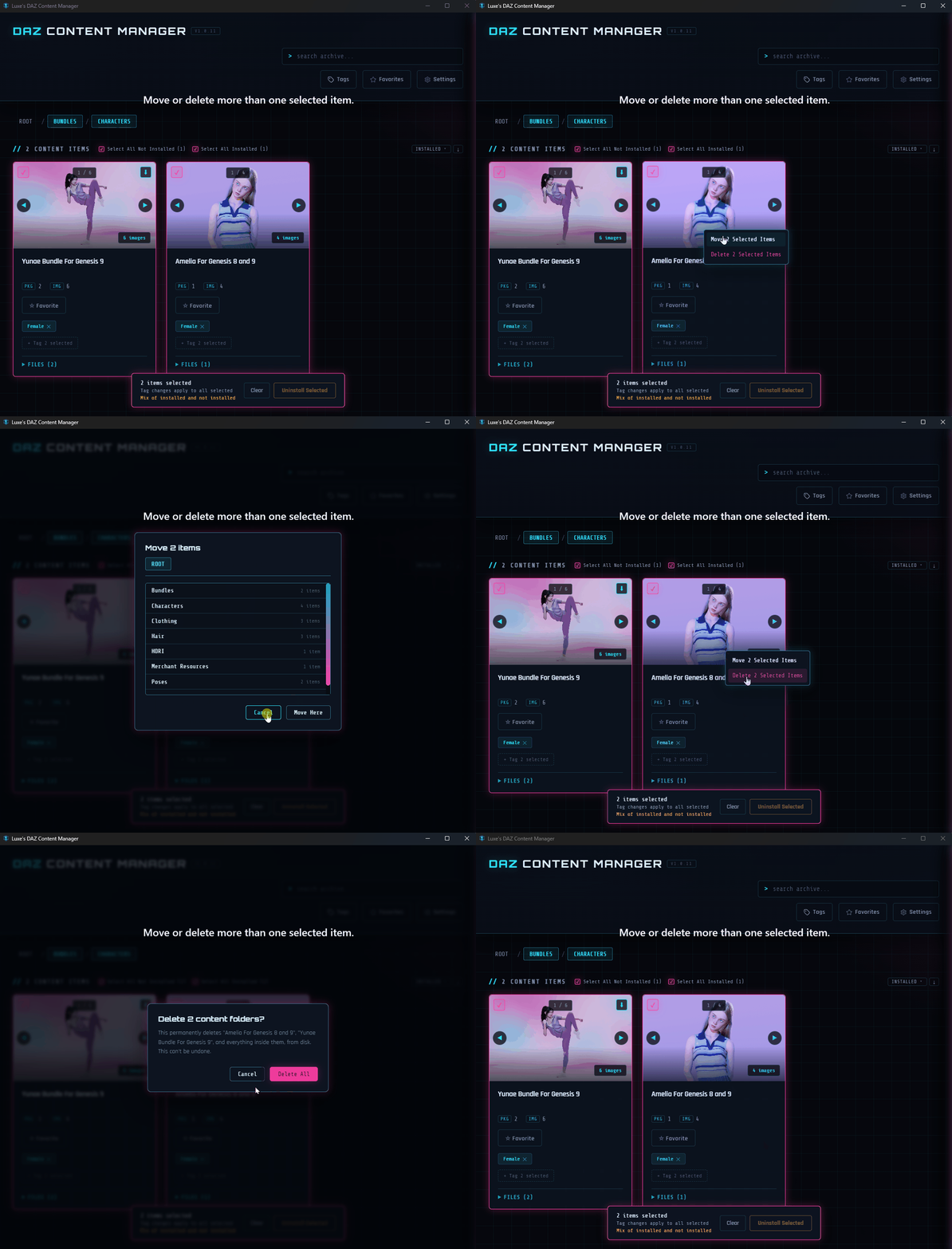
For convenience, you can also move or delete all selected items, not just one at a time.
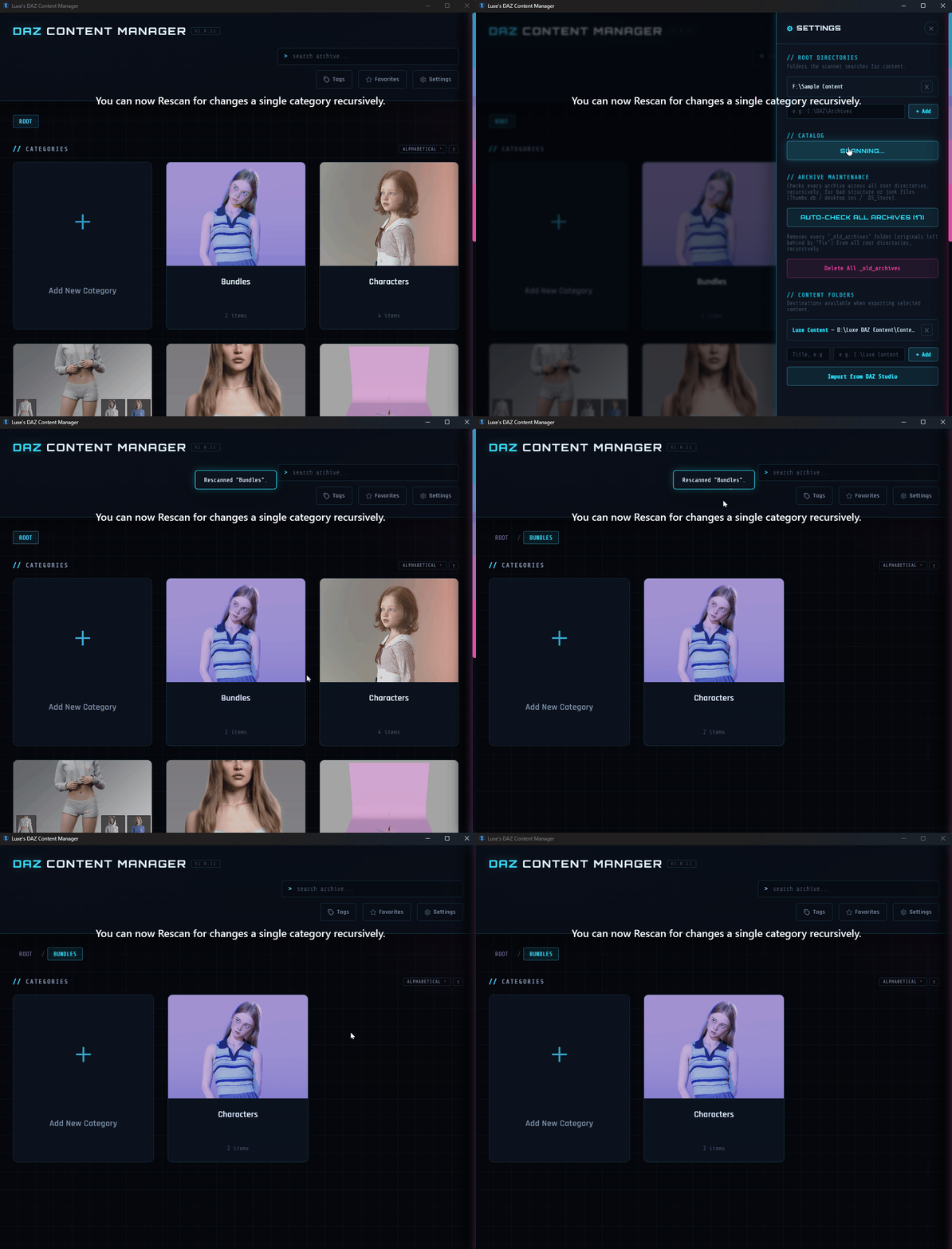
In addition, you're not limited to rescanning all your root folders. If you've made manual changes or added new content items manually to a category, you can simply rescan that category for a quicker update of your content.
For convenience, you can also move or delete all selected items, not just one at a time.
In addition, you're not limited to rescanning all your root folders. If you've made manual changes or added new content items manually to a category, you can simply rescan that category for a quicker update of your content.
REPLY
! REPORT
We have just added yet more quality of life updates.
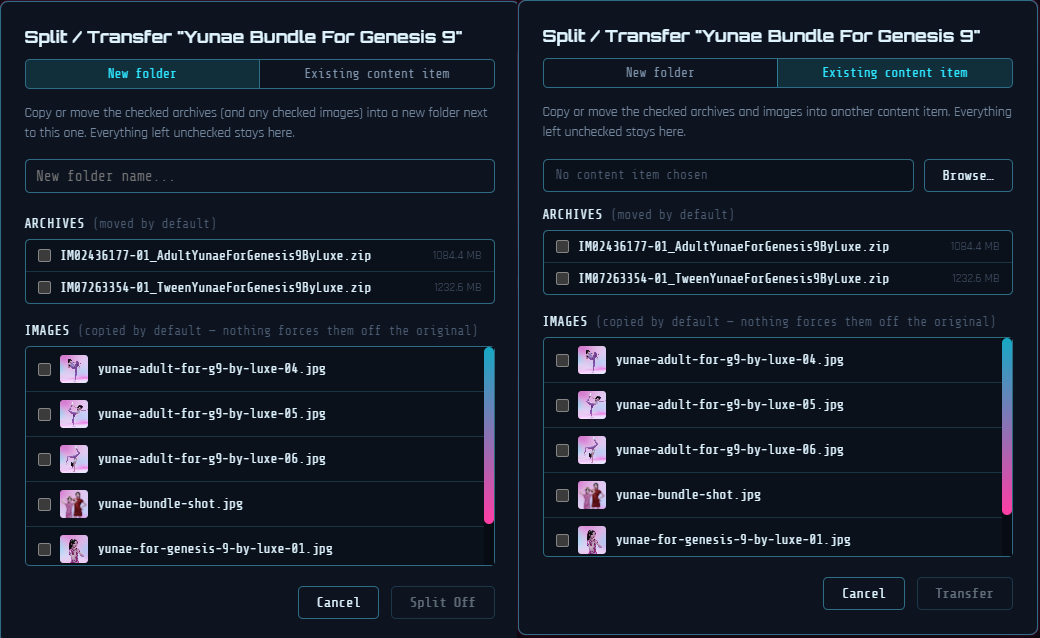
The split feature now lets you split, as well as transfer archives and/or images (or simply duplicate them) to an existing folder.
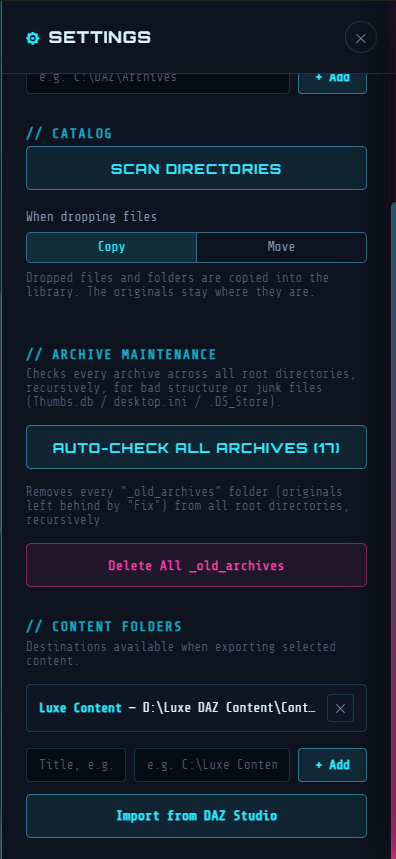
Currently when dropping content into the app, the content will be copied, and the original remains untouched. You can now also have it move the content, so you don't have to manually delete the source. To have the app do this, you need to go to your settings, and toggle move, as your default drop content behavior.
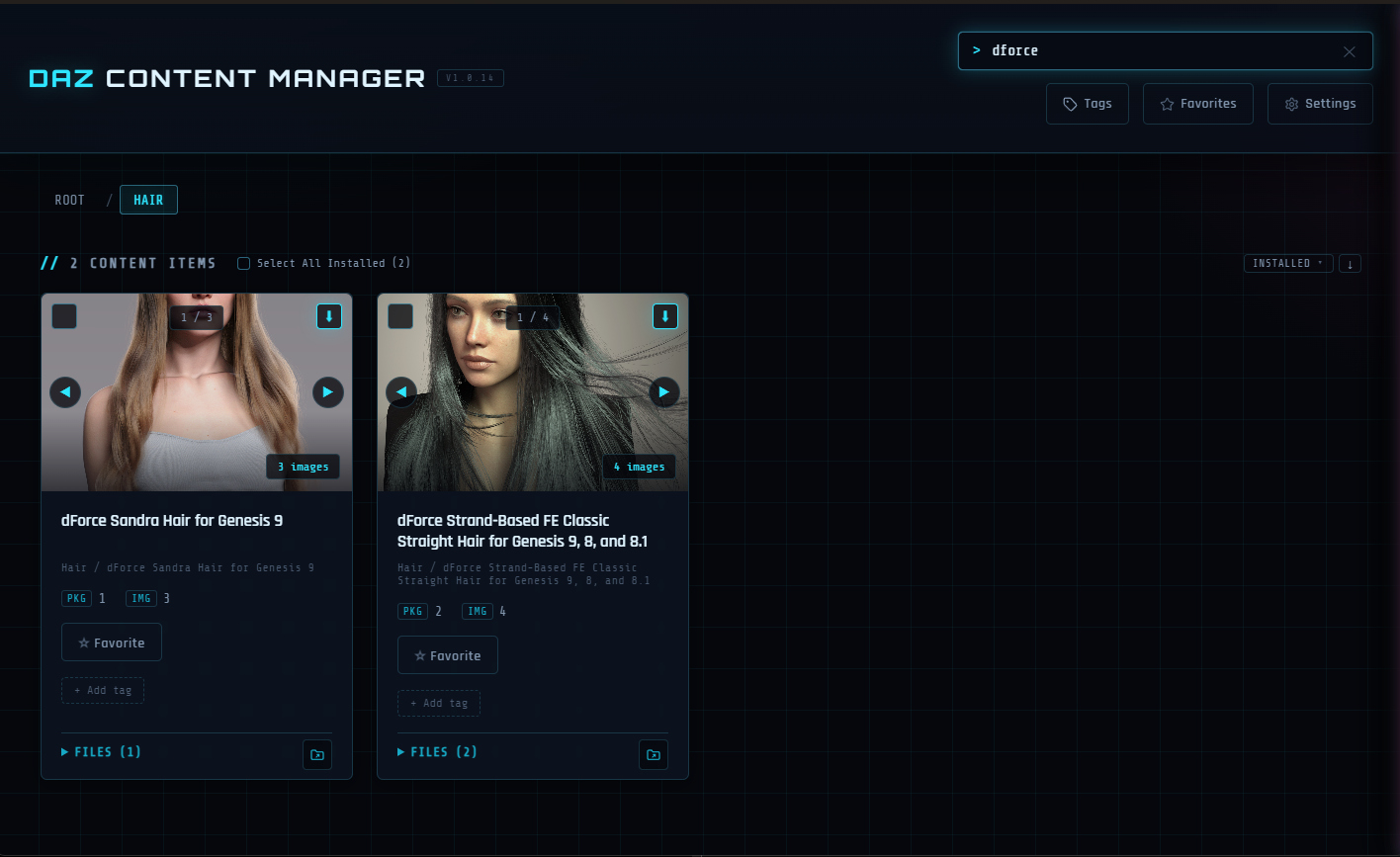
In addition, Searching was change so that while browsing a category, it will only search within the category. To search your entire content library simply make sure you are at the root.
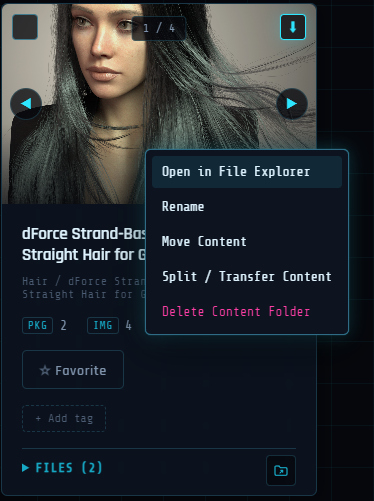
And lastly, you now browse to the folder where your files are located via the bottom right icon on your content card, or the right click context menu.
The split feature now lets you split, as well as transfer archives and/or images (or simply duplicate them) to an existing folder.
Currently when dropping content into the app, the content will be copied, and the original remains untouched. You can now also have it move the content, so you don't have to manually delete the source. To have the app do this, you need to go to your settings, and toggle move, as your default drop content behavior.
In addition, Searching was change so that while browsing a category, it will only search within the category. To search your entire content library simply make sure you are at the root.
And lastly, you now browse to the folder where your files are located via the bottom right icon on your content card, or the right click context menu.
REPLY
! REPORT
Luxe Muse
Karma: 9,329
Wed, Oct 14When transferring archives or splitting an existing content item, if the content item is already installed, it will not let you. You’ll need to uninstall the item first, move it, and then install it again.
A new version just dropped with yet another neat feature suggested by @Slystallone. It's one I desperately needed as well, and I bet you do too!
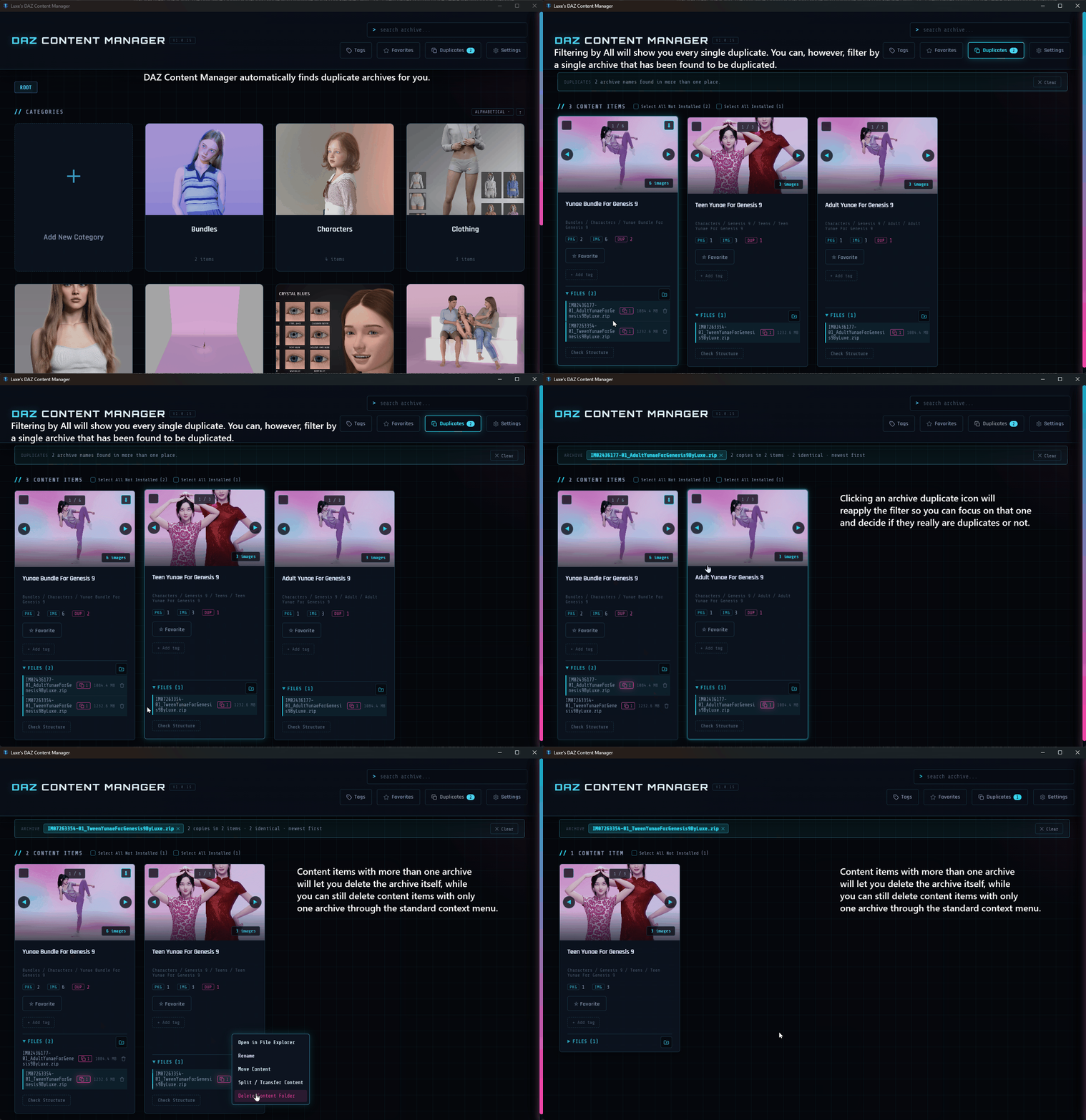
DAZ Content Manager will now automatically find duplicate archives. You can filter all your content items containing duplicate archives with one click. But that's not all; you can also better filter by one single archive that's duplicated and see all your content items that have a similar archive.
For that, there will be icons placed for each content item that is duplicated.
Pink items (ehem ...magenta/pink shade ) are those that match completely. They have the same name, the same size, and more.
Yellow ones are items that match, but they seem to be different versions.
DAZ Content Manager will now automatically find duplicate archives. You can filter all your content items containing duplicate archives with one click. But that's not all; you can also better filter by one single archive that's duplicated and see all your content items that have a similar archive.
For that, there will be icons placed for each content item that is duplicated.
Pink items (ehem ...magenta/pink shade
) are those that match completely. They have the same name, the same size, and more. Yellow ones are items that match, but they seem to be different versions.
REPLY
! REPORT