Free 3D
 3D Print Models
 3D Scans
 Animation & MoCap
 Textures
 Materials
 Skin Reference
 2D Game Assets
 Sound Effects
 Brushes & Tools
 Reference Photos
 Stock Images
 HDR Images
 3ds Max
 Maya
Maya Blender
 Unreal Engine
 Unity
Unity ZBrush
 Cinema 4D
 LightWave
 Marmoset
 SketchUp
 FBX
FBX DAE
DAE DXF
DXF GLB
GLB
! REPORT

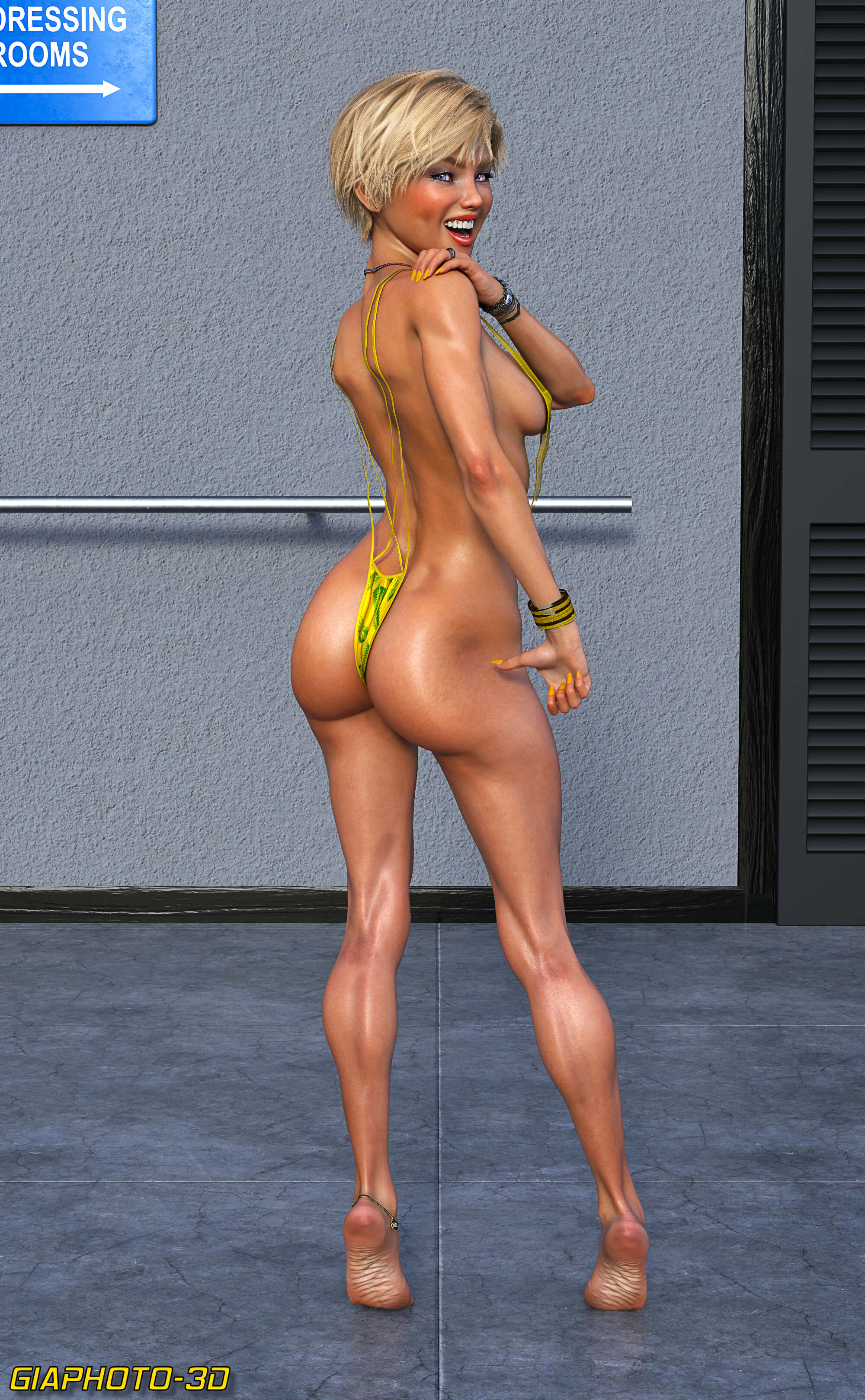
Fern Knows What You Like About Her
3D Render by GiaPhoto-3DBikdingle often comments about my enhancements to character skins. Let me take this opportunity to give anyone who cares a "semi-simple" breakdown of my skin methodology.
I believe every artist has an ideal of the female form. I also firmly believe the musculature of the subject is what makes my canvas work. I rely on my years as a portrait photographer to guide me. Photography is about shadows and highlights. This is why I sculpt my characters with somewhat exaggerated muscle tone, because these curves create the highlights and shadows. So in my first couple of years of 3D learning, I primarily acquired muscle morphing plug-ins for this purpose. There are dozens available here and on other sites.
IMPORTANT NOTE: This breakdown is for DazStudio users. I don't know any other programs.
Step 1 is replacing the model's skin. Hundreds of artists release great skins (and some not so great). To achieve consistency for my style, I use one artist on all of my models. My skin of choice comes from Sabby. Unfortunately, she stopped releasing new G8 models in early 2024, but I believe she still does G9, and there is a huge catalog of her G8 models available on a few different sites, both alone and in collaborations, including JASA, SASE, FWSA, and a few others. To my eye, they are the best.
Then on the character, I always raise the Subdivision Level to 3 in the Parameters Tab, with the minimum set to 2
Step 2 is enhancing the light and shadow on the skin surface. Many pro Real Life models use baby oil to create those gradients on their skin. So I set out attempting to duplicate that shine on real skin. My go-to filter set is the Altern8 Skin Shader System for Genesis 8 by 3Diva. I apply it to EVERY model I render. Primarily, I use the Translucency to adjust tone and the Shine filter for gloss and shadows. The eye enhancement is pretty great as well
* EXTRA TIP: For clothing on muscular/fit models, adding a Push Modifier (before you render and use D-force) at 0.2 or .3 makes a huge difference for poke throughs..
Step 3 is the lighting setup. I try to duplicate the methods I used as a real-world photographer. I often use the default HDRI, unless I am going for an outdoor light style. Adding a 1, 2, or 3-light setup to enhance with either point or spot lights., depending on the environment, style, and mood of the piece. The key to success is experimentation, and many, many tutorials are available on YouTube.
Step 4 happens in the render settings window of Daz Studio before you hit render: In the Progressive Rendering Tab, I set Max Samples at 10000 - Max Time at 14400 - Rendering Quality Enable to on - and Render Quality at 4.
Next is the Filtering Tab: Noise Degrain Filter set to 4 - I prefer the Mitchell Pixel Filter, and then set the Filter Radius to 0.80.
I rarely vary these render settings, and I always output my renders to a .png format to get zero image compression.
These 4 steps get me to the post (Affinity/Photoshop) stage of the work. Honestly, I have 20+ years of photo retouch experience, which makes that job so much easier for me (sorry). However, here is a simplified version:
I start by adjusting/enhancing the colors, principally the skin tones and key light colors, with a Selective Color Layer. Reds, Yellows, Blues. Next, I sharpen the eyes, lips, hair edges, and other sections I want to "pop out" with the sharpening tool. It also helps the eyes to become the focus of the image. I always recommend a low percentage of opacity to avoid pixel distortion. I set the sharpen brush to "harsh" with an opacity of 10%. REMEMBER, subtlety is PARAMOUNT!
I often will add a tiny highlight "dot" of white to the model{s} eyes (it's called a catch light) with a very small soft brush diameter. It brings a very "human" look to your image.
Next, I dodge and burn the highlights and shadows for contrast, clarity and "pop" (on the eyes, muscle tone, and clothing folds). Again, subtle is always best. Next, if I missed any "poke throughs" in the clothing while rendering, I will fix those with the clone stamp tool and/or the blend stamp tool.
The closing steps are an overall color saturation boost (no more than 8%, usually 6%). A very slight increase in contrast can often improve the image as well, and lastly, an old sharpening trick that I will share with you here: I duplicate the entire image one layer up and run a High Pass filter on it at a 2 pixel radius. Then, I change that duplicate layer blending mode to "overlay" and merge it down.
Voilà! Instant image sharpness POP!
The last step is to place my watermark and save a .jpg copy for posting on the Interwebz. I NEVER save the changes to my render .png so I can start over if I have to re-do the version for posting!
I hope you all find this helpful in your process. Thanks for reading my Ted Talk.
~ GIAPhoto-3D
I believe every artist has an ideal of the female form. I also firmly believe the musculature of the subject is what makes my canvas work. I rely on my years as a portrait photographer to guide me. Photography is about shadows and highlights. This is why I sculpt my characters with somewhat exaggerated muscle tone, because these curves create the highlights and shadows. So in my first couple of years of 3D learning, I primarily acquired muscle morphing plug-ins for this purpose. There are dozens available here and on other sites.
IMPORTANT NOTE: This breakdown is for DazStudio users. I don't know any other programs.
Step 1 is replacing the model's skin. Hundreds of artists release great skins (and some not so great). To achieve consistency for my style, I use one artist on all of my models. My skin of choice comes from Sabby. Unfortunately, she stopped releasing new G8 models in early 2024, but I believe she still does G9, and there is a huge catalog of her G8 models available on a few different sites, both alone and in collaborations, including JASA, SASE, FWSA, and a few others. To my eye, they are the best.
Then on the character, I always raise the Subdivision Level to 3 in the Parameters Tab, with the minimum set to 2
Step 2 is enhancing the light and shadow on the skin surface. Many pro Real Life models use baby oil to create those gradients on their skin. So I set out attempting to duplicate that shine on real skin. My go-to filter set is the Altern8 Skin Shader System for Genesis 8 by 3Diva. I apply it to EVERY model I render. Primarily, I use the Translucency to adjust tone and the Shine filter for gloss and shadows. The eye enhancement is pretty great as well
* EXTRA TIP: For clothing on muscular/fit models, adding a Push Modifier (before you render and use D-force) at 0.2 or .3 makes a huge difference for poke throughs..
Step 3 is the lighting setup. I try to duplicate the methods I used as a real-world photographer. I often use the default HDRI, unless I am going for an outdoor light style. Adding a 1, 2, or 3-light setup to enhance with either point or spot lights., depending on the environment, style, and mood of the piece. The key to success is experimentation, and many, many tutorials are available on YouTube.
Step 4 happens in the render settings window of Daz Studio before you hit render: In the Progressive Rendering Tab, I set Max Samples at 10000 - Max Time at 14400 - Rendering Quality Enable to on - and Render Quality at 4.
Next is the Filtering Tab: Noise Degrain Filter set to 4 - I prefer the Mitchell Pixel Filter, and then set the Filter Radius to 0.80.
I rarely vary these render settings, and I always output my renders to a .png format to get zero image compression.
These 4 steps get me to the post (Affinity/Photoshop) stage of the work. Honestly, I have 20+ years of photo retouch experience, which makes that job so much easier for me (sorry). However, here is a simplified version:
I start by adjusting/enhancing the colors, principally the skin tones and key light colors, with a Selective Color Layer. Reds, Yellows, Blues. Next, I sharpen the eyes, lips, hair edges, and other sections I want to "pop out" with the sharpening tool. It also helps the eyes to become the focus of the image. I always recommend a low percentage of opacity to avoid pixel distortion. I set the sharpen brush to "harsh" with an opacity of 10%. REMEMBER, subtlety is PARAMOUNT!
I often will add a tiny highlight "dot" of white to the model{s} eyes (it's called a catch light) with a very small soft brush diameter. It brings a very "human" look to your image.
Next, I dodge and burn the highlights and shadows for contrast, clarity and "pop" (on the eyes, muscle tone, and clothing folds). Again, subtle is always best. Next, if I missed any "poke throughs" in the clothing while rendering, I will fix those with the clone stamp tool and/or the blend stamp tool.
The closing steps are an overall color saturation boost (no more than 8%, usually 6%). A very slight increase in contrast can often improve the image as well, and lastly, an old sharpening trick that I will share with you here: I duplicate the entire image one layer up and run a High Pass filter on it at a 2 pixel radius. Then, I change that duplicate layer blending mode to "overlay" and merge it down.
Voilà! Instant image sharpness POP!
The last step is to place my watermark and save a .jpg copy for posting on the Interwebz. I NEVER save the changes to my render .png so I can start over if I have to re-do the version for posting!
I hope you all find this helpful in your process. Thanks for reading my Ted Talk.
~ GIAPhoto-3D


Your morphs, texture, lighting, pose, and tutorial are fantastic. Thanks for sharing.
REPLY
! REPORT
GiaPhoto-3D
Karma: 11,597
Tue, Aug 18I'm happy to share what I have learned. My hope is that other artists find something useful from my ideas..


 Affinity Photo
 Daz Studio
 Nvidia Iray Render