


 Free 3D
 3D Print Models
 3D Scans
 Animation & MoCap
 Textures
 Materials
 Skin Reference
 2D Game Assets
 Sound Effects
 Brushes & Tools
 Reference Photos
 Stock Images
 HDR Images
 3ds Max
 Maya
Maya Blender
 Unreal Engine
 Unity
Unity ZBrush
 Cinema 4D
 LightWave
 Marmoset
 SketchUp
 FBX
FBX DAE
DAE DXF
DXF GLB
GLBRender Assistant

5.0 Stars |7 Ratings


! REPORT
FREE
NOTE: DIGITAL DOWNLOAD, NOT A PHYSICAL ITEM

Add to Collection

25 Likes
Share This Daz Content


Top Rated Vendor


License
Extended Use License
This item comes with our Extended Use Licensing. This means that you may use the model for both non-commercial and commercial purposes, in a variety of mediums and applications.
For full license terms, see our 3D Content Licensing Agreement
Item Details
| Vendor: | intenzo |
| Published: | Oct 05, 2026 |
| Download Size: | 181.1 KB |
| Software: | Daz Studio |
| Compatible Figure: | Original Daz Figure |
| dForce: | – |
Included Formats

Statistics
| Favorites: | 8 |
| Likes: | 25 |
| Views: | 1,169 |
Item Ratings
7 Ratings5 Stars|Oct 15, 2026
My new fav batchende script. I like the feature to add the current project to the list. It's a big timesafer.
5 Stars|Oct 14, 2026
Great job! Thank you very much!
5 Stars|Oct 11, 2026
Great assistant that really helps with rendering - can't believe it's free!
5 Stars|Oct 09, 2026
Love IT!
5 Stars|Oct 06, 2026
Thank you‥
5 Stars|Oct 06, 2026
GOOD!
Page 1 of 2
Render Assistant
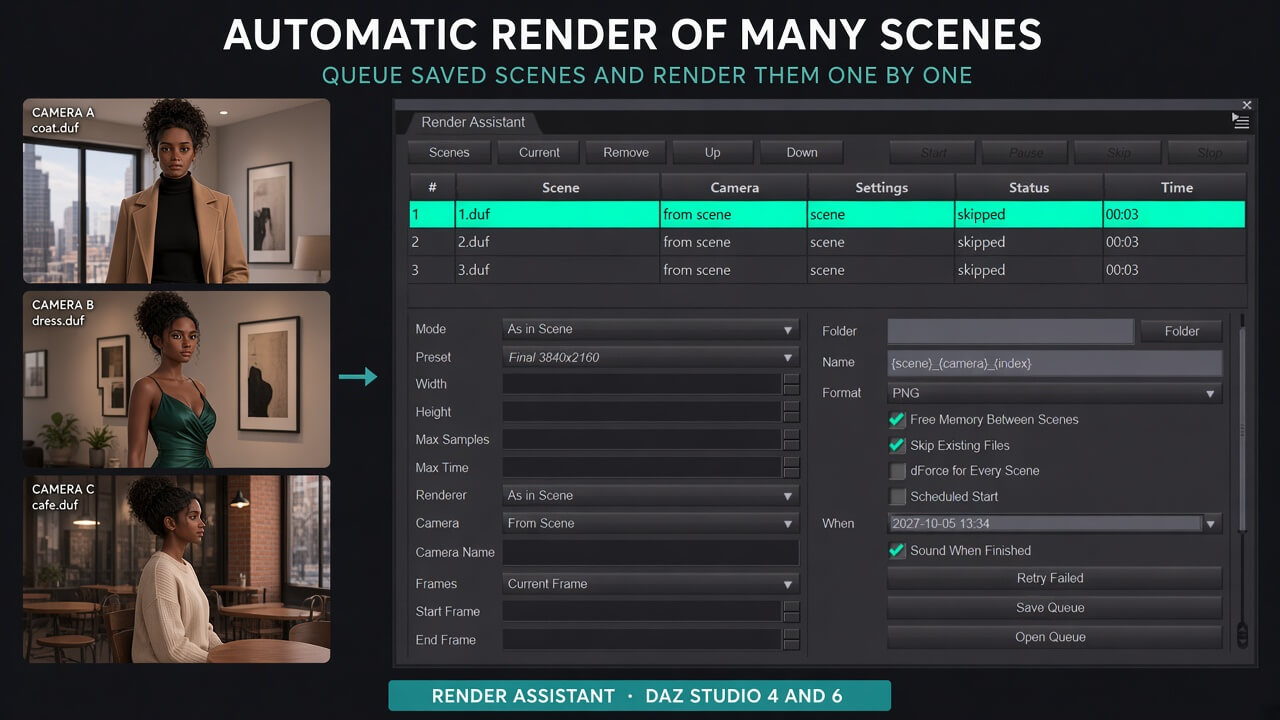
Render Assistant is a plugin for DAZ Studio 4 and DAZ Studio 6. It builds a queue of saved scenes and renders them one after another. Studio stays open. The source scene file is never overwritten.
Use it when several finished scenes should run without opening each one by hand: an overnight batch, variations of the same setup, different cameras, or different quality presets.
Queue
Add .duf and .daz files, or add the scene that is already open. The current scene can be added only after it has been saved to disk. The same file is not added twice.
Jobs can be removed and reordered. Each row shows the scene name, camera, settings mode, status, and elapsed time. Statuses are pending, loading, rendering, done, failed, and skipped.
Start the queue, pause after the current job, skip the current job, or stop the queue. Failed jobs can be sent back to the queue on their own. The list can be saved to a file and opened again.
Per-scene settings
A job has three modes.
As in Scene uses whatever is already saved in the file.
Preset applies a ready set of size, Max Samples, and Max Time.
Custom sets width, height, Max Samples, and Max Time by hand. Leave Unchanged keeps the scene value. A Max Time of zero means no time limit.
Presets:
- Draft: 128020, 400 samples, 180 seconds
- Preview: 1920080, 1500 samples, 600 seconds
- Final: 3840160, 5000 samples, no time limit
- Print: 6000500, 8000 samples, no time limit
The renderer can be chosen, or left as saved in the scene. The camera can come from the scene, be named, or every camera in the scene can be rendered. Frames are the current frame or a start-to-end range. A dForce simulation can run before the render for one job or for every scene in the queue.
One job’s settings can be applied to the selected rows.
Output
Use the queue folder or a folder on the job. The file name is built from a pattern. The default pattern is {scene}_{camera}_{index}. The format is PNG or JPG.
If a file with that name already exists, that camera job is skipped and the finished render is not replaced. This can be turned off.
How a batch runs
Studio stays open. When Free Memory Between Scenes is on, the current scene is unloaded before the next one, the undo history is cleared, and unused textures are released. The next file is then opened.
While a scene loads, the plugin closes the usual dialogs that would otherwise stop the queue. A save prompt is answered Don’t Save. The Missing Files window is closed with Skip, without installing products and without picking files. The render window itself is left alone.
Remaining time is estimated from finished jobs. The queue can start at a chosen time. A sound plays when the queue finishes. A log is shown in the pane and written to a file.
If Studio is closed during a queue
The next time the plugin opens, it sees that the queue was not finished and offers to continue. If nothing is clicked, it continues after 15 seconds. Cancel leaves the jobs in place and does not start rendering.
Where to open it
Window > Panes > Render Assistant
or the Render > Render Assistant menu.
Use it when several finished scenes should run without opening each one by hand: an overnight batch, variations of the same setup, different cameras, or different quality presets.
Queue
Add .duf and .daz files, or add the scene that is already open. The current scene can be added only after it has been saved to disk. The same file is not added twice.
Jobs can be removed and reordered. Each row shows the scene name, camera, settings mode, status, and elapsed time. Statuses are pending, loading, rendering, done, failed, and skipped.
Start the queue, pause after the current job, skip the current job, or stop the queue. Failed jobs can be sent back to the queue on their own. The list can be saved to a file and opened again.
Per-scene settings
A job has three modes.
As in Scene uses whatever is already saved in the file.
Preset applies a ready set of size, Max Samples, and Max Time.
Custom sets width, height, Max Samples, and Max Time by hand. Leave Unchanged keeps the scene value. A Max Time of zero means no time limit.
Presets:
- Draft: 128020, 400 samples, 180 seconds
- Preview: 1920080, 1500 samples, 600 seconds
- Final: 3840160, 5000 samples, no time limit
- Print: 6000500, 8000 samples, no time limit
The renderer can be chosen, or left as saved in the scene. The camera can come from the scene, be named, or every camera in the scene can be rendered. Frames are the current frame or a start-to-end range. A dForce simulation can run before the render for one job or for every scene in the queue.
One job’s settings can be applied to the selected rows.
Output
Use the queue folder or a folder on the job. The file name is built from a pattern. The default pattern is {scene}_{camera}_{index}. The format is PNG or JPG.
If a file with that name already exists, that camera job is skipped and the finished render is not replaced. This can be turned off.
How a batch runs
Studio stays open. When Free Memory Between Scenes is on, the current scene is unloaded before the next one, the undo history is cleared, and unused textures are released. The next file is then opened.
While a scene loads, the plugin closes the usual dialogs that would otherwise stop the queue. A save prompt is answered Don’t Save. The Missing Files window is closed with Skip, without installing products and without picking files. The render window itself is left alone.
Remaining time is estimated from finished jobs. The queue can start at a chosen time. A sound plays when the queue finishes. A log is shown in the pane and written to a file.
If Studio is closed during a queue
The next time the plugin opens, it sees that the queue was not finished and offers to continue. If nothing is clicked, it continues after 15 seconds. Cancel leaves the jobs in place and does not start rendering.
Where to open it
Window > Panes > Render Assistant
or the Render > Render Assistant menu.
