


 Free 3D
 3D Print Models
 3D Scans
 Animation & MoCap
 Textures
 Materials
 Skin Reference
 2D Game Assets
 Sound Effects
 Brushes & Tools
 Reference Photos
 Stock Images
 HDR Images
 3ds Max
 Maya
Maya Blender
 Unreal Engine
 Unity
Unity ZBrush
 Cinema 4D
 LightWave
 Marmoset
 SketchUp
 FBX
FBX DAE
DAE DXF
DXF GLB
GLBProcedural Cable Generator (With "Chain" Feature)

Not Rated Yet


! REPORT
NOTE: DIGITAL DOWNLOAD, NOT A PHYSICAL ITEM

Add to Collection

5 Likes
Share This Daz Content


Offered By


- Long time Daz Studio user since V1.8
- Indiegame development enthusiast
- \m/ Guitar player and metalfan from Germany \m/
- Indiegame development enthusiast
- \m/ Guitar player and metalfan from Germany \m/

License
Extended Use License
This item comes with our Extended Use Licensing. This means that you may use the model for both non-commercial and commercial purposes, in a variety of mediums and applications.
For full license terms, see our 3D Content Licensing Agreement
Item Details
| Vendor: | MIMK_MIKE_GER |
| Published: | Oct 27, 2026 |
| Download Size: | 489.8 KB |
| Software: | Daz Studio |
| dForce: | Yes |
Included Formats

Statistics
| Favorites: | 1 |
| Likes: | 5 |
| Views: | 119 |
Item Ratings
Not Rated Yet
Procedural Cable Generator (With "Chain" Feature)
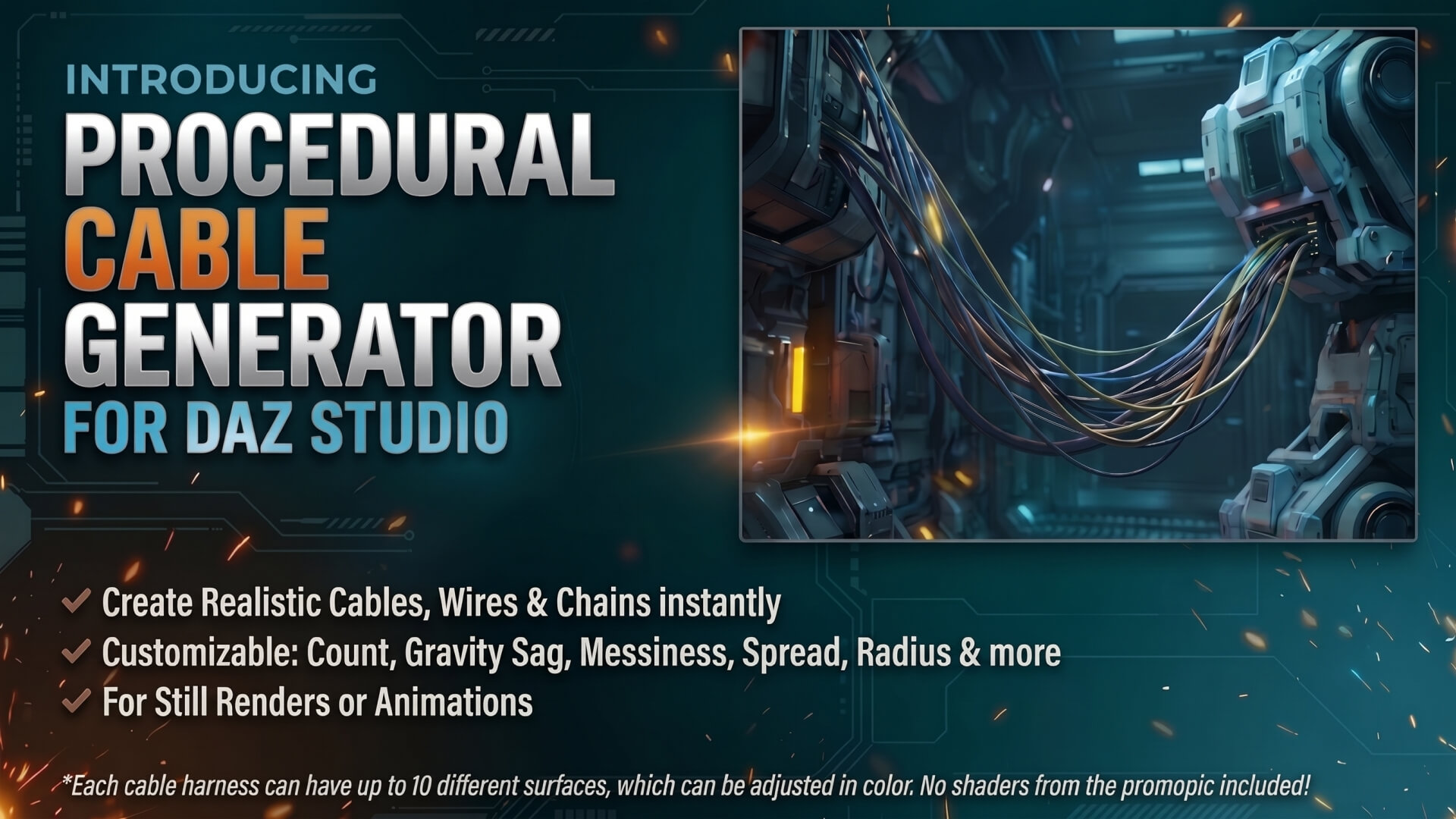
Did you ever needed some wild cables to add to a render?
May it be for a massive machine, weapons, modified vehicles, a cyborg or just as a fireman's hose or guitarcable…!
Here's a quick solution to create those big cable harnesses or just single cables.
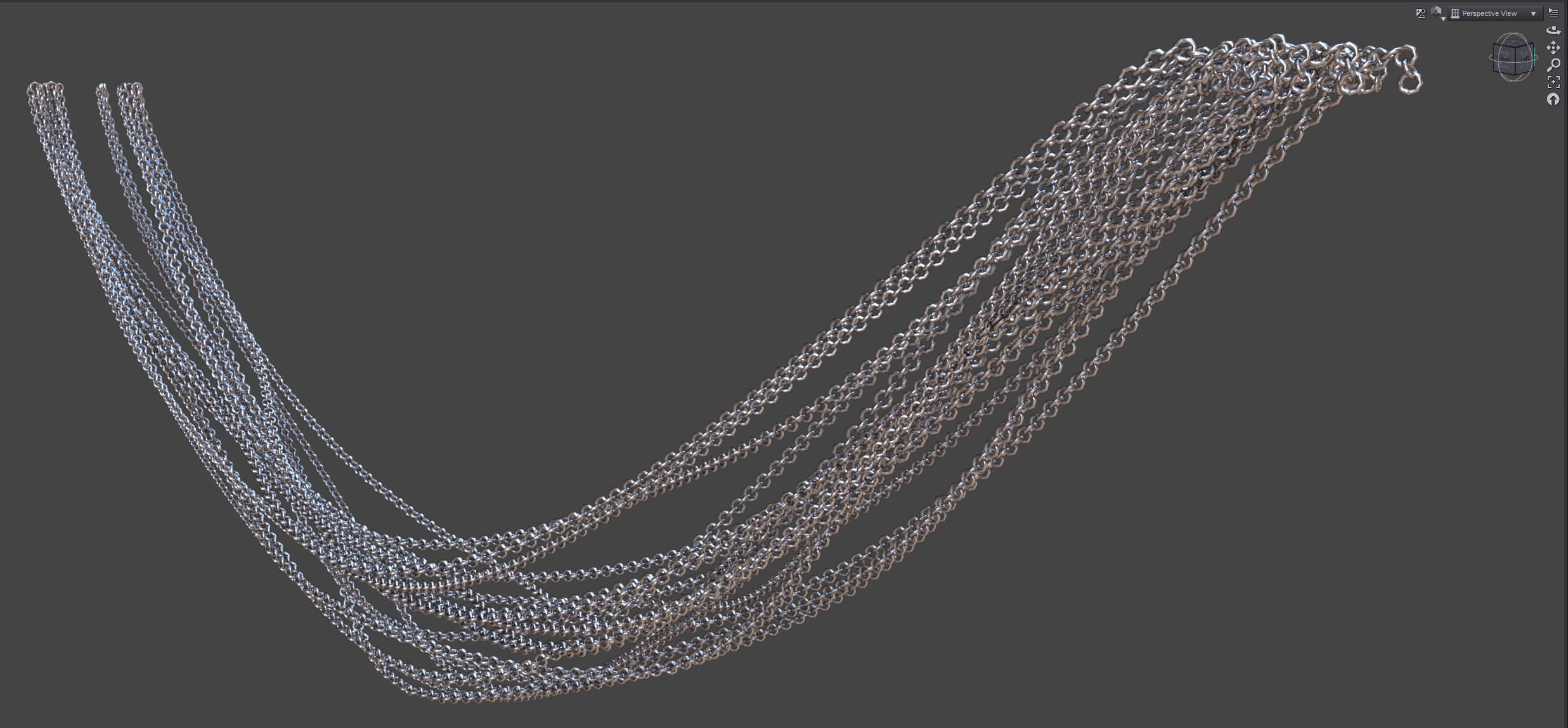
As "Bonus feature" even chains! (See attached pic)
What you get?
-------------
A bundle of several scripts to create cable harnesses, attach those to objects/figures and even animate it.
01 Add Nulls
02 Null to Center
03 The actual PCG script
04 Add D-Force Dynamic Surface
05 Set D-Force Dynamics Strength to zero for the Tips preset
06 Universal Node Attacher
How to use it?
-------------
Here's a quick introduction how it works!
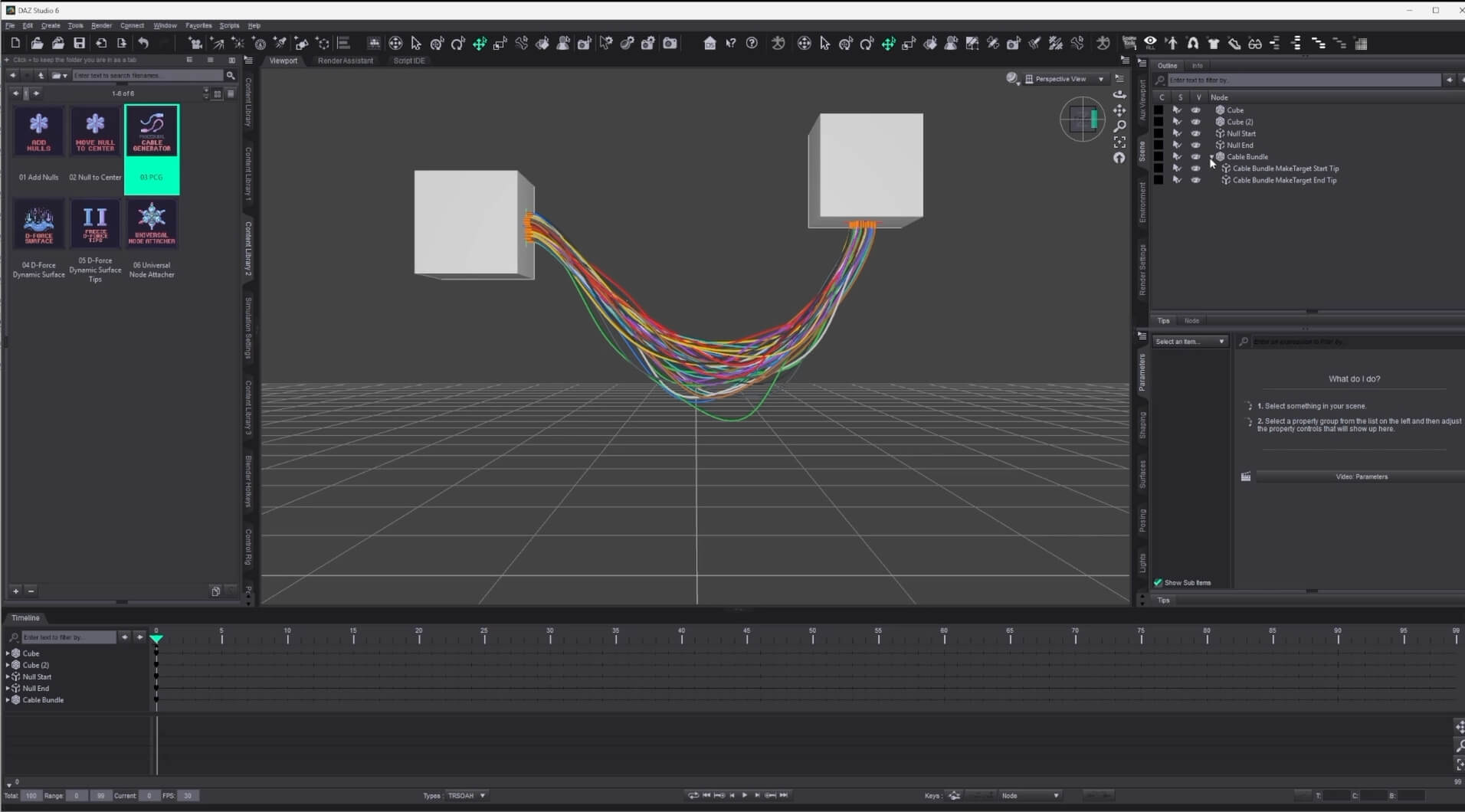
01. Add 2 nulls (or use the included script).
Next add your objects or figures to the scene.
02. "NULL TO CENTER" is a little helper to position the nulls centered into a object/figure, with the option to move those to a specific side.
Just select the null > hold Ctrl > select the object/figure > run the script.
03. Now to the main script!
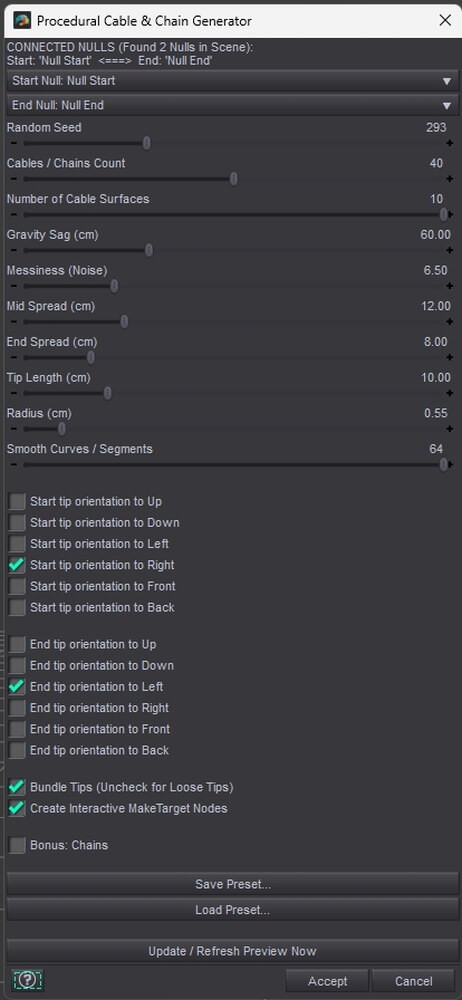
First of all it recognizes all nulls in a scene and gives the option to pick a start and end point.
Followed by a slider section with many selfexplaining options!
Random Seed: Varis the look of the cable/chain harness
Cables/Chains Count: Sets the number of cables/chains
Gravity Sag: Controls how much the cables/chains are hanging
Messiness / Mid & End Spread: Sets how tight the harness is
Note: There's a possible risk of some minor intersections, especially with many or thicker cables/chains or a tight harness.
Experiment with these settings for the most satisfying results.
Tip Length: Sets the Tip Length
Radius: Sets the radius
Smooth curves / Segments: Sets how smooth the cables/chains will look. Use lower settings to make the cables/chains less rounded.
Hint: To have more creative control it's possible to show a preview of the set settings
Once happy just accept and it'll get finally created, but no more base changes can be done!
Next up are some checkboxes!
"Orientation of the start and end tips" will help for better placements.
The next checkbox breaks the bundle of the tips into several loose strands (if unchecked).
MakeTarget nodes will help to move the cables/chains around or attach those to a object/figure.
Once created you can pick the tips inside of the "Cable Bundle" and move those freely around.
I've added a option to bend and twist the tips too. This can be helpfully to fix collisions with objects, but shouldn't be overdone.
Since it's working with deformers, the cables/chains can change the scale on too high settings.
The last checkbox changes the "cables to chains" and limits the surfaces to just 1.
This can be quite PC power demanding, if you add lots of chains at once!
So experiment with the amounts of chains or reduce the "Smooth Curves / Segments" setting.
I've added 3 scripts for all animators too!
1. D-force Dynamics Surface will add one to the cables/chains
2. The next is just a "D-force settings preset", which deactivates D-force for the tips
3. A "Universal Node Attacher"
So how to animate 2 objects/figures with the cables/chains between after D-force was injected?
1. Set your start positions at frame 0.
2. Then just move the object/figure to any new position. Don't wonder the cables/chains won't follow.
3. When done go back to frame 0 and select the tip which shall get attached to the object/figure.
Tip > hold Ctrl > object/figure > run "Universal Node Attacher" script
It'll update the cables/chains over the full timeline and keeps those attached to the object/figure.
What's in the package?
-------------
5x scripts to run straight from the scripts Folder in your Daz Studio libary
1x D-force settings preset for the tips
1x this introduction/tutorial als PDF file
The zip file includes a "Script" folder" which just needs to be copied into the Daz Studio library folder.
May it be for a massive machine, weapons, modified vehicles, a cyborg or just as a fireman's hose or guitarcable…!
Here's a quick solution to create those big cable harnesses or just single cables.
As "Bonus feature" even chains! (See attached pic)
What you get?
-------------
A bundle of several scripts to create cable harnesses, attach those to objects/figures and even animate it.
01 Add Nulls
02 Null to Center
03 The actual PCG script
04 Add D-Force Dynamic Surface
05 Set D-Force Dynamics Strength to zero for the Tips preset
06 Universal Node Attacher
How to use it?
-------------
Here's a quick introduction how it works!
01. Add 2 nulls (or use the included script).
Next add your objects or figures to the scene.
02. "NULL TO CENTER" is a little helper to position the nulls centered into a object/figure, with the option to move those to a specific side.
Just select the null > hold Ctrl > select the object/figure > run the script.
03. Now to the main script!
First of all it recognizes all nulls in a scene and gives the option to pick a start and end point.
Followed by a slider section with many selfexplaining options!
Random Seed: Varis the look of the cable/chain harness
Cables/Chains Count: Sets the number of cables/chains
Gravity Sag: Controls how much the cables/chains are hanging
Messiness / Mid & End Spread: Sets how tight the harness is
Note: There's a possible risk of some minor intersections, especially with many or thicker cables/chains or a tight harness.
Experiment with these settings for the most satisfying results.
Tip Length: Sets the Tip Length
Radius: Sets the radius
Smooth curves / Segments: Sets how smooth the cables/chains will look. Use lower settings to make the cables/chains less rounded.
Hint: To have more creative control it's possible to show a preview of the set settings
Once happy just accept and it'll get finally created, but no more base changes can be done!
Next up are some checkboxes!
"Orientation of the start and end tips" will help for better placements.
The next checkbox breaks the bundle of the tips into several loose strands (if unchecked).
MakeTarget nodes will help to move the cables/chains around or attach those to a object/figure.
Once created you can pick the tips inside of the "Cable Bundle" and move those freely around.
I've added a option to bend and twist the tips too. This can be helpfully to fix collisions with objects, but shouldn't be overdone.
Since it's working with deformers, the cables/chains can change the scale on too high settings.
The last checkbox changes the "cables to chains" and limits the surfaces to just 1.
This can be quite PC power demanding, if you add lots of chains at once!
So experiment with the amounts of chains or reduce the "Smooth Curves / Segments" setting.
I've added 3 scripts for all animators too!
1. D-force Dynamics Surface will add one to the cables/chains
2. The next is just a "D-force settings preset", which deactivates D-force for the tips
3. A "Universal Node Attacher"
So how to animate 2 objects/figures with the cables/chains between after D-force was injected?
1. Set your start positions at frame 0.
2. Then just move the object/figure to any new position. Don't wonder the cables/chains won't follow.
3. When done go back to frame 0 and select the tip which shall get attached to the object/figure.
Tip > hold Ctrl > object/figure > run "Universal Node Attacher" script
It'll update the cables/chains over the full timeline and keeps those attached to the object/figure.
What's in the package?
-------------
5x scripts to run straight from the scripts Folder in your Daz Studio libary
1x D-force settings preset for the tips
1x this introduction/tutorial als PDF file
The zip file includes a "Script" folder" which just needs to be copied into the Daz Studio library folder.
